View CMS Content Details in Enhanced CMS Workspaces
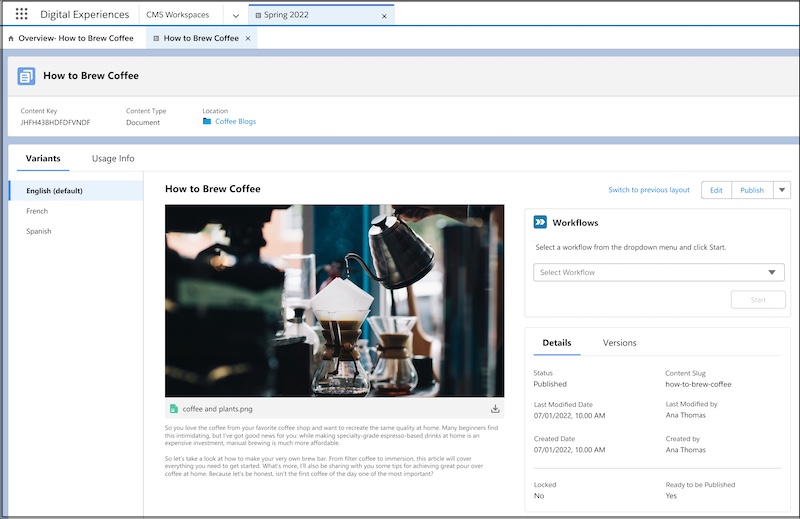
The content detail page in enhanced CMS workspaces gives a summary of a content item. If
the content item has variants, you can switch between them from the left navigation menu. In the
center column, see a quick view of the content. View content details, version history, and see
where the content is published or referenced. Edit, publish, or unpublish, and run content
workflows for your content.
Required Editions
Available in: Lightning Experience
Available in: Enterprise, Performance, Unlimited, and
Developer Editions
Usage
Click Usage Info to see a list of places where the content is published or referenced. View
each site, flow, collection, or other record along with key details like variant name,
language, and when it was published. Usage is listed for each published variant of a content
item.
Workflows
Create custom workflows directly from the Workflows card on the content detail page.
Streamline your content review and approval processes, translation requests, and more. Set
up content roles to predefine access and easily reuse your workflows.
The Details card shows you key details about your content item. See when and by whom it was
created and modified, publication status, and content slug.
Note Note: A content slug is a name that is added to your site’s URL to help identify the
page. The slug is initially based on your content’s title, but doesn’t always match it. You
can edit the content slug, as long as it's a unique name to the workspace, without
spaces.
Versions
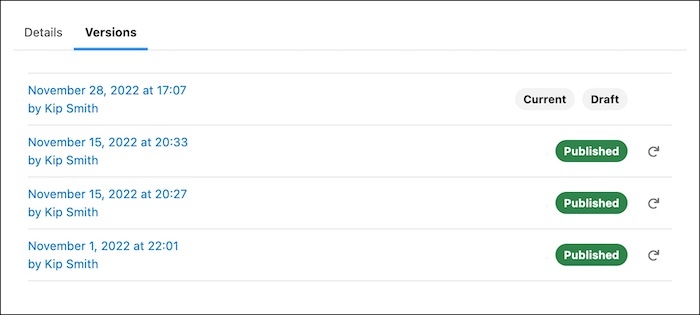
Version History shows all versions of a content item, its status, and the date and time it
was last modified. With this point-in-time snapshot of your content, you can compare
versions and see the date and time they were published.
Your most recent content version is marked Current. In the Version History card, your
content can have a status of Draft, Published, or Revised.
Draft: Content that hasn’t been published, or published content that has been
unpublished
Published: Content that’s published and live on your site or other channels
Revised: Published versions with new edits that haven’t been republished
Use the restore arrow to open a previously published version as a new draft. Save the draft
or publish it as a new content version. If you close the draft without saving it, your
content version history remains unchanged. Restoring a previous version as a new draft
overwrites a current version in Draft status.
Note In instances where one content item is referenced in another content item, the container
item displays the most recent version, even in a previously published version of the
container item. For example, say you create a content collection in October that references
an image of a yellow hat. In December, the collection is updated with an image of a red hat.
If you open the collection version from October, it displays a red hat. To avoid confusion,
update the collection with an entirely new image file, rather than updating the picture
within the image file. In other words, replace “yellow-hat.img” with a new image file called
red-hat.img”, rather than updating a “hat” file with a new picture.
Did this article solve your issue?
Let us know so we can improve!
Loading
Salesforce Help | Article
Cookie Consent Manager
General Information
Required Cookies
Functional Cookies
Advertising Cookies
General Information
We use three kinds of cookies on our websites: required, functional, and advertising. You can choose whether functional and advertising cookies apply. Click on the different cookie categories to find out more about each category and to change the default settings.
Privacy Statement
Required Cookies
Always Active
Required cookies are necessary for basic website functionality. Some examples include: session cookies needed to transmit the website, authentication cookies, and security cookies.
Functional Cookies
Functional cookies enhance functions, performance, and services on the website. Some examples include: cookies used to analyze site traffic, cookies used for market research, and cookies used to display advertising that is not directed to a particular individual.
Advertising Cookies
Advertising cookies track activity across websites in order to understand a viewer’s interests, and direct them specific marketing. Some examples include: cookies used for remarketing, or interest-based advertising.