Use Content from External Providers in Enhanced CMS Workspaces
Connect your external content provider or digital asset management (DAM) system to
Salesforce CMS to streamline content creation in enhanced CMS workspaces.
Required Editions
Available in: Lightning Experience
Available in: Enterprise, Performance, Unlimited, and
Developer Editions
If you use an external content provider or DAM system to store images, videos, documents, or
audio files, you can browse and reference these assets directly when creating content in your
workspace.
Typically, your external provider creates a managed package that you can install in your org.
As part of that process, you must create an instance of the external provider, which appears
in the content selector in Salesforce CMS. Refer to your provider's package instructions for
more details.
After the package is installed, you can access and use media from the external provider
directly in your enhanced CMS workspace.
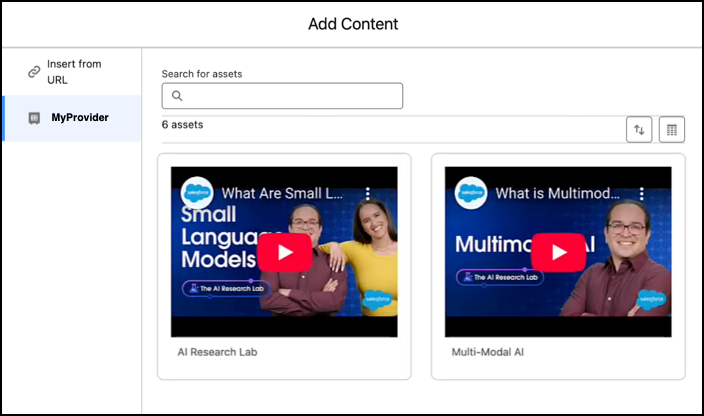
Example For example, lets say you want to use a video from your DAM system in Salesforce CMS.
In this case, you click Add | Content in your enhanced workspace and select Image. Then click
Add External Asset, choose the installed external provider, and
select the video.
Trusted URLs
When working with media from external providers, make
sure that your org supports the domain used for the external URL. Review the Content
Security Policy (CSP) settings in Setup, and add the domain of the hosted content to your
org’s trusted URL list. If you don’t add the domain to this list, it can raise security
alerts, and users can’t access or preview the content.
We use three kinds of cookies on our websites: required, functional, and advertising. You can choose whether functional and advertising cookies apply. Click on the different cookie categories to find out more about each category and to change the default settings.
Privacy Statement
Required Cookies
Always Active
Required cookies are necessary for basic website functionality. Some examples include: session cookies needed to transmit the website, authentication cookies, and security cookies.
Functional Cookies
Functional cookies enhance functions, performance, and services on the website. Some examples include: cookies used to analyze site traffic, cookies used for market research, and cookies used to display advertising that is not directed to a particular individual.
Advertising Cookies
Advertising cookies track activity across websites in order to understand a viewer’s interests, and direct them specific marketing. Some examples include: cookies used for remarketing, or interest-based advertising.