
You are here:
Understanding Content Taxonomy
A taxonomy is a hierarchy of terms used to classify CMS content. The terms are organized in parent and child relationships, and they describe what the content is or how the content is used.
Required Editions
| Available in: Lightning Experience |
| Available in: Enterprise, Performance, Unlimited, and Developer Editions |
In the Digital Experiences app, a taxonomist creates a content taxonomy and defines its structure. The taxonomist manages taxonomies for their organization by ensuring that all terms and term relationships are regularly updated and correctly maintained. Then, from the CMS content page, a CMS content admin or manager applies those terms as tags to enhanced CMS content. Use content taxonomy to:
- Improve organization: Content is categorized systematically so that management and retrieval is straightforward and efficient.
- Enhance discoverability: With well-defined categories, content is easier to find, benefiting content managers and their audiences.
- Track performance: Track how different types of content perform to improve strategic decision-making.
To work with content taxonomies in the Digital Experiences app, from the Digital Experiences
Home tab, click  , and then click Content Taxonomy.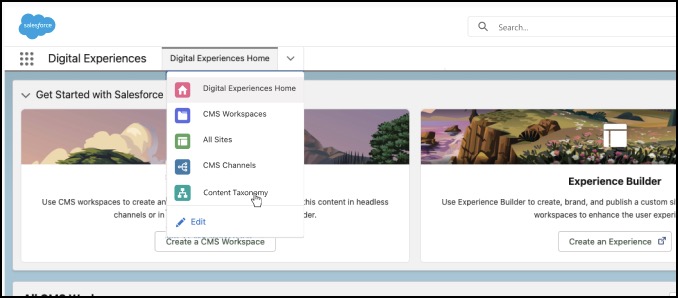
The difference between terms and tags
Terms and tags sound like similar things, but they’re different. Terms exist in the content taxonomy hierarchy, while tags are used in CMS content
Terms are specific labels or categories within a content taxonomy used by content taxonomists to classify information. Terms are organized in a hierarchical structure of parent and child relationships known as a content taxonomy tree.
Tags are the practical applications of terms, used by content admins and managers to associate CMS content with taxonomy terms. Tagging content makes it discoverable and manageable across various content areas.
Terms and tags work together to categorize content. By tagging content with specific taxonomy terms, you can ensure that the content is included in dynamic collections, which are search-based results that gather content from multiple workspaces connected to a channel.
Considerations for Managing Terms
When you add a new term, it’s automatically assigned a unique term ID. The term ID can’t be customized or changed.
Taxonomy terms are organized into taxonomy paths, which is the term’s relationship to the top level taxonomy and its parents.
When a term has child terms, you can delete the term and its children, or you can delete the term and reassign its children to another term. When you delete a term from the content taxonomy, it’s no longer available as a content tag. Removing the tag from a content record can affect content personalization. Before you delete a term, remove the tag from the content associated with the term.

- Create a Content Taxonomy and Manage Terms
Each org can have one, overarching content taxonomy. Create a new taxonomy, or use Data Loader to import an existing taxonomy. Then, add, edit, delete, and view terms in a content taxonomy.
