
You are here:
Custom Login Flow Considerations
A login flow directs users through a login process before they access your Mobile Publisher for Experience Cloud app. After Salesforce authenticates a user, the login flow directs the user through a process, such as enforcing strong authentication or collecting user information. When users complete the login flow successfully, they’re redirected to their Mobile Publisher for Experience Cloud site. If unsuccessful, the flow can log out users immediately.

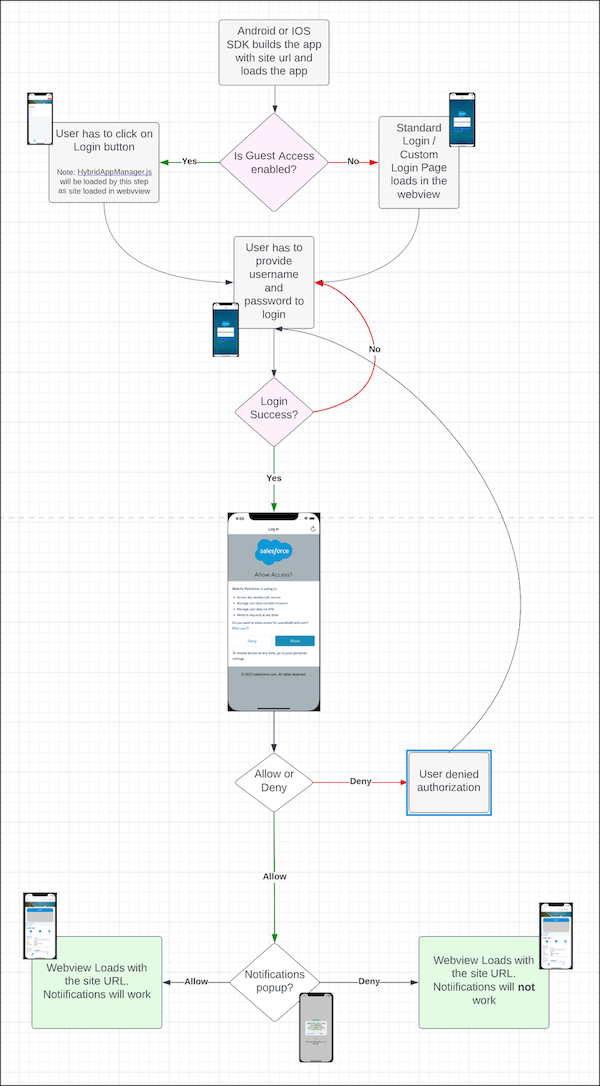

Keep these practices in mind when creating a custom login flow for your Mobile Publisher app.
User Authentication Limitations
- Make sure you’re aware of the user authentication limitations for Mobile Publisher for Experience Cloud.
Login Page
- The login page must have its own unique URL.
- Mobile Publisher doesn’t support login page URLs that pop up from a non-login page, such as a guest home page.
- Hyperlinks that open in a new window aren’t supported on the login page.
Start URL
- A start URL defines the page users are directed to when they run your mobile app. If you don’t configure a start URL, users are directed to the app’s default start page after authorization completes. Make sure you pass the start URL to the login method.
- Get the start URL dynamically from the PageReference object or a similar component on the LWR site. Avoid hard coding the start URL.
- To make sure that the start URL is correctly encoded, encode the URL with the EncodingUtil Apex class.
Connected apps
- Connected apps are required for persistent authentication, biometric login, and push notifications on a Mobile Publisher app. These features aren’t supported for custom login workflows that bypass connected apps.
Using Auth Provider or SSO as Site Authentication
- On a page to link to the Auth Provider or SSO, don’t use the
hrefattribute, or hard code any authentication provider URL. Instead, from visit and configure Single Sign-On or Auth. Providers in Setup. Doing so ensures that Mobile Publisher can detect the login URL and initiate the OAuth flow in the Mobile Publisher app. - Don’t use both a custom login page and SAML single sign-on (SSO). If you use SAML SSO, select a default login page from . Also make sure that SAML SSO authentication is configured to use HTTP POST to avoid RelayState cut off.
- To trigger a login request in Experience Cloud sites, use the SsoUrl defined in .well-known/auth-configuration.
Internal User Login via Salesforce Login Page
- Internal user login via the Salesforce login page isn’t supported in Mobile Publisher for Experience Cloud. If you still want to support the internal user login in your mobile app, enable the Allow employees to log in directly to an Experience Cloud site option from the site’s page.
Using Apex to Customize Default Login Process
- Avoid overriding the
startURLin the login request. Because thestartURLincludes links to the consumer key, redirect URI and approval page, overriding thestartURLbreaks the OAuth flow in your Mobile Publisher app. For an example, see Customize the Apex Login Controller.
Custom Login Component
- If you use a custom login component, make sure to use the default login page URL.
Missing or Incomplete CA (Certificate Authority) for Android
- If there are missing or incomplete CA intermediate certificates, Android app users can
receive a message that the Experience Cloud site is unable to load. Some Android devices
don’t have trusted intermediate CA certificates. To resolve this issue, CA certificates
must be installed and trusted, or the certificate chain must be uploaded to Salesforce and
associated with the custom domain.
Qualys SSL Labs and SSLMate offer a free SSL certificate test that can quickly analyze custom domain URLs and check for incomplete certificate chains.
Using reCAPTCHA for Login Flow
- Make sure to use a supported Google mobile browser.
IP Restrictions
- Don’t enforce IP restrictions unless you’re required to not allow access to the Experience Cloud site from outside networks or LTE.
Refresh Token Policy
- For mobile apps, the ideal setting for the refresh token policy is to never expire. This setting provides the best experience for your app users.
