
Update Your SAML SSO IdP Configuration After a Login or Site URL Change
After you deploy a My Domain change that updates your My Domain login URL or site URL, SAML Single Sign-On (SSO) authentication stops working. To allow your users to use this SSO method again, work with your Identity Provider to update your configuration.
Required Editions
| Available in: both Salesforce Classic and Lightning Experience |
| Available in: Group, Essentials, Professional, Enterprise, Performance, Unlimited, and Developer Editions |

After you deploy the change that updates your My Domain login URL, work with your Identity Provider (IdP) to update your IdP configuration with the new authentication values.
These steps also apply after your Experience Cloud site URL or Salesforce Site URL changes, but only if you use the system-managed site URL to authenticate. System-managed site URLs end in *.my.site.com for Experience Cloud sites and *.my.salesforce-sites.com for Salesforce Sites. If you authenticate via a custom domain, such as https://www.example.com, that serves your Experience Cloud site or Salesforce Site, then your SSO configuration is unaffected.
- In the Quick Find box, enter Single Sign-On, and then select Single Sign-On Settings.
- View the details for each entry in the SAML Single Sign-On Settings table.The updated values are shown in the Endpoints section.
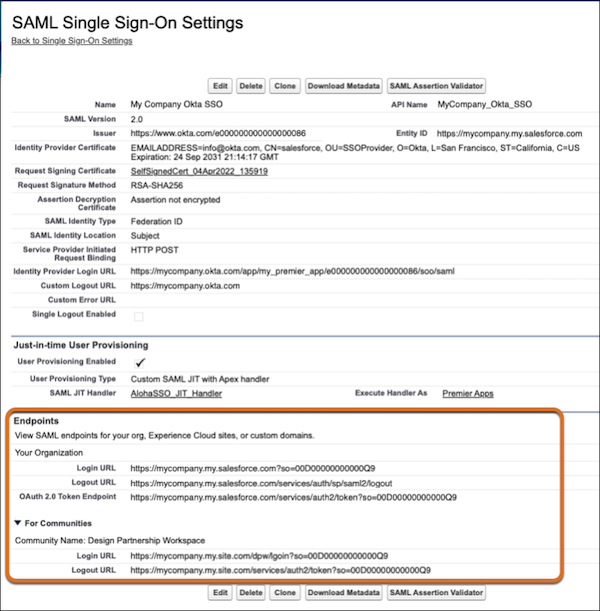
- Share the values in these fields with your Identity Provider.
- Assertion Consumer Service (ACS) URL
- Logout URL
- OAuth 2.0 Token Endpoint
- Entity ID
 Note Some Identity Provider configurations don’t use every field.
 - After your Identity Provider updates the settings, verify your updated endpoints with the
/.well-known/auth-configuration URL path.For example, if your login URL is https://mycompany.my.salesforce.com, visit https://mycompany.my.salesforce.com/.well-known/auth-configuration.
- If your configuration includes SAML Single Sign-On (SSO) that is initiated by the service
provider, update your authentication configuration settings on the My Domain page.
- From Setup, in the Quick Find box, enter My Domain, and then select My Domain.
- In the Authentication Configuration section, click Edit.
- In the Authentication Service field, select the correct record and save your changes.
Note If you don’t know whether the service provider initiates SAML SSO, before you deploy your My Domain change, view the authentication configuration settings on the My Domain page. - Verify the authentication method from your login page. If necessary, add authentication
providers to your login page again.
- For your org's My Domain login page, see Add an Authentication Provider to Your Org’s Login Page in Salesforce Help.
- For you Experience Cloud site's login page: Add an Authentication Provider to Your Experience Cloud Site’s Login Page in Salesforce Help.
