
Disable or Remove Your Previous My Domain
Each time that you deploy a change to your My Domain, Salesforce redirects requests from your previous My Domain URLs to your current My Domain. Optionally, disable redirections from your previous My Domain. We recommend that you use that option when you test a My Domain change. Or, to use your previous My Domain in a different Salesforce org, remove your previous My Domain.
Required Editions
| Available in: both Salesforce Classic and Lightning Experience |
| Available in: Group, Essentials, Professional, Enterprise, Performance, Unlimited, and Developer Editions |
| User Permissions Needed | |
|---|---|
| To edit My Domain settings: | Customize Application |
| To define a My Domain name: | Customize Application AND Modify All Data |
You can only access the options related to a previous My Domain after you deploy your new My Domain. If you change your My Domain more than one time, only the last My Domain for your org is redirected. For more information, see My Domain Redirections. To review the high-level steps and recommended practices for a My Domain change, including how to reduce the impact on your users and customers, see Plan for a My Domain Change.

- Serve the domain with the Salesforce Content Delivery Network (CDN)
- Use a temporary non-HTTPS domain
- From Setup, in the Quick Find box, enter My Domain, and then select
My Domain.If URLs for a previous My Domain are being redirected to your current My Domain, the previous My Domain URL is listed under Redirections.
- Under Redirections, click Edit.
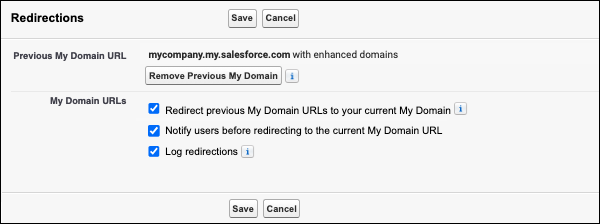
- To disable redirections from your previous My Domain, deselect Redirect
previous My Domain URLs to your current My Domain and save your changes. Or,
to enable redirections from your previous My Domain, select this option.
This option determines what happens when users visit bookmarks or links that contain your previous My Domain name. For example, when a user visits
https://PreviousMyDomainName.lightning.force.com/lightning/page/home, this option determines whether they’re redirected tohttps://CurrentMyDomainName.lightning.force.com/lightning/page/home.When you disable this option, you enforce your My Domain change. Salesforce recommends that you temporarily disable redirections from your previous My Domain to test a My Domain change or to test the effect of removing your previous My Domain.
 Note This setting has no impact on redirections for legacy (non-enhanced) host names in org created before July 2022. See Prepare for the End of Redirections for Non-Enhanced Domains.
 - To permanently remove your previous My Domain, click Remove Previous My
Domain, and confirm your decision.Note To avoid user disruption, we recommend that you test before you remove your previous My Domain. To test the effect of disabling redirections, deselect Redirect previous My Domain URLs to your current My Domain, and save your changes. After you complete your testing, use the Remove Previous My Domain option to remove your previous My Domain.
After you remove your previous My Domain, requests to your previous My Domain’s URLs are no longer redirected. If your previous and current My Domain names are different, your previous My Domain name is now available for use in other orgs.
To avoid potential conflicts between follow-up processes, such as CNAME and DNS updates, you can’t make a change that requires provisioning for 15 minutes after you remove your previous My Domain. Changes that require provisioning include changing your My Domain name and moving to Salesforce Edge Network.
