
My Domain Provisioning and Deployment
Understand the provisioning and deployment process when you deploy a change to your org’s My Domain. Learn about how each step of the process impacts your user’s access to Salesforce and why it’s important to test these changes in a sandbox.
Required Editions
| Available in: both Salesforce Classic and Lightning Experience |
| Available in: Group, Essentials, Professional, Enterprise, Performance, Unlimited, and Developer Editions |
In each Salesforce org, multiple domains serve content to users. In addition to your My Domain login URL, your org has application URLs on different domains. Here are a few examples.
- Lightning pages
- Visualforce pages
- Experience Cloud sites
- Experience Builder for Digital Experiences
- Salesforce Sites
- User-stored content served by Salesforce, such as images and files
When you deploy a change to your org’s My Domain, those domains are updated. For more information about all the URLs associated with your org and their formats, see My Domain URL Formats in Salesforce Help.
My Domain States During a Change
There are three steps to updating your My Domain: save the changes, provision the new domains, and deploy the new domains.
Let’s look at an org’s state throughout the process. Remember that a My Domain has multiple URLs associated with it, such as the login, Visualforce page, content, and Experience Cloud site URLs.
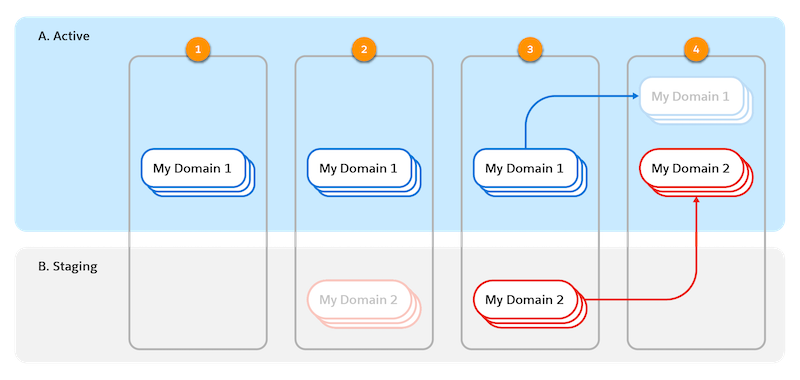
My Domain changes only become active (A) after they’re staged by Salesforce (B) and the admin deploys the change.
| Step | Accessible Domains | Available Options |
|---|---|---|
No My Domain changes pending (1). To start the process, you save a change on the My Domain Setup page. For example, you change the My Domain name. User connections are unaffected. |
Current My Domain URLs (My Domain 1) | Make a My Domain change and start the provisioning process. |
Provisioning (2). After you save a change to your My Domain, Salesforce provisions the domains. In other words, we get the new My Domain URLs ready for activation. User connections are unaffected. |
Current My Domain URLs (My Domain 1) |
|
Provisioning completed (3). When the provisioning process is complete, the admin who requested the change receives an email. Your new My Domain URLs are ready to be deployed. User connections are unaffected. If anyone visits the new My Domain login URL, they’re redirected to the original My Domain login URL. Otherwise, no one can access the new domains at this point. |
Current My Domain URLs (My Domain 1) |
|
Changes deployed (4). The admin logs in to deploy the updated My Domain. The deployment process also updates the related domains, such as Visualforce pages and Experience Cloud sites. Immediately after the My Domain is deployed, the new My Domain URLs are available to all users. |
|
|
Until you deploy the changes, all users continue to use the original My Domain (My Domain 1).
When an admin deploys a new My Domain, the admin is logged out of Salesforce. Users are redirected to the new My Domain, which can require logging in again. Everyone can log in again with the new My Domain login URL or, if the My Domain settings allow it, with https://login.salesforce.com.
By default, if a user accesses one of the previous My Domain URLs through a link or bookmark, the user is redirected to the corresponding current My Domain URL.
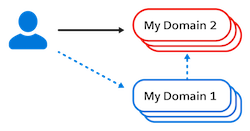
You can disable these redirections through the Redirections options on the My Domain Setup page.
Test My Domain Changes
Did you notice something missing from the change process? When did we test the new domains and the related functionality?
Due to the nature of provisioning and deployment, both sets of domains can’t be live simultaneously. For this reason, you can’t test a My Domain change that’s provisioned but not deployed. You can only test My Domain changes after you deploy them.
When you deploy a change to your org’s My Domain, you have the option of redirecting from the previous URLs to the new URLs. Whether your users access them directly or are redirected to them, everyone accessing the org uses the new URLs. If you don’t test your My Domain change before you deploy it, your users can experience an issue in Salesforce due to the change before you learn about it. For example, if your network settings block access to one of your new domains, users can experience connectivity issues or unavailable features.
For this reason, before you update your org’s My Domain in production, we recommend that you always deploy and test the My Domain change in a sandbox. For more information, see Update Your Org and Test My Domain Changes.
