
Limit the Idle Refresh Token TTL in External Client Apps
For improved security, set a 30-day limit to the idle refresh token TTL (time-to-live). The idle TTL is the amount of time that a refresh token can be inactive before it expires. The idle TTL works as a sliding window: each time the token is used within the 30 day-period, its idle TTL resets. As an app developer, when you turn on this limit, it affects refresh token policies for your subscribers.
Required Editions
| Available in: Lightning Experience |
| Available in: Professional, Performance, Unlimited, and Developer Editions |
| User Permissions Needed | |
|---|---|
| To configure External Client Apps OAuth settings | Create, edit, and delete External Client Apps |

Work with your subscribers to let them know when you’re enabling these changes. Here are a few highlights that are important for you and your subscribers to know.
- These policies are affected by the limit.
- Refresh token is valid until revoked
- Expire refresh token after specific time
- Expire refresh token if not used for specific time
- For the "Refresh token is valid until revoked" and "Expire refresh token if not used for specific time" policies, the limit introduces inconsistencies with the UI, behavior, and metadata. To fix these inconsistencies, update your apps and encourage subscribers to do the same.
- The "Immediately expire refresh token" policy isn’t affected by the limit.
| Refresh Token Policy | Behavior Changes with Idle TTL Limit | How to Fix Inconsistencies with UI, Behavior, and Metadata |
|---|---|---|
| Refresh token is valid until revoked | This policy is no longer valid with the idle TTL limit enforced. In the UI, this option becomes hidden and the policy selection changes to “Expire refresh token if not used for specific time” with the validity period set to 30 days. |
Salesforce doesn’t automatically update the app’s metadata to reflect this change. In the ExtlClntAppOauthConfigurablePolicies metadata type:
|
| Immediately expire refresh token | None | Not applicable |
| Expire refresh token after specific time | Refresh tokens still use the validity period configured in the app policies. If it’s longer than 30 days, the idle TTL limit also applies. For example, if the configured validity period is 1 year, idle tokens still expire after 30 days. With continuous use, tokens can last up to 1 year. |
Not applicable |
| Expire refresh token if not used for specific time | This configured validity period for this policy already works as an idle TTL with a sliding window. The only change is that the validity period now can’t be longer than 30 days. | Salesforce doesn’t automatically update the UI or metadata to reflect this change. In the UI, update the validity period to 30 days. In the ExtlClntAppOauthConfigurablePolicies metadata type:
|
To turn on the idle TTL limit, take these steps.
- From Setup, in the Quick Find box, enter External and then click External Client App Manager.
- Find your app and click Edit Settings.
- In the OAuth Settings, find the Security section and turn on Limit Idle Refresh Token Time-to-Live (TTL) to 30 Days.
- Save your change.
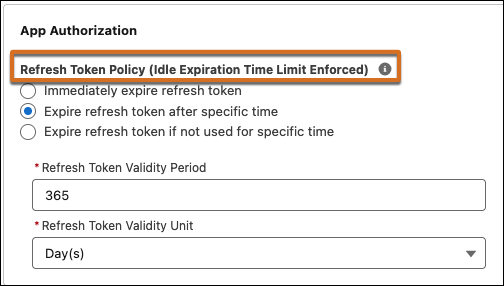
- Go to the Policies tab and find the App Authorization section. The Refresh Token Policy heading now indicates that the idle TTL limit is enforced.
- Fix any inconsistencies with the behavior, UI, and metadata. For specific information about what metadata types and fields to update, refer to the table above.
