
Build a Transaction Security Policy with Condition Builder
Create a transaction security policy without writing a line of code. Condition Builder, available in Real-Time Event Monitoring, gives you a declarative way to create customized security policies to protect your data.
Required Editions
| Available in both Salesforce Classic (not available in all orgs) and Lightning Experience. |
Available in: Enterprise, Unlimited, and Developer Editions Requires Salesforce Shield or Salesforce Event Monitoring add-on subscriptions. |
| User Permissions Needed | |
|---|---|
| To view events: | View Real-Time Event Monitoring Data |
| To view transaction security policies: | View All Data |
| To create, edit, and manage transaction security policies: | Customize Application |
You can create multiple policies for the same type of event, but we recommend that your policies and their actions don't overlap. If multiple policies with the same action for a given event execute when the event occurs, their order of execution is indeterminate.
- From Setup, in the Quick Find box, enter Transaction Security, and then select Transaction Security Policies.
- Click New, and then select Condition
Builder.
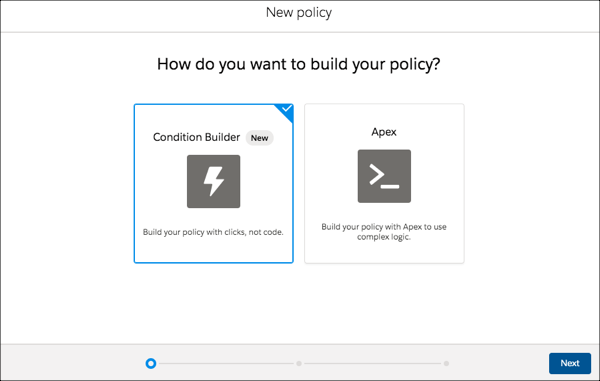
- Click Next.
- Select an event that your policy is built on. For example, if you want to track API calls in your org, select API Event. If you want to monitor when users view or export reports, select Report Event. See Transaction Security for the full list of available events.
- Select your condition logic. The logic applies to the conditions that you create in the
next step.You can specify whether all conditions must be met for the policy to trigger an action, or any condition.Select Custom Condition Logic Is Met if you want to specify more complex logic. Use parentheses and logical operators (AND, OR, and NOT) to build the logical statements. Use numbers to represent each condition, such as 1 for the first condition and 2 for the second condition. For example, if you want the policy to trigger if the first condition and either the second or third conditions are met, enter 1 AND (2 OR 3).
- Select your conditions.Each condition has three parts:
- The event condition you want to monitor. The available conditions depend on the event you selected earlier. For example, you can monitor the number of rows that a user viewed in a report using the Rows Processed condition of Report Event. To monitor Salesforce entities that API calls query, use the Queried Entities condition of API Event. To monitor the IP addresses from which a user logged in, use the Source IP condition of Login Event.
- An operator, such as Greater Than or Starts With or Contains.
- A value that determines whether the condition is true or false. For example, if you
specified the Rows Processed condition to monitor when users
viewed more than 2,000 rows in a report, enter 2000. If you
specified the Queried Entities condition to monitor API calls
against leads, enter Lead. If you specified the
Source IP condition to monitor user logins from a specific IP
address, enter the actual IP address, such as 192.0.2.255.
 Tip Conditions map to fields of the event storage objects, such as ApiEvent.RowsProcessesd or LoginEvent.SourceIP. See the API documentation for possible values and examples for each field that shows up as a condition in Condition Builder.
This example shows a policy that monitors API calls. The actions trigger if an API call queries the Lead object and either the number of rows processed is greater than 2000 or the request took longer than 1000 milliseconds to complete. See Condition Builder Examples for more examples.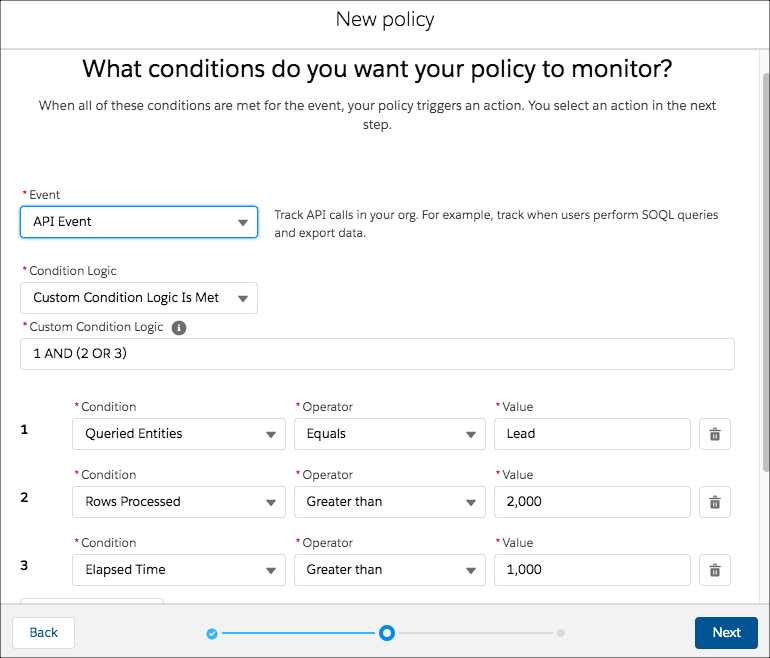
- Click Next.
- Select what the policy does when triggered.The actions available vary depending on the event type. For more information, see Enhanced Transaction Security Actions and Notifications
 Note The multi-factor authentication action isn’t available in the Salesforce mobile app, Lightning Experience, or via API for any events. Instead, the block action is used. For example, if a multi-factor authentication policy is triggered on a list view performed via the API, Salesforce blocks the API user.
 - Select who is notified and how.
- Enter a name and description for your policy.Your policy name can contain only underscores and alphanumeric characters and must be unique in your org. It must begin with a letter, not include spaces, not end with an underscore, and not contain two consecutive underscores.
- Optionally, enable the policy.
- Click Finish.Your policy is added to the list of available policies. When you enable Transaction Security policies for an event, some transaction run times related to that event can increase.

Important If you customize a Condition Builder policy with the API, you must
include the Flow ID (for flow API), EventName, and Type of CustomConditionBuilderPolicy to
save your policy.
- Condition Builder Examples
Use these examples to help you convert your own real-world use cases into Condition Builder conditions.
Did this article solve your issue?
Let us know so we can improve!
