
You are here:
Salesforce Essentials Glossary
Search for terms and brush up on your Salesforce knowledge with the Essentials glossary.
General Terms
- Account
- Companies that you’re doing business with.
- App Launcher
- Where you can find compatible apps for Salesforce, including Salesforce standard apps like the Service console and connected apps like DocuSign and G-Suite.
-

- Chatter
- A Salesforce collaboration application that lets your users work together, talk to each other, and share information, all in real time. Chatter users can collaborate on sales opportunities, service cases, campaigns, and projects with embedded apps and custom actions.
- Contact
- People who work for the accounts. For example, Adam Smith works at DreamScape Flowers and is the contact for the account.
- Contact Role
- The relationship your company has to a specific contact, such as influencer, evaluator, or decision maker. For example, Adam Smith decides what your company’s tasks are for his business.
- Customer Relationship Management
- Also known as CRM, a technology that allows you to manage relationships with your customers and prospects and track data related to all your interactions. It also helps teams collaborate, both internally and externally, gather insights from social media, track important metrics, and communicate via email, phone, social, and other channels.
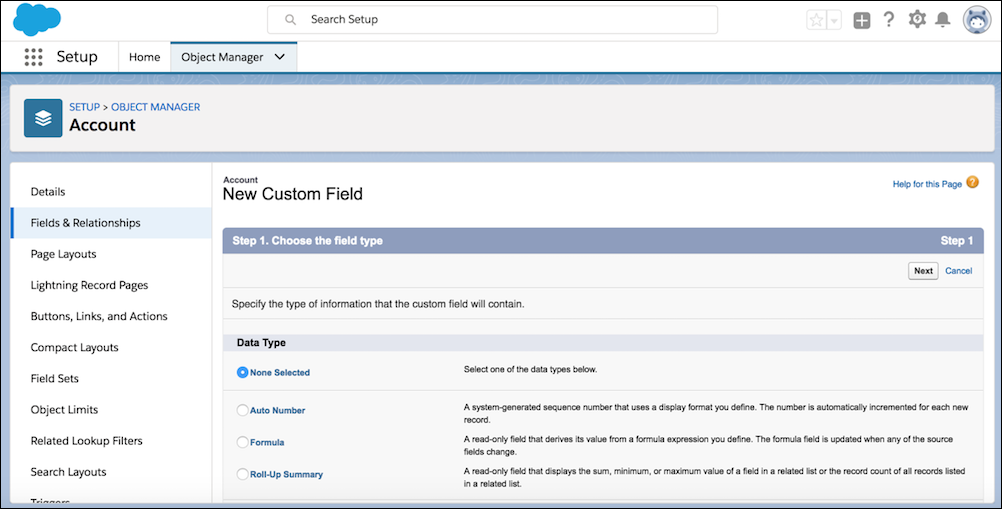
- Custom Field
- A field that can be added in addition to the standard fields to customize Salesforce
for your organization’s needs.
- Dashboard
- A visual representation of data reports, shown as charts, gauges, tables, or metrics. The components provide a snapshot of key metrics and performance indicators for your organization. Each dashboard can have up to 20 components.
- Field
- A piece of data stored in an object.
- Lightning App Builder
- A point-and-click tool that makes it easy for you to customize your Salesforce apps like the Sales app or the Service Console app, and give your team all the information they need, all in one place.
- Lightning Experience
- An intuitive, intelligent interface that helps sales and service teams work more naturally and productively.
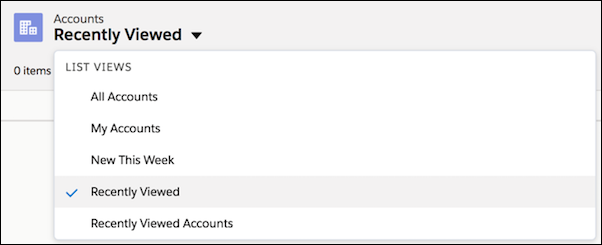
- List View
- View a filtered list of records, such as contacts, accounts, or custom objects.
-
- Object
- A type of data that you want to store, like a Contact, Account, or Lead.
- Report
- A display of records that meet certain criteria for your business.
- Task
- A piece of work that needs to be completed with respect to a record.
- Utility Bar
- A fixed footer where you can quickly access common productivity tools, such as Notes, Quip, Phone, and even custom tools.
Sales Terms
- Activities
- The events and tasks that your sales rep manage in Salesforce.
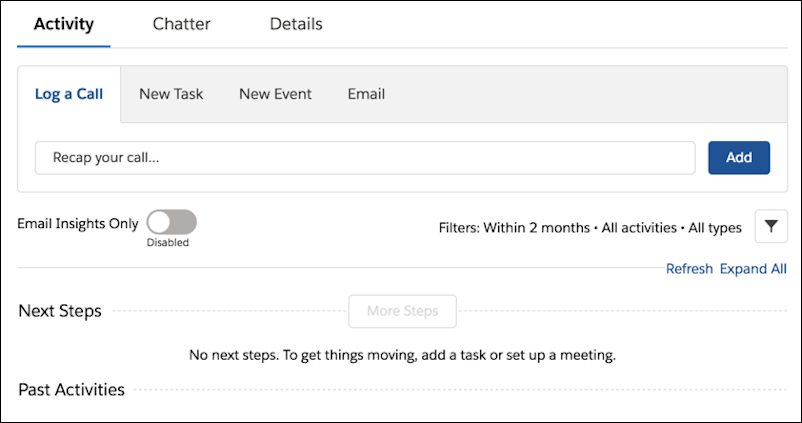
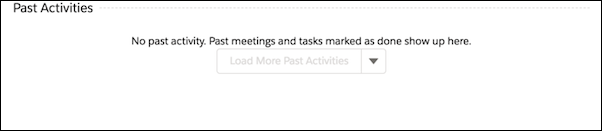
- Activity History
- A list of records that displays all completed tasks, logged phone calls, expired
events, email, and any associated records.
- Campaign
- Track marketing initiatives with campaigns. For example, Adam Smith can use Campaign to analyze how many leads the company is generating, how much pipeline they’re building, and how many deals they’re closing as a result of marketing efforts.
- Einstein Activity Capture
- An artificial intelligence feature that relates each email to a lead contact or opportunity.
- Lead
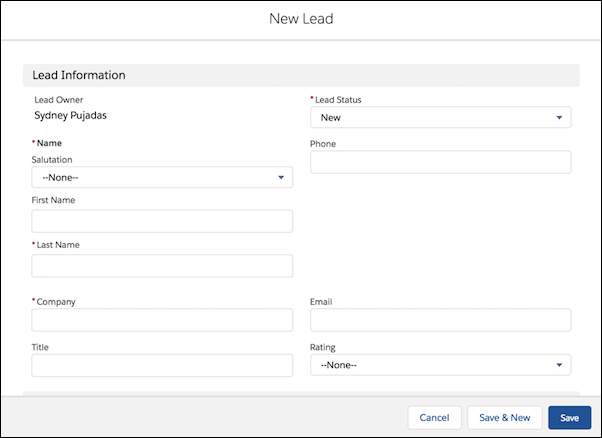
- People and companies that you’ve identified as potential customers.
-
- Opportunity
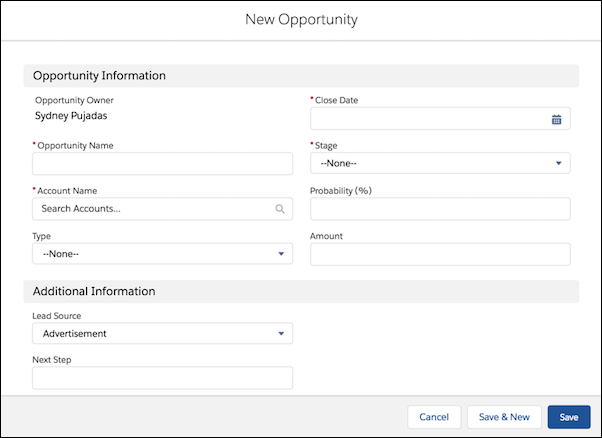
- A feature that tracks your sales and pending deals.
-
- Opportunity Stage
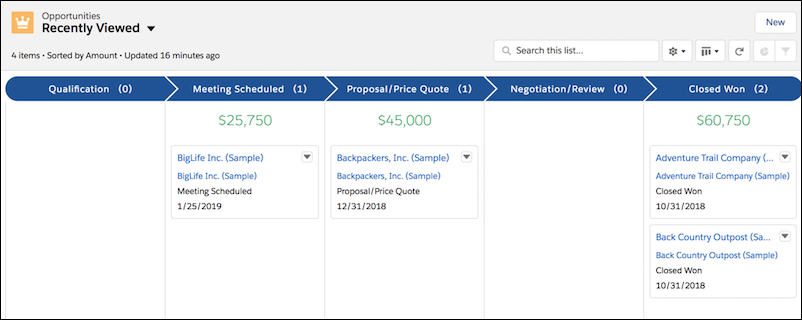
- A standard field that tracks the status of an opportunity.
- Pipeline
- A comprehensive view of your opportunities, no matter what stage they're in. It includes everything from the newest prospect to that opportunity with pen in hand, ready to sign.
- Salesforce Inbox
- Allows you to see your Salesforce data in your email on both your mobile device and your desktop.
- Sales Stages
- Steps you take to sell your product or service.
Service Terms
- Assignment Rules
- Automatically assign incoming cases to specific people on your team so that the right people work on the right cases.
- Case
- Also called a support case, customer feedback or issues that need to be addressed.
- Case Feed
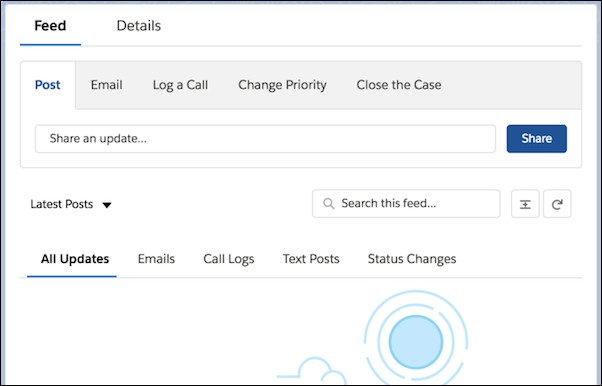
- A news feed that shows you and your team everything that is happening with a case.
The feed also shows you a timeline for a case’s history and contains information to
help you and your team resolve the case.
- Channels
- A combination of phone, email, text message, social media, and more that you use to answer customer questions and comments.
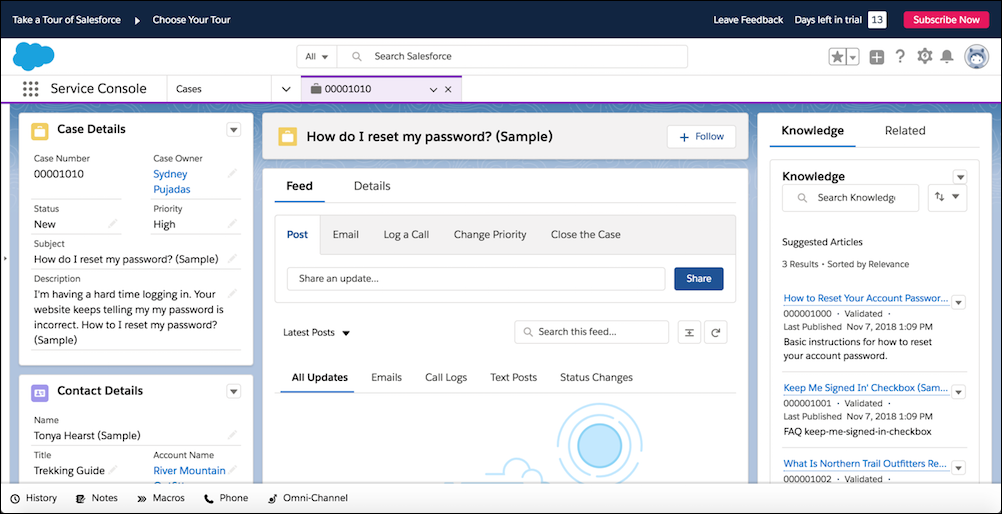
- Console
- Also known as the service console, the console is where all Salesforce service
features come together. On a single screen, you can get a 360-degree view of each
customer and where that customer is in your support process.
- Escalation Rules
- Automatically escalate cases to the right people when the cases aren’t solved by a certain time.
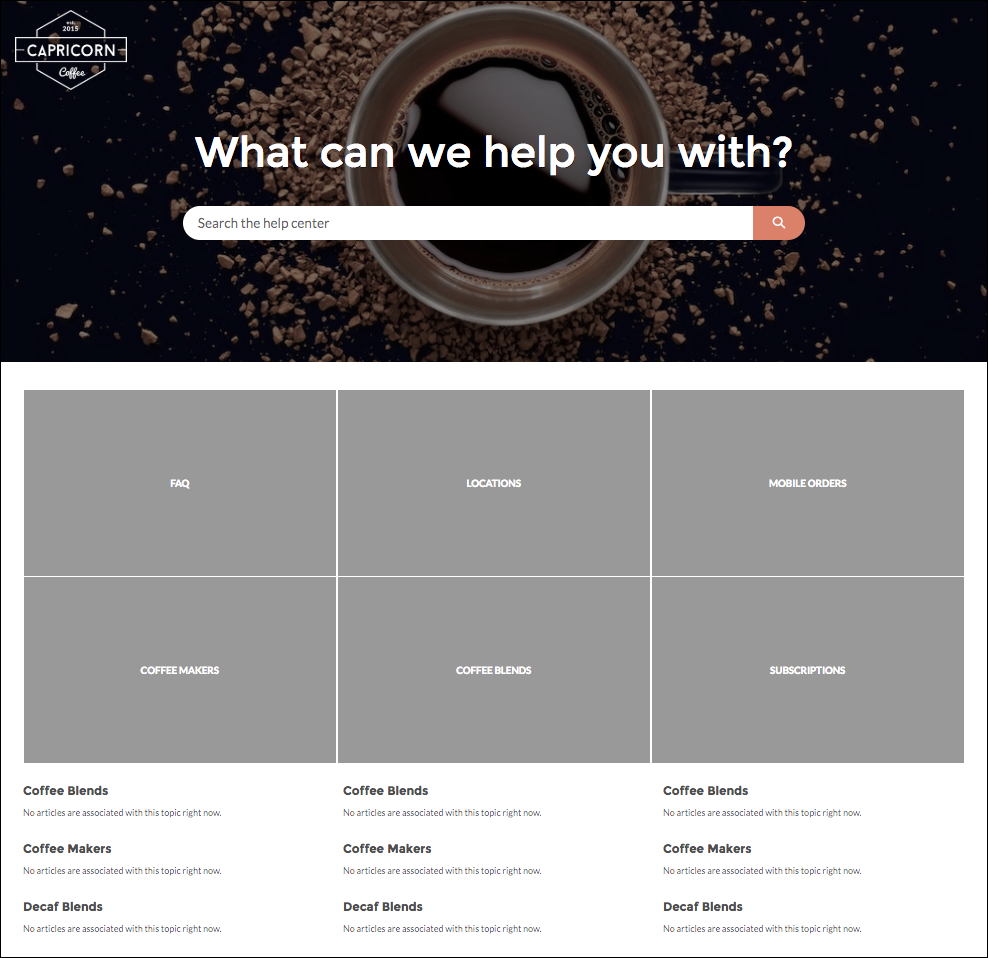
- Help Center
- Create a help center that lets your customers help themselves. Display Knowledge
articles that answer common questions, and provide a contact button so they can log a
case for the issues that require human intervention.
- Knowledge Base
- Find, share, and store articles or answers related to cases to speed up service. Or, connect your Knowledge base to your help center to let customers find answers on their own.
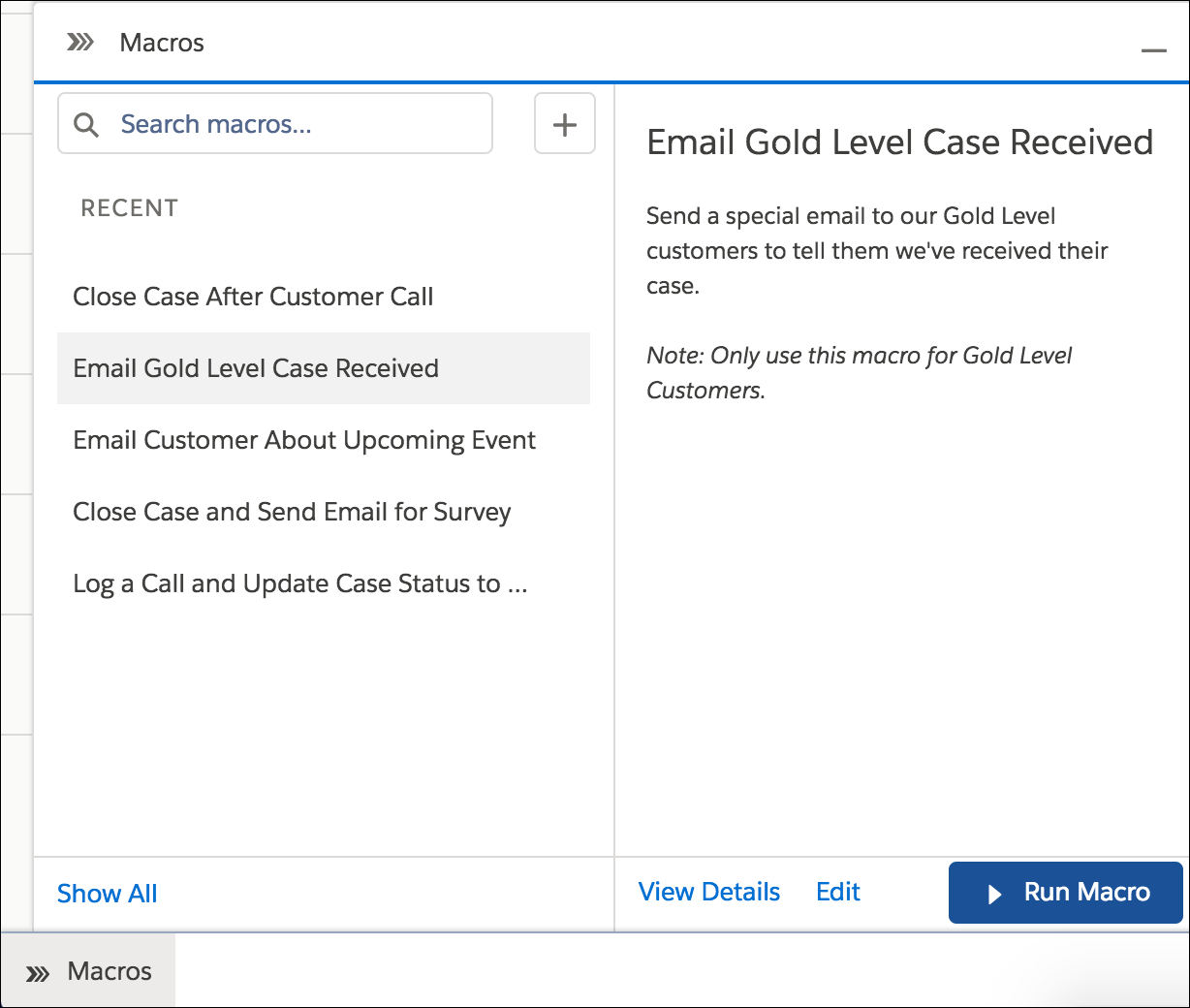
- Macros
- Automate common processes for your support team to save them clicks as they help
your customers.
- Messaging
- Lets customers talk to your support team using SMS text messaging or Facebook Messenger.
- Queue
- Queues help you prioritize and distribute work, like cases and leads, across your team. Users in the queue can assign work to themselves, or you can use assignment rules or routing to assign work automatically.
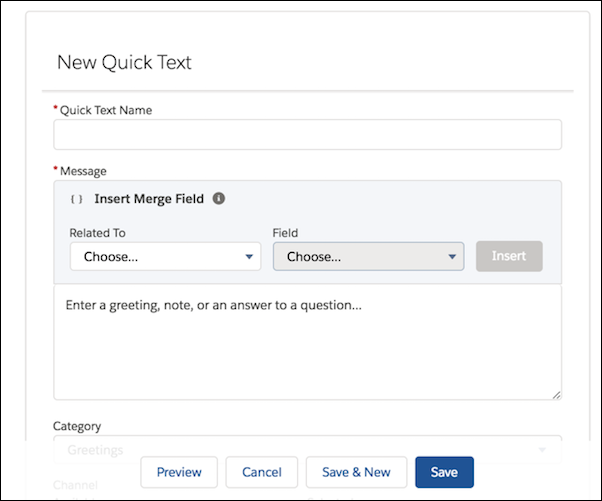
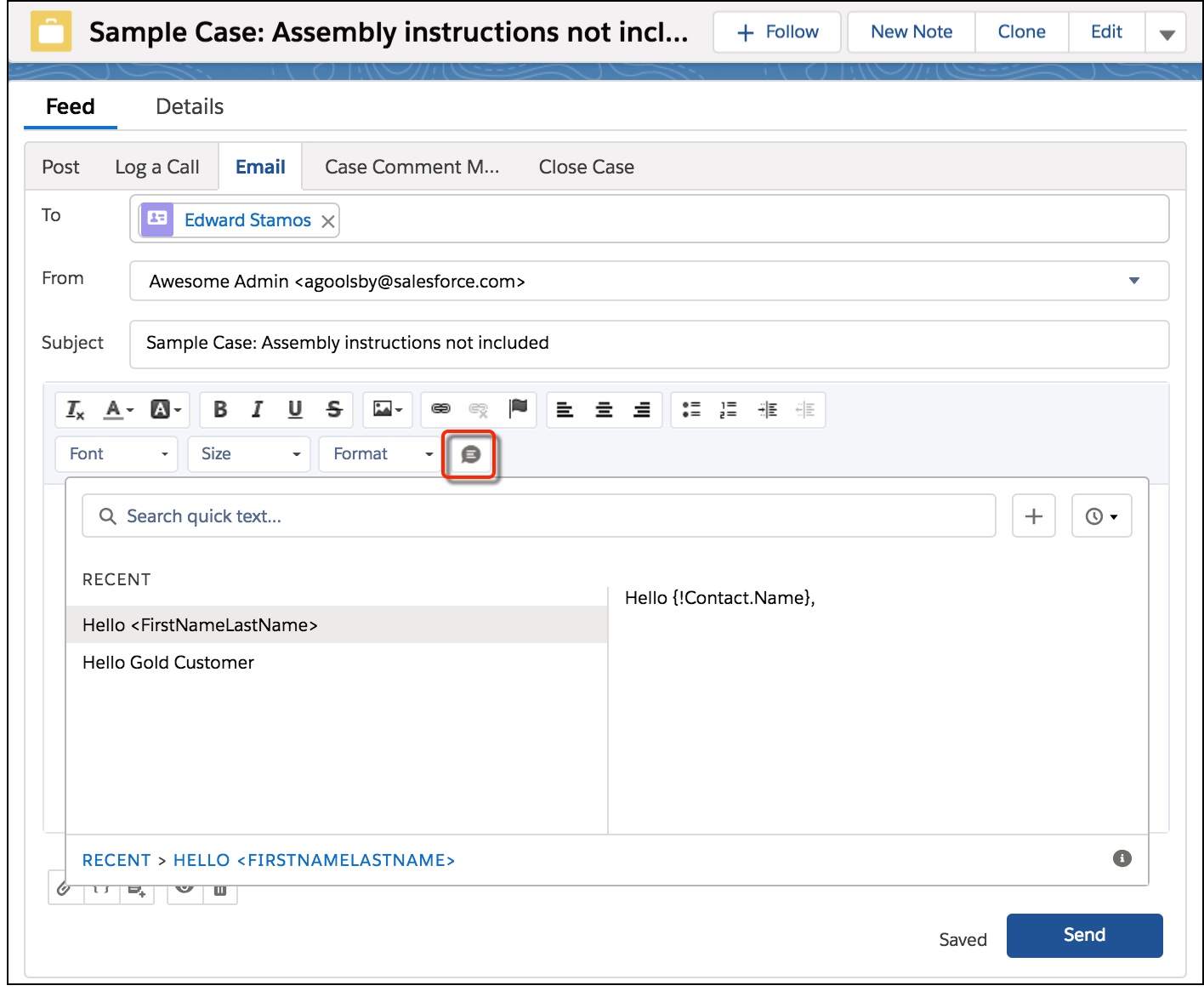
- Quick Text
- A predefined message, like a greeting, note, phrase, or answer to a common question.
You can insert quick text into emails, chats, and more by using a keyboard shortcut.
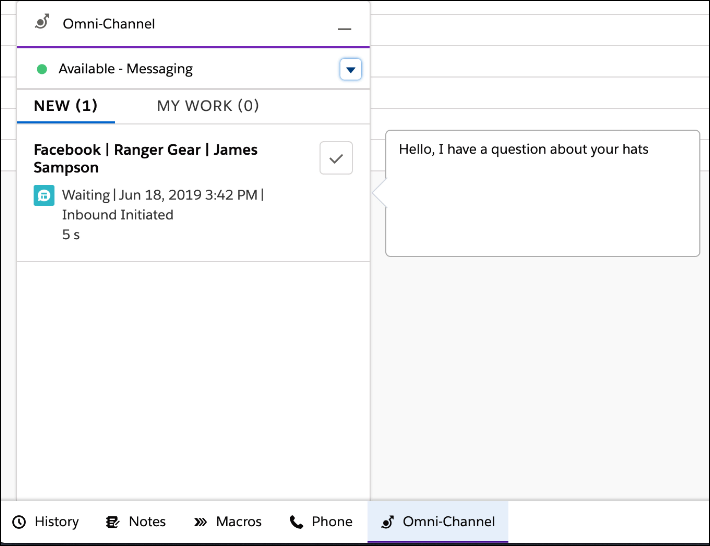
- Routing (via Omni-Channel)
- Push incoming work items like cases and leads to the right person on your team, so
your customers can get help in a timely fashion. Omni-Channel uses queues to sort work
items by priority, so the most important work items are pushed to your team first.
- Social Customer Service
- Businesses can listen and respond to customers across various social platforms. Your team can pick up issues that have been posted by customers and address them from the Service Console app.
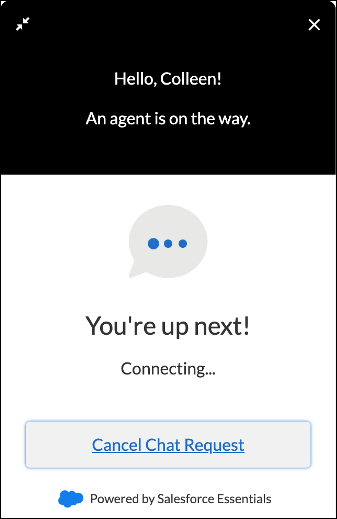
- Web Chat
- Lets customers have a live chat with your support team through your website.
Did this article solve your issue?
Let us know so we can improve!
