
You are here:
Migrate Your Opportunities, Tasks, and Events to Essentials from Other Editions
Use reports to set up your opportunities, tasks, and events for import into Salesforce Essentials.
Before you migrate, clean up your data. For example, look for outdated information and duplicate records.
To migrate data to Essentials, create and export a report for each object that you want.

Tip We recommend filtering your reports so that you have some .csv files that
contain customer email addresses and some that don’t. Email is the most accurate way to import
your data into Essentials because email addresses are unique to each customer.
Follow these steps for opportunities, tasks, and events.
- From the Reports tab, click New Report.
- Select an object.
Create four reports for opportunities:
- Opportunities with accounts
- Opportunities with contacts (After exporting the report, use filters to create one .csv file that includes email addresses and one that doesn’t.)
- Opportunities with leads
Create one report for both tasks and events with the objects you use, including accounts, contacts, opportunities, and leads. After exporting the report, use filters to create .csv files for:
- Tasks with other objects, with emails
- Tasks with other objects, without emails
- Events with other objects, with emails
- Events with other objects, without emails
- Click Continue.
- In your report, include the required fields and any additional fields that your company
uses.
- For opportunities, the required fields are Name, Stage, and Close Date.
- For tasks, the required fields are Assigned To, Subject, Status, and Priority.
- For events, the required fields are Assigned To, Subject, Start, and End.
- Click Save & Run.
- Give your report a name and click Save.
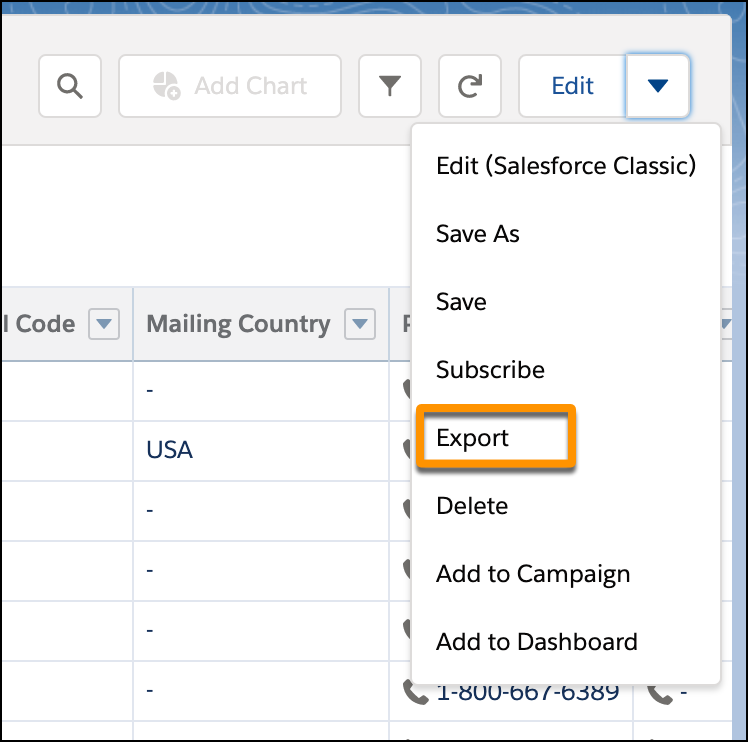
- From the menu, click Export.
- Select Details Only.
- Under Format, select Comma Delimited .csv.
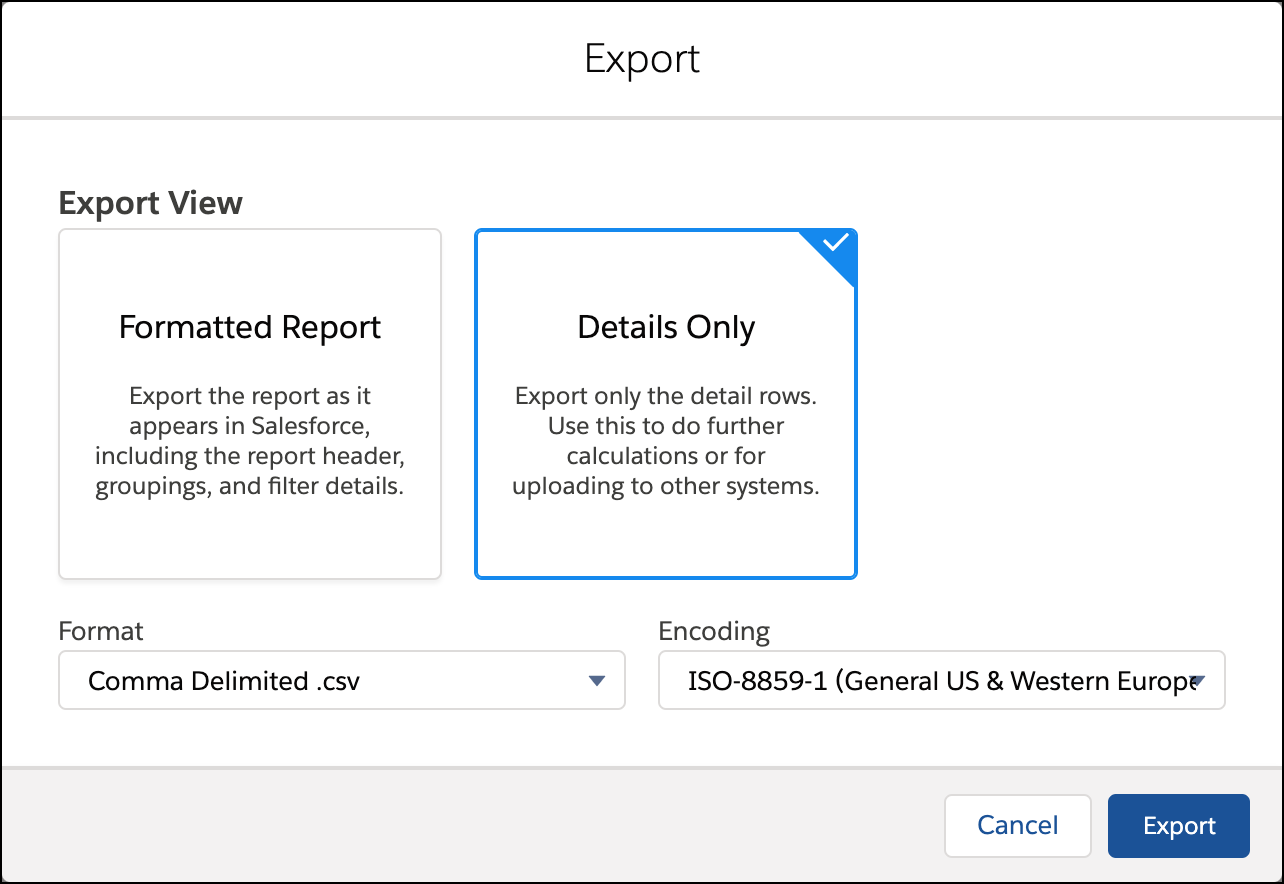
- Click Export.
- Repeat the previous steps for each object you want to import into Essentials.
- Import your .csv files into Essentials using Dataloader.io.
Tip Keep the following guidelines in mind when you import
your .csv files using Data Loader.
- Essentials can use only Batch API.
- Use Insert for a first-time import and Upsert when you already have data in your Essentials org. Upsert means that you’re updating existing information with what’s in your .csv and adding any new information that’s on your .csv file but not in your org.
- To import opportunities associated with contacts, insert using Opportunity Contact Role. Look up the primary contact by name or email depending on which .csv file you’re using.
Did this article solve your issue?
Let us know so we can improve!
