
You are here:
Manage Your Essentials Subscription
Add or subtract users, update the credit card on file, and more from the Manage Subscription page in Setup.
You can find the Manage Subscription page from the gear icon.
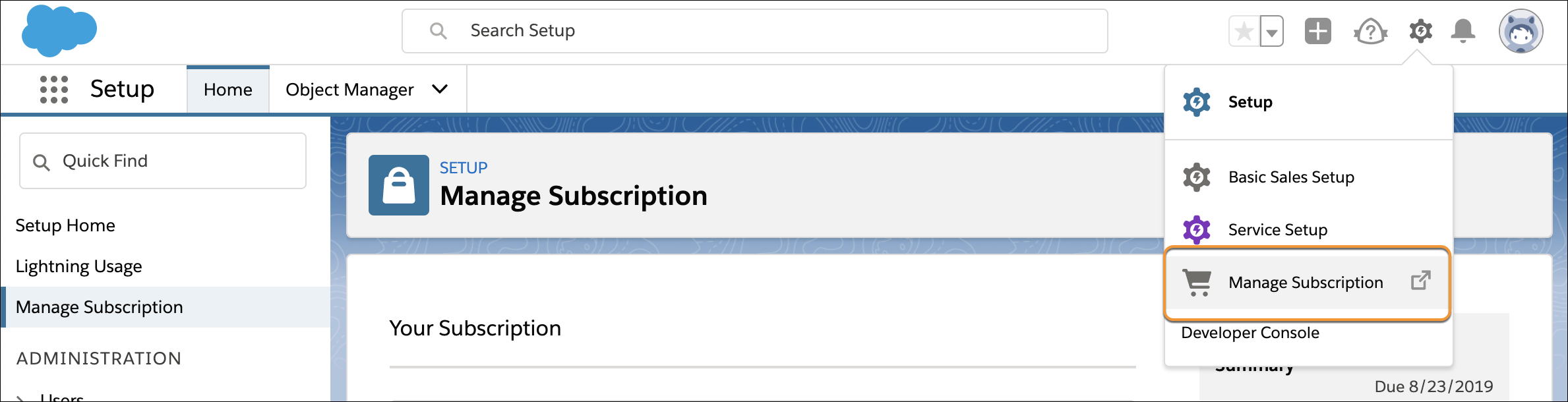
The following is a list of all actions you can take on this page.

Add or Subtract Users
To change the number of user licenses you’re paying for, click Manage licenses. This option is available for your overall number of users, and the number of users able to access certain paid add-ons.
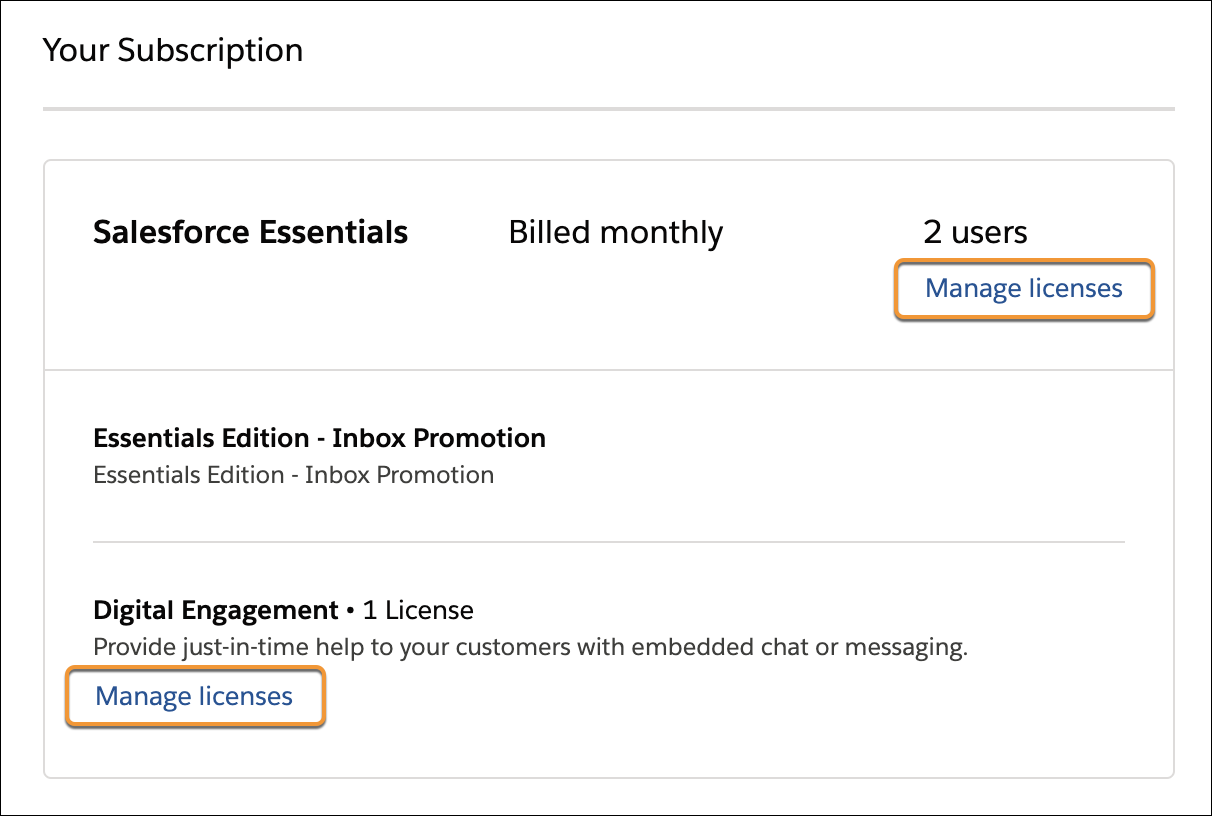
Your add-ons and extra features appear in the Your Subscription section.
| What You See | What It Means | More Info |
|---|---|---|
| Essentials Edition - Inbox Promotion | As an Essentials subscriber, you can enjoy Inbox at no charge. Inbox lets you integrate your email and calendar with Salesforce. | Set up Inbox |
| Digital Engagement | Your first chat license is free with Essentials. As you add users, the option to add more chat licenses appears here. | Offer Live Customer Support with Chat and Messaging |
| Dialer for Essentials | Create a phone in Salesforce that lets your team take and make calls from one phone number. | Phone Options in Salesforce Essentials |
| Sales Dialer | Create a phone in Salesforce with additional features, like multiple phone numbers, personal voicemail, and more. Contact Salesforce to purchase this add-on. | Phone Options in Salesforce Essentials |
| File Storage | Add more file storage beyond the 1 GB allotted. | Data and File Storage Allocations |
| Data Storage | Add additional data storage beyond the 10 GB allotted. | Data and File Storage Allocations |
After you add users, your bill is updated and your user licenses are active within about 30 minutes. After you subtract users, your bill is updated at the start of the next billing cycle. This could be the next month (monthly billing) or the next year (annual billing).
Update Your Credit Card on File
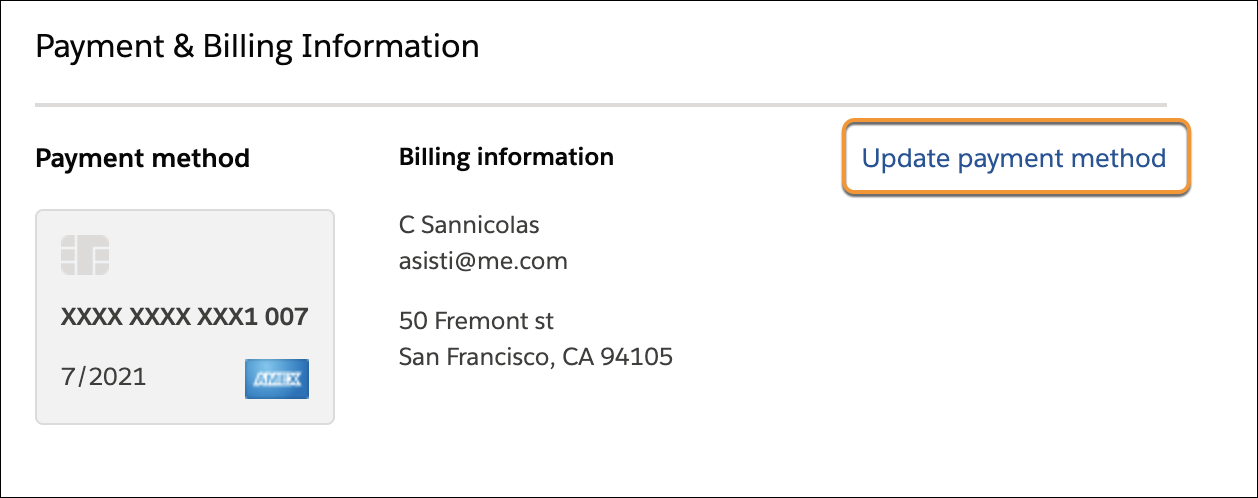
If you’ve missed a payment due to an expired credit card or have another need to change your payment method or billing address, click Update payment method.
Add More Features
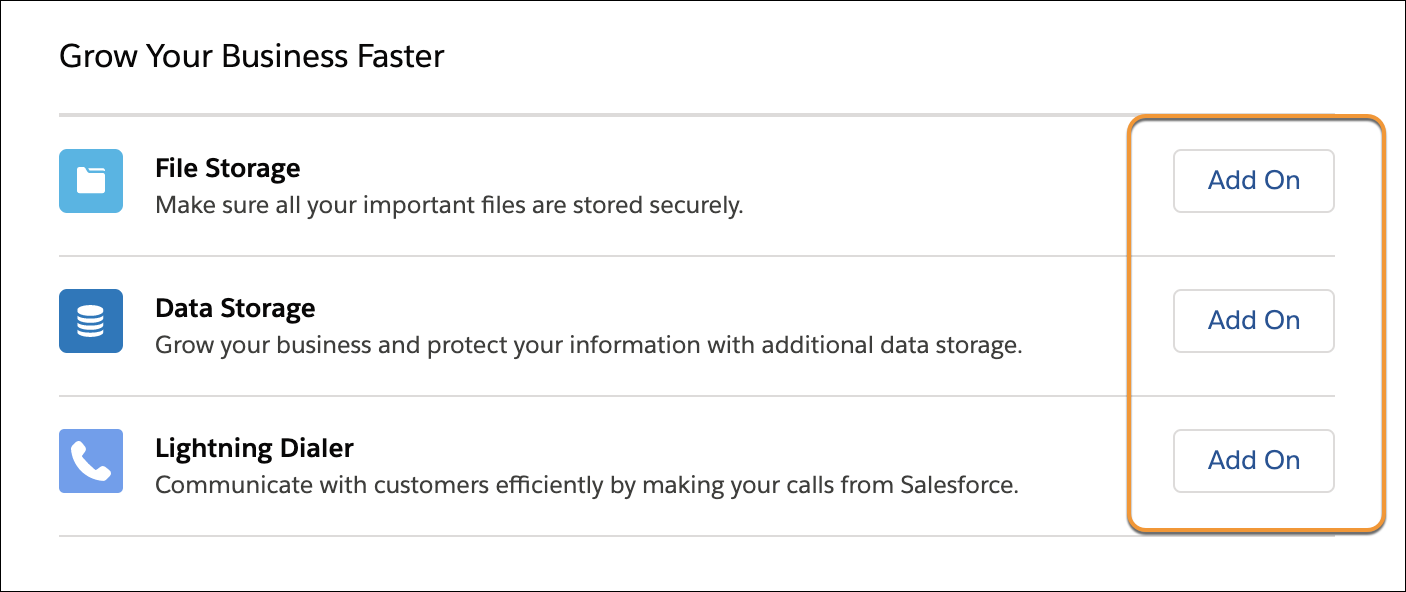
You can purchase add-on features that expand what you can do with Salesforce. Click Add On next to the feature.
Cancel Your Subscription
There’s a cancellation button at the bottom of the page. Indicate why you’re leaving us, then click Cancel Subscription. This cancels the auto-renewal at the next billing cycle, either next month (monthly billing) or next year (annual billing). Your account remains active until then.
