
You are here:
Sync Emails and Activities
Automatically bring your business emails and events into Salesforce with Einstein Activity Capture. Then your deals, cases, and contacts will show any related emails and events.
How Do I Set It Up?
From the home page, select Connect to Email and Activities.
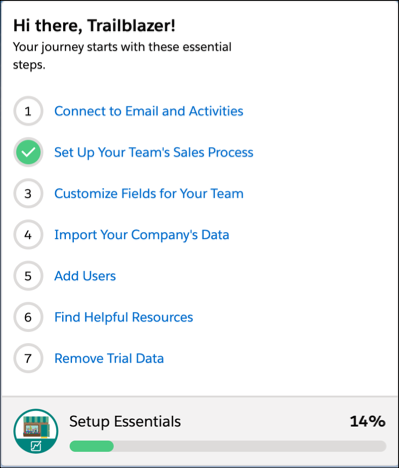
Then follow the steps in the guided setup. Once you’ve successfully set it up, a confirmation banner appears at the top of your screen.

Note If you use Email-to-Case to
create support cases from your emails, make sure to use a different email address for
Einstein Activity Capture. What's
Email-to-Case?
What Should I Do If It Doesn’t Connect?
If your emails and activities aren’t syncing after you complete the setup flow, try enabling Einstein from Setup. Here’s how to do just that.
- Go to Setup
 and enter Permission Sets in the Quick Find box.
 - Select Inbox With Einstein Activity Capture and click Manage Assignments.
- Check the box next to your name and click Remove Assignments.
- Click Okay in the pop up and then click Done.
- Check the box next to your name and click Remove Assignments.
- Click Done.
- Go to your profile by clicking on either your profile image or the placeholder image in the top right of your screen.
- Click Settingsin the drop down.
- In the Quick Find box, enter Einstein Activity Capture.
- Click Settings.
- If an email address appears, click Disconnect then Reconnect. If no email address appears, click New Accountand follow the prompts.
How Can I Check If My Email Is Connected?
If you’d like to see what email accounts are connected, there’s an easy way to do just that.
- Go to your profile by clicking your profile image or the placeholder image in the top right of your screen.
- Click Settings in the dropdown.
- Type Einstein Activity Capture in the Quick Find box.
- Click Settings.
- Dismiss the modal to see a list of your connected accounts.
Did this article solve your issue?
Let us know so we can improve!
