
You are here:
Filter Records on an Object
Specify records to process with your Data Management Policy by selecting an object and setting filter conditions. You can process records that meet any condition, all conditions, or a custom arrangement of conditions.
Required Editions
| Available in: Developer, Enterprise, Performance, and Unlimited Editions. Requires the Privacy Center license. |
| User Permissions Needed | |
|---|---|
| To create, edit, and schedule Data Management Policies: | Manage Privacy Center Policies |

- External objects
- Big objects
- Setup objects
- Unstructured data (such as data within an attached PDF)
- On the policy details page, click Add Object.If you don’t see a standard or custom object in the Available Objects panel, check with your admin to make sure that you have the correct user permissions.
- Under Available Objects, select an object.Note The User object has special processing considerations. See Anonymize Inactive Users. You can also scramble user data with the Apex method instead of Privacy Center.
- Enter an optional description for the object, and then click Next.
- Under Apply Policy, select the conditional logic that you want to use to target
records.
Conditional Logic Function Example To All Records Applies your policy to every record on the object. No filter is applied. N/A When All Conditions Are Met Applies your policy to records that meet all of the conditions you set. Set a condition that the Account Source equals Web, and set another condition that the Created Date equals January 1. If a record’s source is Web and the record was created on January 1, then the record is processed. When Any Condition Is Met Applies your policy to records that meet any of the conditions you set. Set a condition that the Account Source equals Web and another condition that the Created Date equals January 1. If a record’s source is Web or the record was created on January 1, then the record is processed. Custom Applies your policy according to boolean condition logic that you enter.
Limitations:
- If you add a cross-object query to your custom filter, you can’t have multiple queries for the same parent and child relationship. For multiple cross-object queries on the same parent object, use custom logic and different child objects. You can’t use AND or OR logic for queries on the same child object. For example, create cross-object queries in the same policy from the Contact object to the Contact.PrimaryAccount and Contact.SecondaryAccount child objects.
- When you apply a custom logic, filter conditions aren’t supported on cross-object queries. While configuring the cross-object query, under Apply Policy, select To All Records.
Set the first condition as the Account Source equals Web, the second condition as the Created Date equals January 1, and the third condition as the Primary field equals True. Then set the conditional logic to capture your desired combination of these conditions, such as (1 OR 2) AND 3.
You can also filter for records that don’t meet a certain condition by adding ! in your conditional logic. For example, (1 OR 2) AND !3 filters for records that meet either condition 1 or 2 and don’t meet condition 3.
- Click Add Condition, and then select values for the Object Field,
Operator, and Criteria fields.For conditions with DATETIME fields, select the operators is within the last or is beyond the last to target a number of days before the policy execution date. For example, to target records with an expiration date that's within 45 days before the policy execution date, use the operator is within the last 45 days. Or, to target records with an expiration date that's more than 45 days before the policy execution date, use the operator is beyond the last 45 days. To target a specific date, select the operators is less than and is greater than. For example, set a condition to filter for records with operator is less than Aug 17th, 2023 to find records created before that date.
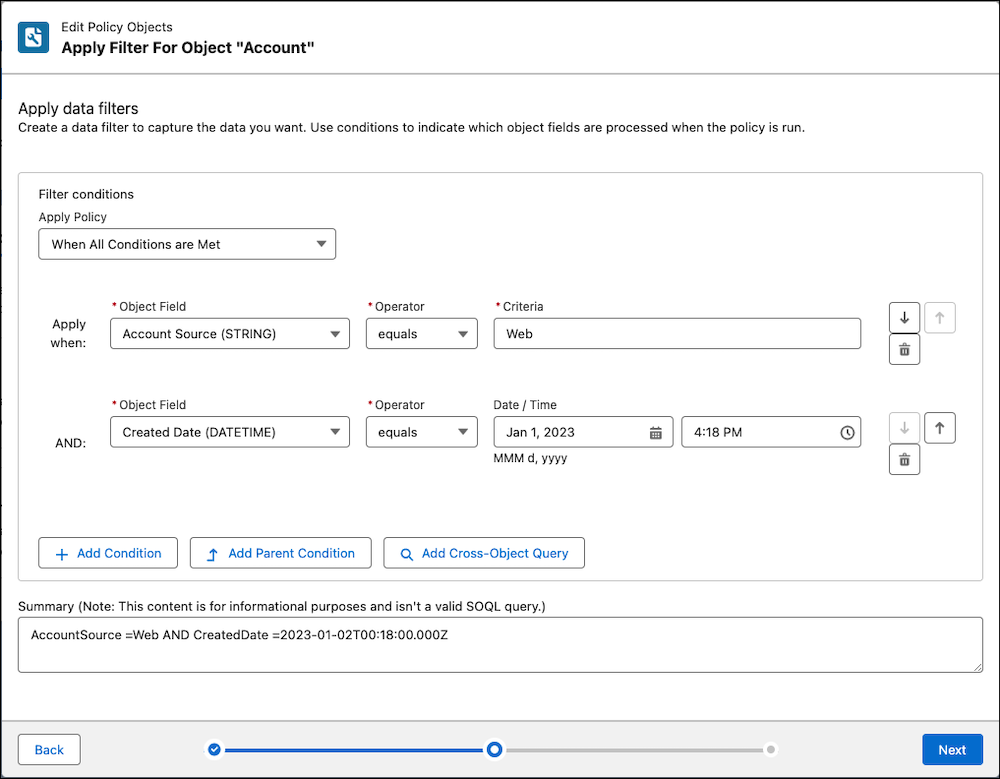
- Optionally, click Add Parent Condition.Parent conditions check the value of a field that’s up to five levels above in the object hierarchy to determine whether a record is processed. For example, set a parent condition that Case records are processed if the Case > Contact > Account > Billing Zip/Postal Code field has a value of 94105.
- Optionally, click Add Cross-Object Query.Cross-object queries filter records on the current object using conditions that you apply to a child object. For example, you can use a cross-object query to filter for Account records that have Cases more than a year old. In the Cross-Object Query for Case, add a condition with the Object Field set to Created Date, the Operator set to is beyond the last, and the Number of Days Relative to Policy Execution Date set to 365. You can cross-object query to only one level down in the hierarchy of related objects.Note You can't apply cross-object queries to polymorphic fields, such as the Owner, Who, or What fields. Learn more about polymorphic fields.
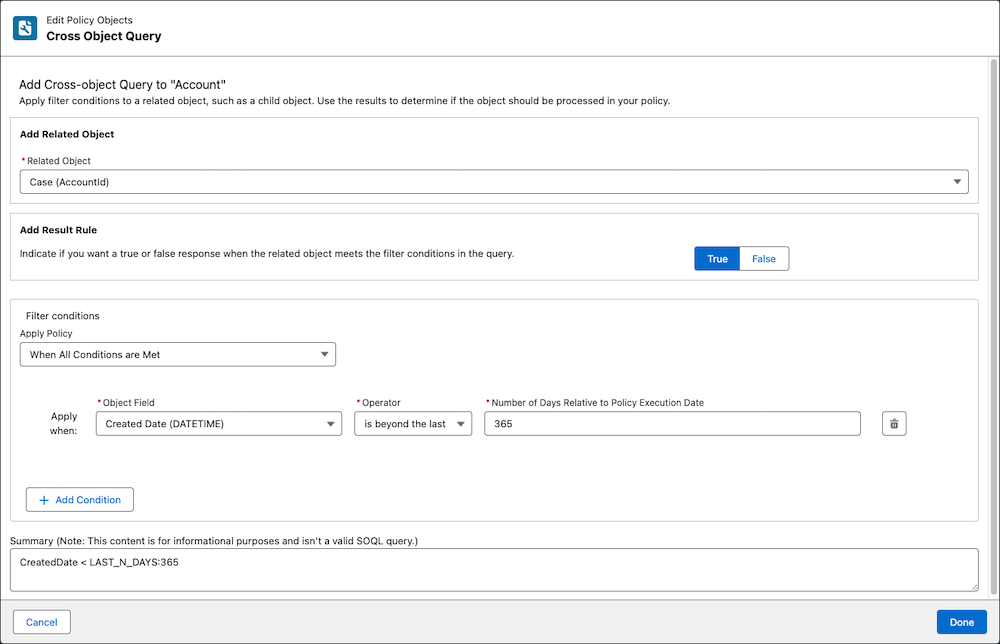
- From the dropdown list, select a child object to query. Next to the related object name is the field that relates the two objects.
- Under Add Result Rule, select True if you want records that meet
your conditions to be processed, or False if you don’t want the
records to be processed.Note Records on the related object that you query are never processed by the policy.
- When you’re finished adding filter conditions, click Next.
You’re ready to define how the captured records are masked or deleted from your org.
