
You are here:
Considerations for Apple Safari
Salesforce supports the latest stable version of Apple Safari. Apply all Apple software updates.
If you use the Tab key to navigate, the tab order can be different when tabbing forward versus tabbing backward, and some UI elements can’t be focused. To ensure the tab order is consistent, and that each element can be focused, turn on Press Tab to highlight each item on a webpage in your browser settings.
To protect user privacy, Apple Safari version 13.1 changed the default settings to block cookies in cross-domain iframes. The Prevent Cross-Site Tracking privacy setting is enabled by default. Visualforce pages embedded within page layouts and some pages in Setup rely on cross-domain cookies to work properly in Lightning Experience, so these pages aren’t displaying correctly. If you encounter issues with one of these Setup pages, click the link to reload the page in Salesforce Classic.
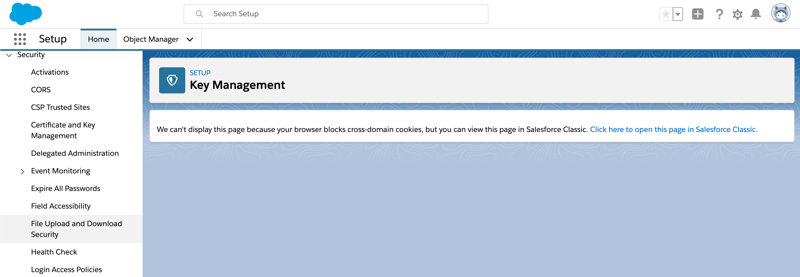
To display content for Visualforce pages, follow the steps in the Cannot Load Images and Other Content When Using Safari knowledge article to change your org’s metadata.
You can also turn off these Safari settings.
- Block All Cookies
- Prevent Cross-Site Tracking
 Warning Salesforce isn’t responsible for any sharing of data based on this change from default settings.
 - Private Browsing
- Block Pop-ups
Pop-up blocking can prevent some pages from opening in a new tab.
