
You are here:
View Important Updates with the Assistant
Use the Assistant on the Home page in Lightning Experience to view important updates over the course of your day.
Required Editions
| Available in: Lightning Experience |
| Available in: Professional, Enterprise, Performance, Unlimited, and Developer Editions |
Click different leads or opportunities to go to the record’s detail page.
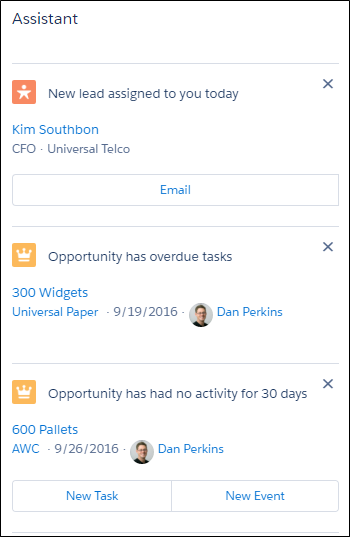
The following updates appear in the Assistant:
- Leads assigned to you today
- Opportunities with overdue tasks (for up to 90 days after the Close Date)
These updates stop appearing 90 days after the opportunity’s Close Date, even if tasks are still overdue.
- Opportunities with no activity in 30 days
- Opportunities with no open activity
- Overdue opportunities
Opportunities are overdue if they’re still open after the Close Date. These updates stop appearing if it’s been over 8 days since the Close Date.
Up to 10 updates are shown at a time. Updates about leads appear before updates about opportunities. Opportunity updates are arranged in order of close date.
- If you have Einstein Activity Capture enabled, you won’t see the updates about opportunities with no open activity or no activity in 30 days.
- The Assistant doesn’t show tasks due today or overdue tasks that aren’t tied to an opportunity. The Today’s Tasks component is an alternative that’s available on the Home page, and it shows a list of your tasks due today.
- If you don’t have access to activities on opportunities or if the opportunity pipeline is off, you instead see recommendations for opportunities that have close dates over the next 90 days.
Buttons for different actions (such as New Task) automatically appear under most Salesforce configurations, but you may need to make some updates if you’ve customized global actions or publisher layouts.
Actions need to exist as global actions in order to appear in the Assistant. From Setup, enter Global Actions in the Quick Find box, then select Global Actions. Make sure the following actions are available. The Label can be anything, but we recommend something simple, like New Task, New Event, or Email.
| Allows user to | Action Type | Target Object | Name |
|---|---|---|---|
| Create a new task | Create a Record | Task | NewTask |
| Create a new event | Create a Record | Event | NewEvent |
| Send an email | Send Email | Outgoing Email | SendEmail (not required) |
To display actions, they also need to be included in the related global publisher layouts. From Setup, enter Publisher Layouts in the Quick Find box, then select Publisher Layouts. Select the relevant publisher layout, and make sure the actions are included under the Mobile & Lightning Actions section.
