
Reconfigure iframe Components
When a URL is displayed in an inline frame (iframe) on a Visualforce page, it can cause errors in Lightning Experience. Sometimes your URL looks different than you want, or maybe the whole page doesn't load in Lightning Experience. Most iframes are compatible with Visualforce in Lightning Experience. However, if you preview your Visualforce page in Lightning Experience and don't like what you see, you can usually fix it.
Required Editions
| Available in: Group, Professional, Enterprise, Performance, Unlimited, and Developer Editions |
| User Permissions Needed | |
|---|---|
| To create, edit, or delete Visualforce pages: | Customize Application |
| To create and save Lightning pages in the Lightning App Builder: | Customize Application |
| To create and edit custom tabs: | Customize Application |
-
Locate the iframe in the Visualforce code.
- From Setup, enter Visualforce in the Quick Find box, then select Visualforce Pages.
- Click Edit next to the Visualforce page.
- Search the Visualforce markup for each of the following: apex:iframe, iframe, and apex:canvasApp.
 Note Address each instance that you find separately.
 - If you find any instances of apex:canvasApp, explore these other options to make it available in the UI.
-
If you find any instances of apex:iframe or
iframe, find the source of the iframe.
- The source can be found after the src=. If you see $Page, the iframe is referencing another Visualforce page. Otherwise, the source is a URL.
<apex:iframe src="{!$Page.AccountListView}"/> <iframe src="https://salesforce.com"/> -
If the source of the iframe is a URL, use a custom web tab instead of the iframe.
- Identify the URL. View the Visualforce markup, and find the URL that follows src=.
-
Remove the reference to the iframe from the markup. Be sure to copy the source
URL.
<apex:iframe src="https://www.salesforce.com"/> - Save your changes.
- Follow these instructions, using the same URL that you copied from the iframe in the Visualforce page.
-
If the source of the iframe is another Visualforce page, create a Lightning record page
to display both Visualforce pages separately.
- Identify the Visualforce page. View the Visualforce markup, and find the page name that follows src=”$Page.
-
Remove the reference to the iframe from the markup. Be sure to make note of the
Visualforce page in the iframe.
<apex:iframe src="{!$Page.AccountListView}"/> -
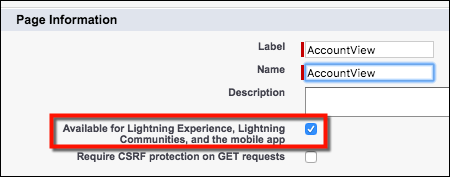
Go into the properties of each Visualforce page by clicking
Edit. Select the Available for Lightning
Experience, Experience Builder sites, and the mobile app checkbox. Check
the checkbox for both Visualforce pages—the original page and the page embedded in the
iframe.
- Use the Lightning App Builder to drag two Visualforce components onto the canvas.
- Save and activate your record page.
Did this article solve your issue?
Let us know so we can improve!
