
You are here:
Mask or Delete Records on an Object
Define how an object’s records are masked or deleted from your org, and determine how related files and attachments are handled.
Required Editions
| Available in: Developer, Enterprise, Performance, and Unlimited Editions. Requires the Privacy Center license. |
| User Permissions Needed | |
|---|---|
| To create, edit, and schedule Data Management Policies: | Manage Privacy Center Policies |
If you want the option to delete field history or field audit trail records with your policy, turn on this org setting: Enable “Delete from Field History” and “Delete from Field History Archive” User Permissions. The setting can be found in the User Interface node in Setup. To learn more, see User Interface Settings.
Complete this task after you add filter conditions to an object.
- Under Action on Data, select how you want to process the records.
- Delete removes the records from your org. If you select this option, continue with Step 2.
- Mask obfuscates individual fields according to rules that you specify. If you select this option, continue with Step 3.
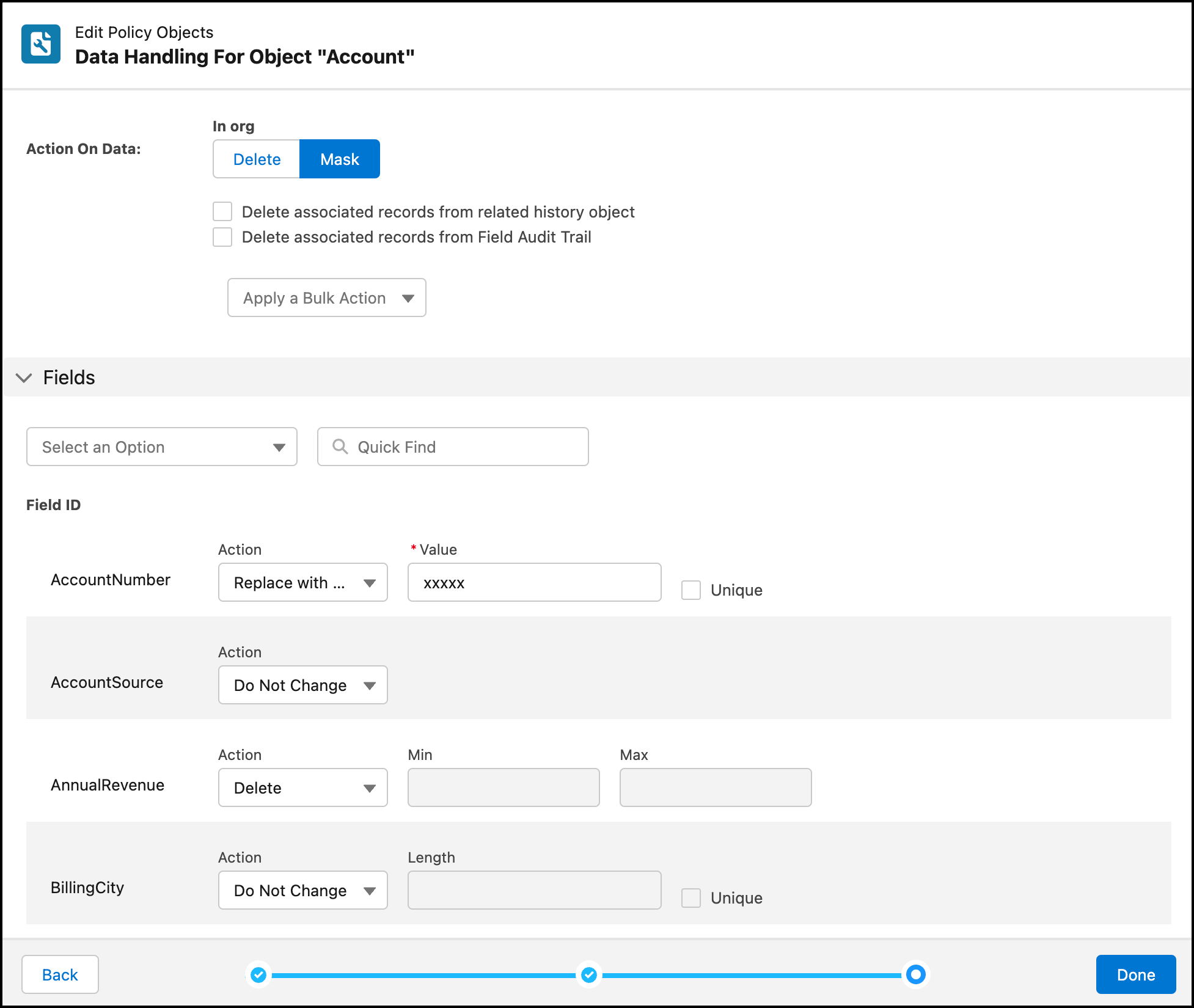
- If you selected Delete, you can apply these additional record
deletion settings.
- Delete records from related history object
Select this setting if you want associated records on the related history object to be deleted from your org.
- Delete records from Field Audit Trail
Select this setting if you have the Field Audit Trail add-on and you want the associated records to be deleted from your org. If you don't have Field Audit Trail, you can't select this setting because the data doesn't exist.
- Permanently delete records
Select this setting if you want to permanently delete records from your org instead of moving them to the Recycle Bin.
 Important If you enable this setting, you can't restore deleted records from the Recycle Bin. We recommend that you back up the records before you execute the policy. That way, you can restore the records from the backup if needed.
 Note You can also enable these settings for the entire policy instead of applying them to individual objects. To edit the settings at the policy level, click Edit on the policy details page.
 - Delete records from related history object
- If you selected Mask, you can apply these obfuscation or deletion
methods to individual record fields. Note Some fields are excluded because of field restrictions. For example, you can’t set restricted picklist fields to random characters. Also, fields with null values are not updated with a masked value.
- Do Not Change preserves the field’s existing value.
- Replace with Random Characters obfuscates the field’s value with random characters. When you select this option, you must also specify the number of characters in the Length field. If you select Unique, the record’s Salesforce ID is added to the field value, creating a globally unique value for the record in your org. The length of the generated Salesforce ID is truncated to meet the maximum length defined for the field. Generating a Salesforce ID increases overall run time.
- Delete removes the field’s value. This action doesn’t delete the entire record, and you can’t delete data in required fields.
- Replace with Static Value obfuscates the field’s value with
a value that you enter (up to 255 characters). If you select
Unique, the record’s Salesforce ID is added to the field value,
creating a globally unique value for the record in your org. The length of the
generated Salesforce ID is truncated to meet the maximum length defined for the field.
Generating a Salesforce ID increases overall run time.
 Tip Under Fields, you can choose a compliance category to filter for specific field types. For example, you can quickly find fields marked as containing personally identifiable information (PII).
Alternatively, you can apply a single action to all records using the Apply a Bulk Action dropdown list. - Under Files and Attachments, select whether related files and attachments for processed
records are kept or deleted from your org. Keep in mind that if a record is deleted rather than
masked, its attachments are deleted automatically.
- Delete All deletes every file and attachment, even if other remaining records are associated with the files.
- Delete if Unshared deletes files and attachments that aren’t associated with any other records.
- Keep preserves all files and attachments.
- When you’re finished setting mask or deletion rules, click Next.
You’re ready to add data retention rules to your policy.
