You are here:
Add an Apex Class Permissions Checker (Managed Package)
For the managed package runtime, enable specific access to the VlocityOpenInterface Apex class used by remote action APIs for each user or profile, permission set, or permission set group. Use the Apex class check setting to enable users with permission sets or permission set groups to call allowlisted Apex classes remotely. Configure an Apex class permissions checker to ensure that users require explicit access to the Apex class that administers the remote action called from an Omniscript, Integration Procedure, Flexcard, Classic Card, or REST API.
 This information is for Omnistudio for Managed Packages. For Omnistudio on standard runtime, see Omnistudio Help.
For example, after you create a Lightning Platform site, publicly available APIs are enabled for the Site User profile based on the profile's Apex class access to RestResource Apex classes. When you add an Apex class permissions checker, you ensure that unauthorized users, such as a guest user, can't access classes through the Vlocity/V1/GenericInvoke/ API.

Previously, Apex class checks were performed only for the Apex classes assigned to the user’s profile. With the new advanced Apex class check setting, perform Apex class checks for both the Apex classes assigned to the user’s profile and the Apex classes assigned to the user's permission sets or permission set groups.

If you're an Omnistudio customer, review your configuration for these insecure configurations, which could provide broader unintentional access to unauthorized Apex classes than desired:
- Implemented the
InvokeMethodofVlocityOpenInterfaceclass within an Omniscript, Integration Procedure, a Flexcard, or a Data Mapper. - Added sensitive implementation inside
InvokeMethod. - Provided Apex class access to the
BusinessProcessDisplayController,ApplicationService, andComponentControllerclasses for the guest user profile. - Disabled the
ApexClassChecksetting.
-
If the Omnistudio license isn’t available in your Salesforce org (for example, if you
have installed Omnistudio as part of the CME or Insurance managed package), enable the
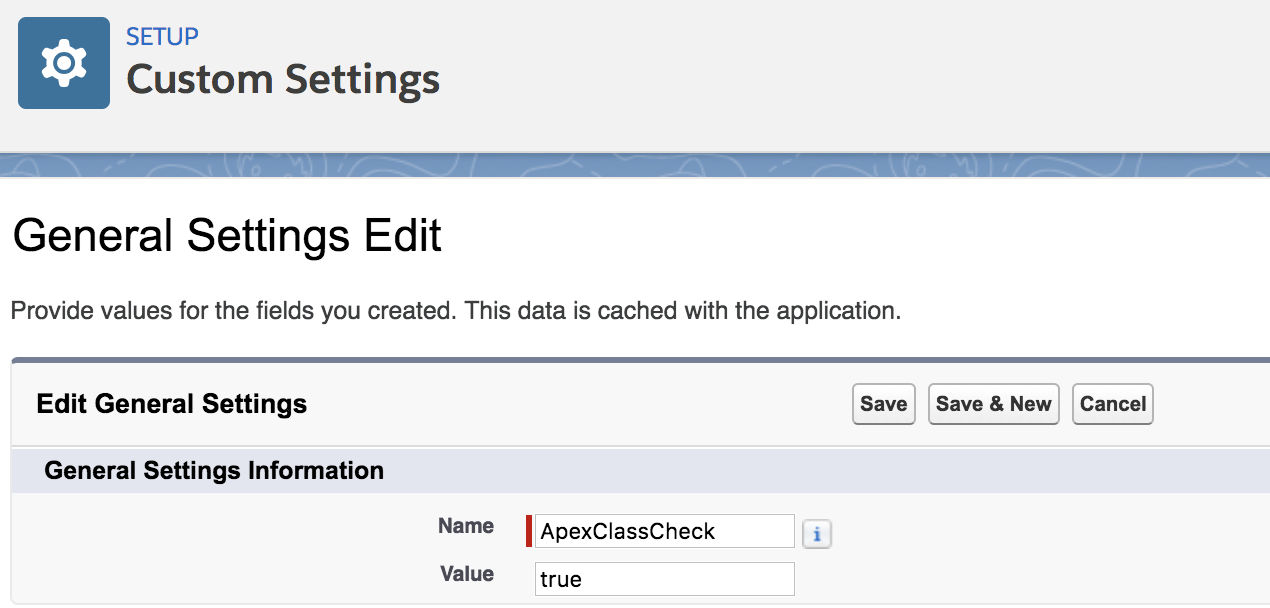
ApexClassChecksetting from the General Settings section.- From Setup, in the Quick Find box, enter Custom Settings, and then select Custom Settings.
- Click General Settings.
- Click Manage.
- Click New.
- In Name, enter ApexClassCheck.
- In Value, enter true.
- Save your changes.
-
If the Omnistudio license is enabled in your org, enable the
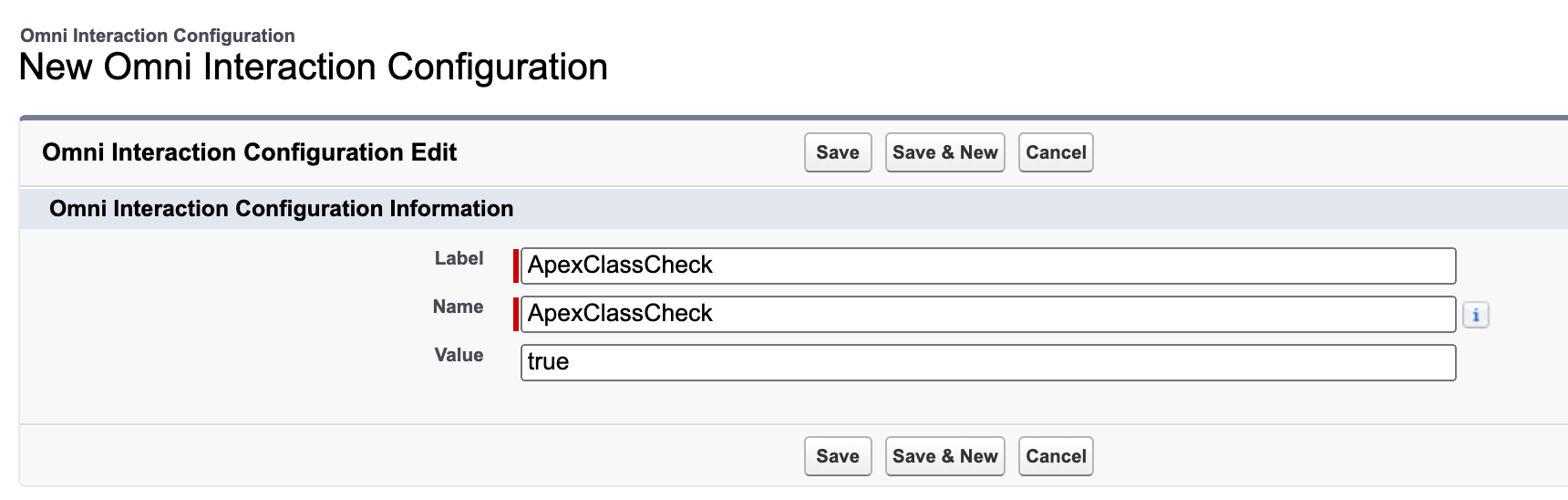
ApexClassChecksetting from the Omni Interaction Configuration section:- From Setup, in the Quick Find box, enter Omni Interaction Configuration, and then select Omni Interaction Configuration.
- Click New Omni Interaction Configuration.
- In Name and in Label, enter ApexClassCheck.
- In Value, enter true.
- Save your changes.