
You are here:
Add a Type Ahead Block in an Omniscript
In edit blocks, suggest possible entries as a user types in a field, as an autosuggest or autocomplete.
-
Add the Type Ahead Block element to the Omniscript canvas.
 Note
NoteIf a Type Ahead Block exists in a Block element, only one Block element is permitted. Adding multiple nested Blocks results in errors.
-
Add an Action element into the Type Ahead Block to retrieve data or seed the Type
Ahead Block with data.
Type Ahead Blocks only support using a single action.
Supported Data Sources
Description
Data JSON
Accesses an array of data present in the Omniscript's data JSON.
Omnistudio Data Mapper Extract Action
Retrieves internal or external Salesforce data.
Google Maps Auto Complete
Calls a Google Maps API to retrieve google maps data.
HTTP Action
Retrieves external data.
Remote Action
Retrieves data from an Apex class.
-
Add input elements into the Type Ahead Block to map response data.
To hide an element, such as an Id, from the user, prefill it with data from the TypeAhead using these steps:
-
From the element properties panel, click Edit as JSON. The JSON definition of the element is displayed.
-
Set the hide property's value to true.
-
Check the box labeled Available for Prefill When Hidden.
-
- Configure additional properties in the Edit Block to set a user's data access.
-
Add custom styling and behavior by overriding LWC Type Ahead Block components.
The LWC Component Override field only overrides the Type Ahead Component.
Type Ahead Block LWCs
Description
omniscriptTypeahead
Overrides the Type Ahead component that lists the data results.
omniscriptTypeaheadBlock
Overrides the Type Ahead Block component that embeds the Type Ahead component.
progressBar
LWC Type Ahead Blocks display a progress-bar when retrieving data results. For information on customizing the progress-bar, see Base Omnistudio LWC ReadMe Reference.
- Use a Type Ahead Block with an Omnistudio Data Mapper
Retrieve an object record using a Type Ahead Block with a Data Mapper. For example, type a few letters of an account name in the Type Ahead Block. The Data Mapper finds account records with names containing those letters. - Use Type Ahead Block With Data JSON
A Type Ahead Block can use a JSON node as its source instead of an Omnistudio Data Mapper, API, HTTP, or Remote action. This JSON node can store data from any action that outputs a list. The response from a Type Ahead Block that uses a JSON node is made client-side, eliminating the need to make server calls. - Use Google Maps Autocomplete in Omniscripts
Retrieve Google Maps data and display a location in the Type Ahead Block by using the Google Maps API. - Make an HTTP Call from a Type Ahead Block
Retrieve data from a URL in your Type Ahead Block using an HTTP Action.
Use a Type Ahead Block with an Omnistudio Data Mapper
Retrieve an object record using a Type Ahead Block with a Data Mapper. For example, type a few letters of an account name in the Type Ahead Block. The Data Mapper finds account records with names containing those letters.
Type Ahead Blocks usually use Name but can use another field. The following task steps use Name.
- Create a Data Mapper Turbo Extract or a Data Mapper Extract with a filter of Name LIKE Key. If needed, add other filters.
- Add a Step component to your Omniscript, or use the first Step.
- Add a Type Ahead Block to the Step in your Omniscript.
- In the Type Ahead Block Properties, set the Typeahead Key to Name.
- Drag a Omnistudio Data Mapper Turbo or Omnistudio Data Mapper Extract element into the structure of the Type Ahead Block.
- In the Data Mapper Action Properties, set the Data Mapper Interface to the name of the Data Mapper Turbo Extract or Extract you created.
- To pass the Type Ahead Block input to the Data Mapper, in the Data Mapper Extract Action Properties, go to Input Parameters. Set one Data Source to the Name of the Type Ahead Block, for example TypeAhead1. Set the corresponding Filter Value to Key.
- Set any other Input Parameters that the Data Mapper Extract requires for other filters.
- For a Data Mapper Turbo Extract, make sure the Response JSON Path in the Omniscript’s Data Mapper Turbo Action matches the Data Mapper Turbo Extract's Extract Output Path.
-
If needed, add fields to the Type Ahead Block.
To populate the fields, set the element names to match the Data Mapper Turbo Extract or Extract’s Output JSON Path fields.
For more information on populating elements, see Load Salesforce Data into an Omniscript Using an Omnistudio Data Mapper.
-
To populate subsequent Omniscript elements with data from the Type Ahead Block’s
Data Mapper, use
%StepName:TypeAheadName-Block:DROutputField%, for example%Step1:TypeAhead1-Block:AnnualRevenue%.
Use Type Ahead Block With Data JSON
A Type Ahead Block can use a JSON node as its source instead of an Omnistudio Data Mapper, API, HTTP, or Remote action. This JSON node can store data from any action that outputs a list. The response from a Type Ahead Block that uses a JSON node is made client-side, eliminating the need to make server calls.
For example, suppose you want to use an Integration Procedure that eliminates duplicates in the list the Type Ahead Block displays. You can't add an Integration Procedure to the Type Ahead Block directly as you can do with a Data Mapper. However, you can save the response from the Integration Procedure Action to a JSON node that the Type Ahead Block can reference..
-
Use the Send/Response Transformations properties of the
action with the source list to save the list to a root level JSON node.
For example, the Integration Procedure that eliminates duplicates outputs a list named contactMerge. In the Integration Procedure Action that calls it, set the Response JSON Path to contactMerge and the Response JSON Node to the node the Type Ahead Block references, such as NoDupList.
- In the Type Ahead Block, select Use Data JSON.
-
In the Data JSON Path, enter the name of a root level JSON
node returned by the response of the action with the source list.
Continuing the example of the Integration Procedure that eliminates duplicates, set the Data JSON Path to NoDupList.Note
The Data JSON Path only accepts data at the root level of the JSON.
-
To return unfiltered results, select Disable Data Filter in
the Type Ahead Block's properties.
By default, user input is filtered using a
LIKEmatch of the Typeahead Key field. -
To make the Type Ahead Block behave like the Lookup element, select
Lookup Mode.
Instead of typing to return a set of values, users can select from a set of values. However, users can enter text using an Input Method Editor (IME) in the lookup mode.
Use Google Maps Autocomplete in Omniscripts
Retrieve Google Maps data and display a location in the Type Ahead Block by using the Google Maps API.
Before you begin, you require a Google Maps API Key to use the Type Ahead Block's Google Maps functionality. See Google.
- Add a Type Ahead Block to your Omniscript.
- In Type Ahead Block's Field Label, enter the text to display in the Google Maps search field.
- Select Enable Google Maps Autocomplete to display the Google Maps Autocomplete section.
-
In the Google Maps API Key field, enter your Google Maps JavaScript API key.
If you don't have a Google Maps JavaScript API Key, obtain one from Google.
- If you want to hide the Google Map widget, select Hide Map.
- Select a country in the Country Filter field.
- To run a search and return a Google response, preview the Omniscript.
-
To view the response, open the Action Debugger.
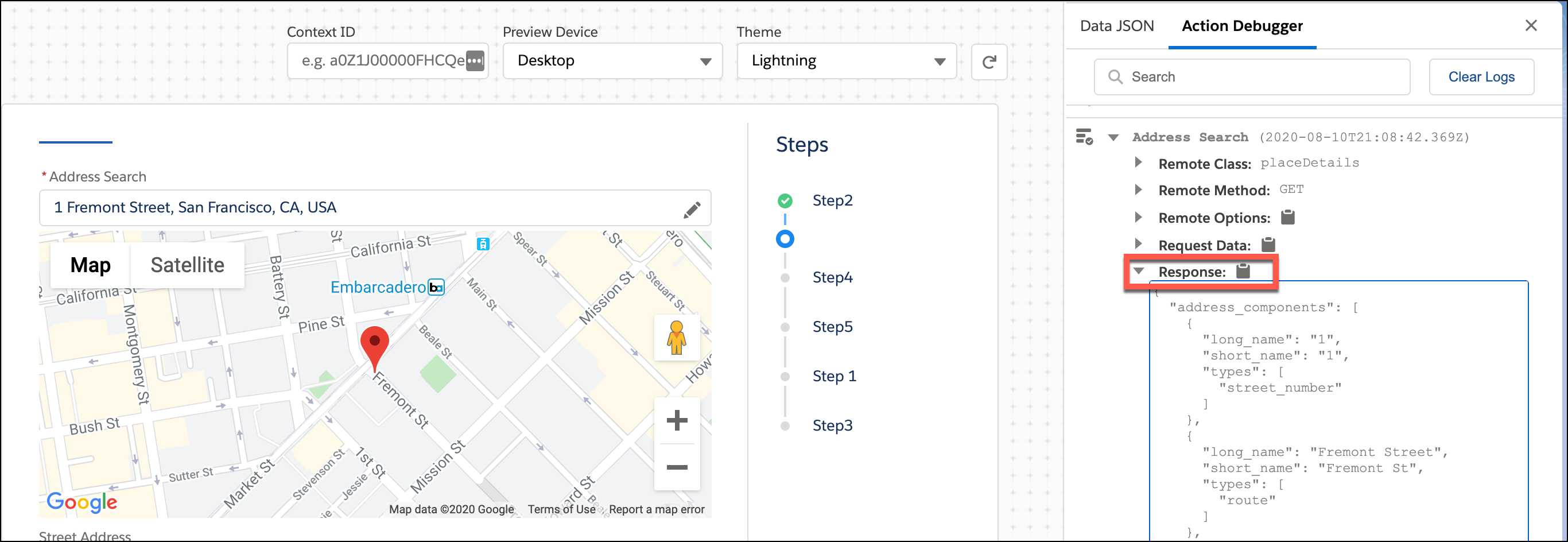
Here are the available response nodes:
Responses return unique sets of data based on the configuration.
In addition to the default response nodes, this table shows response nodes that can also be available in the Google response. For detailed information on each response node, see Google Geocoding API (Google documentation).
Response Node
Description
street_address
A street address
route
A named route, for example, I-5
intersection
A major intersection
political
A political entity
country
A national political entity
geometry
An object that contains longitude and latitude
administrative_area_level_1
A first-order civil entity below the country level, for example, states
administrative_area_level_2
A second-order civil entity, for example, counties
administrative_area_level_3
A third-order civil entity
administrative_area_level_4
A fourth-order civil entity
administrative_area_level_5
A fifth-order civil entity
colloquial_area
A common alternative name for the entity
locality
An incorporated city
sublocality
A first-order civil entity below locality. The sublocality can contain additional civil entities in nodes from sublocality_level_1 to sublocality_level_5
neighborhood
A neighborhood
premise
A location, for example, a building
subpremise
A first-order entity below a location, for example, a building
postal_code
A postal code
natural_feature
An important natural feature
airport
An airport
park
A park name
point_of_interest
A point of interest, usually an important local entity, for example, the Golden Gate Bridge
types
An array that contains the response's type, for example, San Francisco is a type of locality
-
To map the data from a Google response node, add an element to the Type Ahead
Block.
Elements in the Type Ahead Block appear as a selectable Child Element in the Google Transformation section.
- In the Google Transformations section, click Add New Mapping.
-
Select a child element and map it to a Google Response Node.
Refer to the Action debugger's response, and map these additional nested data types by entering the correct notation in the Google Response Node field:
Response Node
Data Type
Notation Example
geometry
Object
geometry:location:lat
types
Array
types|1
- To view your mappings, save the Omniscript and run it in preview.
Make an HTTP Call from a Type Ahead Block
Retrieve data from a URL in your Type Ahead Block using an HTTP Action.
- Add a Type Ahead Block to your Omniscript.
- Drag the HTTP action into the Type Ahead Block.
- Configure your HTTP Action by entering your HTTP Path and your HTTP Method.
- Add fields to your Type Ahead Block for the items that are being returned by the HTTP action.
-
To return unfiltered results select Disable Data Filter in
the Type Ahead Block's properties.
By default, user input is filtered against a LIKE match.
