
You are here:
Add your Omniscript to a Lightning Page (Managed Package)
For the managed package runtime, add your Omniscript to a Salesforce Lightning page.
 This information is for Omnistudio for Managed Packages. For Omnistudio on standard runtime, see Omnistudio Help.
-
In a Lightning Page's App Builder, search for the name of your Omniscript by
entering the Omniscript's unique Type, SubType, and Language. Use the syntax
Type/SubType/Language to search as the search does not
ignore forward slashes.

-
Drag the component into the Lightning Page.
In the Lightning App Builder, Omniscripts aren't available in the Components section when page type is Home Page. Omniscripts are available for Record Page, App Page, Community Default, and Community Page types.
-
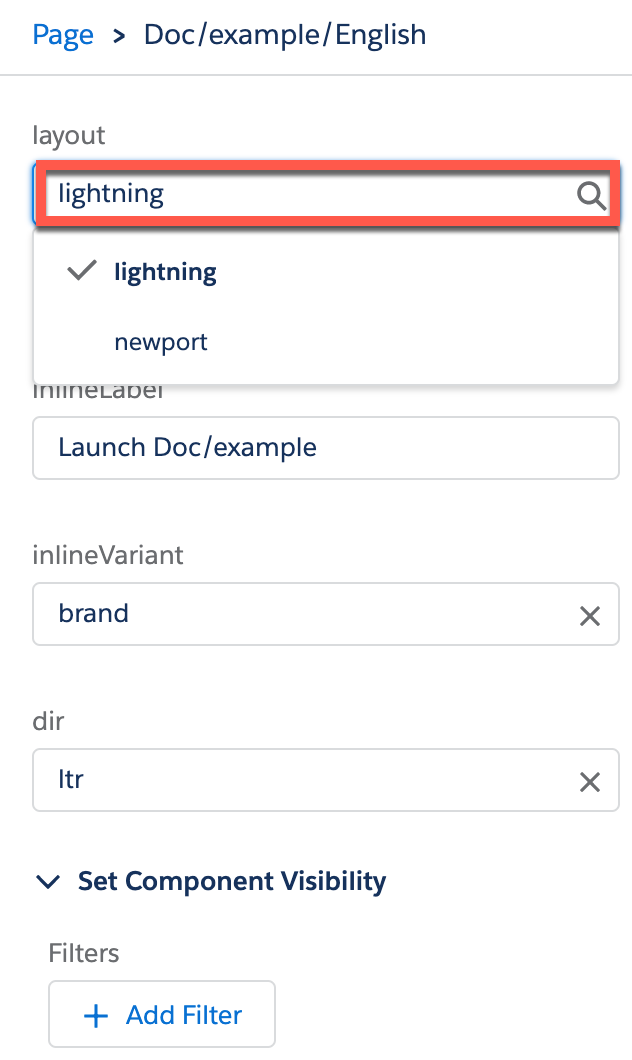
(Optional) Apply Newport styling by entering newport into
the layout field in the component's properties panel. Lightning styling is the
default styling when the layout property is blank.
- (Optional) Configure the inline options. See Display Inline Omniscripts on Lightning and Community Pages (Managed Package).
- (Optional) Control how right-to-left languages display. Omniscript provides beta support for right-to-left languages. In the dir field, select whether the Omniscript displays ltr or rtl. Available beginning with Vlocity Insurance and Health and Vlocity CME Summer '20
- (Optional) Modify the component's visibility by adding filters. For more information, see Dynamic Pages.
- (Optional) Change the device view of the App Builder to Phone to see how the Omniscript displays on a mobile device. Available beginning with Vlocity Insurance and Health and Vlocity CME Summer '20
Did this article solve your issue?
Let us know so we can improve!
