You are here:
Add Your Omniscript to an Experience Cloud Page
In the Omnistudio standard runtime, add the standard Omniscript component to an Experience Builder page after activation.
You can add an Omniscript to an Aura-based Experience Cloud site, or a Lightning Web Runtime (LWR) Experience Cloud site. To add an Omniscript to an LWR site, you must first contact Salesforce Customer Support to enable this capability. Once done, you can perform these tasks.
- To access the Experience Builder, see Navigate Experience Builder.
- To open the Components pane, click the lightning bolt icon.
-
Drag the Omniscript component from the Process Automation
section onto the canvas, if you're using an Aura-based Experience Cloud site. On the
LWR-based Experience Builder, find the Omniscript component in the Customer Interactions
section.
When you add the Omniscript component, it pulls in the first active Omniscript. The component shows up on the canvas as a placeholder, and the type and subtype are pre-filled in the dropdown from the first active Omniscript.
- If the retrieved Omniscript isn’t the script you must use, select another type and subtype option from the dropdown menu.
- Configure your script by using the choices from the dropdown menu.
-
Select a Theme.
For example, the Salesforce Lightning Design System (SLDS) or Newport. You can switch themes at any time.
-
For Display, choose whether you want the Omniscript to display
on the page, or use a button to open the Omniscript.
If you select a button to open Omniscript, you can apply one of the SLDS styles for the button variant.
-
Select the Language to use for Omniscript.
Depending on the language you select, you can select either ltr (left to right), or right to left for your Language Direction.
- To preview, click Preview.
Considerations for Using Omniscripts with Lightning Web Runtime Sites
Both existing and newly created Omniscripts can be used on Lightning Web Runtime (LWR) Experience Cloud sites. Learn about some key considerations before you choose an Omniscript to embed in your LWR sites.
You can use the Omniscripts through the LWR site builder under the Customer Interactions category. To make sure that your Omniscripts display correctly and function well, note these pointers and choose only compliant Omniscripts for your LWR sites.
- If you make changes to your Omniscript, make sure that you republish the sites that use
it. Child Omniscripts must also be republished after a change is made.
 Note Before republishing your sites via the site builder, consider other elements from other products that you've embedded in your site. Only republish if everything production-ready.
 - Lightning pages, Experience Cloud Aura sites and LWR sites all implement their own styling. To reuse an Omniscript with a modified UI appearance, enter the token overrides in the Omniscript corresponding to the consuming page or site.
- To use the Open Omniscript option on an LWR site, make sure that you select the Load Omniscript from URL checkbox in the Properties section of the page. This checkbox is added to the Omniscript component and loads the Omniscript present in the URL configured via the Action Type. You must also create an lwcos page for this action to work. For more information, see Launch an Omniscript from an Omniscript Action on a Flexcard in Experience Cloud.
- Custom LWCs are supported. However, due to a technical limitation, nested custom LWCs
require a workaround to work as expected. Because LWR sites work on cached data, they look
for Flexcards and Omniscripts nested within your custom LWCs on the site. If present, they
load the appropriate component at runtime. To do this, you can pick one of the two methods
outlined here.
-
Create a page on your site and add all nested components in your main LWC component to this page. Hide the page so it doesn’t show up for users as a navigation option.
-
On the page that you’re adding your custom LWC, add the dependent Flexcards and Omniscripts. Then, for each component, control the visibility via the Visibility tab. For instance, you can switch the Show Component on Desktop toggle on and add a condition that says “User ID” equals “Invalid_User”. In most orgs, this condition is never true, so the dependent components stay hidden for the user but are available to the LWR site to read from.
-
- The Style and Visibility tabs on LWR sites don't work with Omniscript elements. You can continue to control the style and visibility of the Omniscript through the options available within the Omniscript designer, but they aren't compatible with the settings native to the LWR site builder.
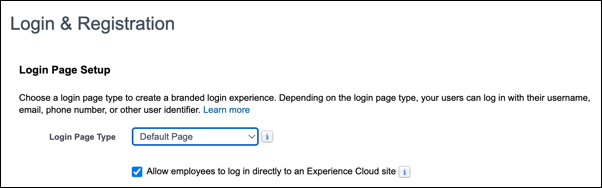
- When you open an LWR site from the Digital Experiences page, the site considers you an unauthenticated user and shows only Flexcards that have data available to guest users. To make sure that you see the full data, implement a login page on your site. Then, go to the Workspaces link next to the site name. Click Administration and find the Login & Registration tab in the left navigation pane. Make sure that the Login Page Type dropdown has a value and that the Allow employees to log in directly to an Experience Cloud site checkbox is selected.
-