
You are here:
Adding a Vlocity Action to a Card (Managed Package)
For the managed package runtime, add reusable actions to a card with Vlocity Actions to launch Vlocity Omniscripts, Vlocity Cards components, web pages, or external applications.
 This information is for Omnistudio for Managed Packages. For Omnistudio on standard runtime, see Omnistudio Help.
- You must first create a Vlocity Action to add to your card. See Vlocity Actions (Managed Package).
- In your org, click App Launcher, click Vlocity Cards, and select a card layout to open the Card Designer.
-
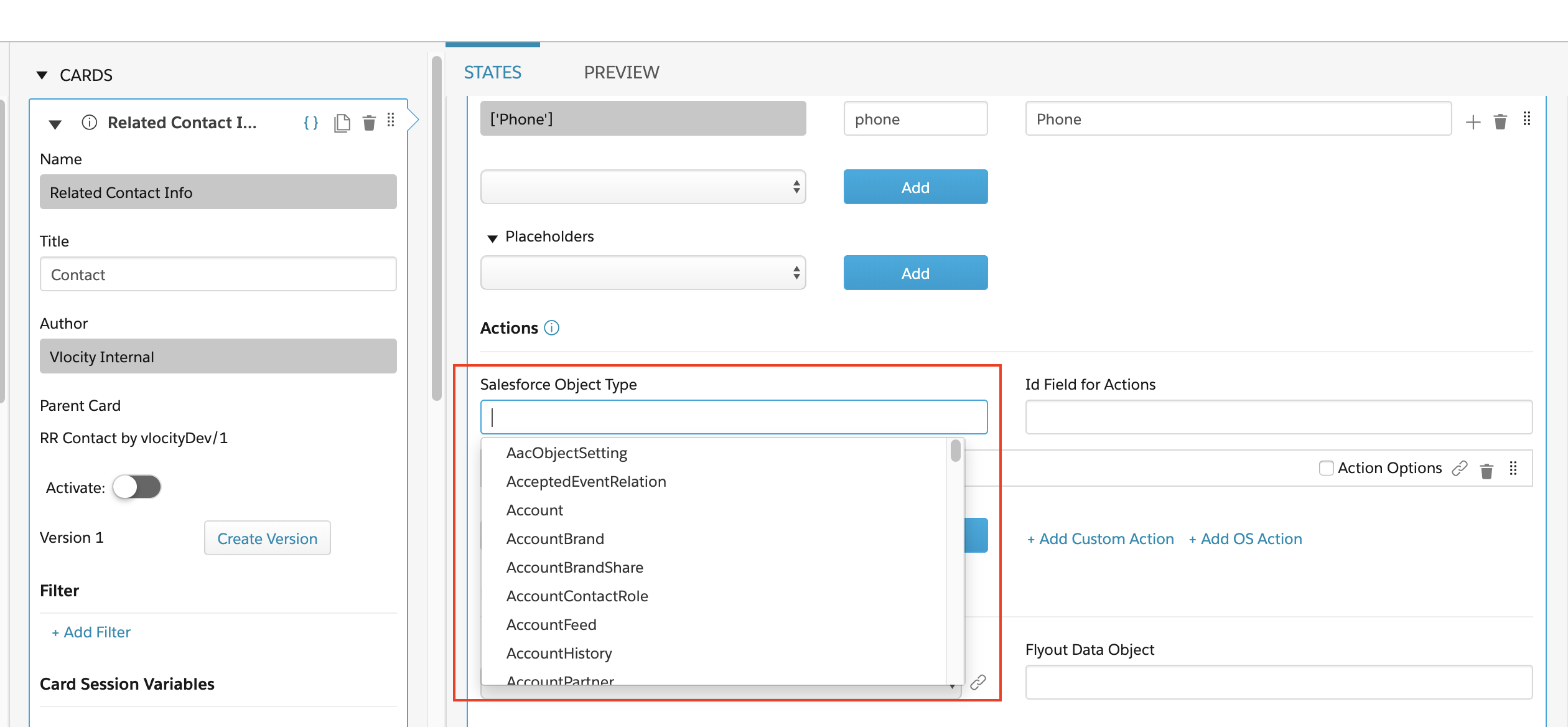
In the Actions section of a card's state, click into
the Salesforce Object Type input field, and select an
sObject from the picklist, such as Contact.
-
Click into the Id Field for Actions, and select a ContextId
from the available list of fields returned from the data source, such
as ['ContactId'].
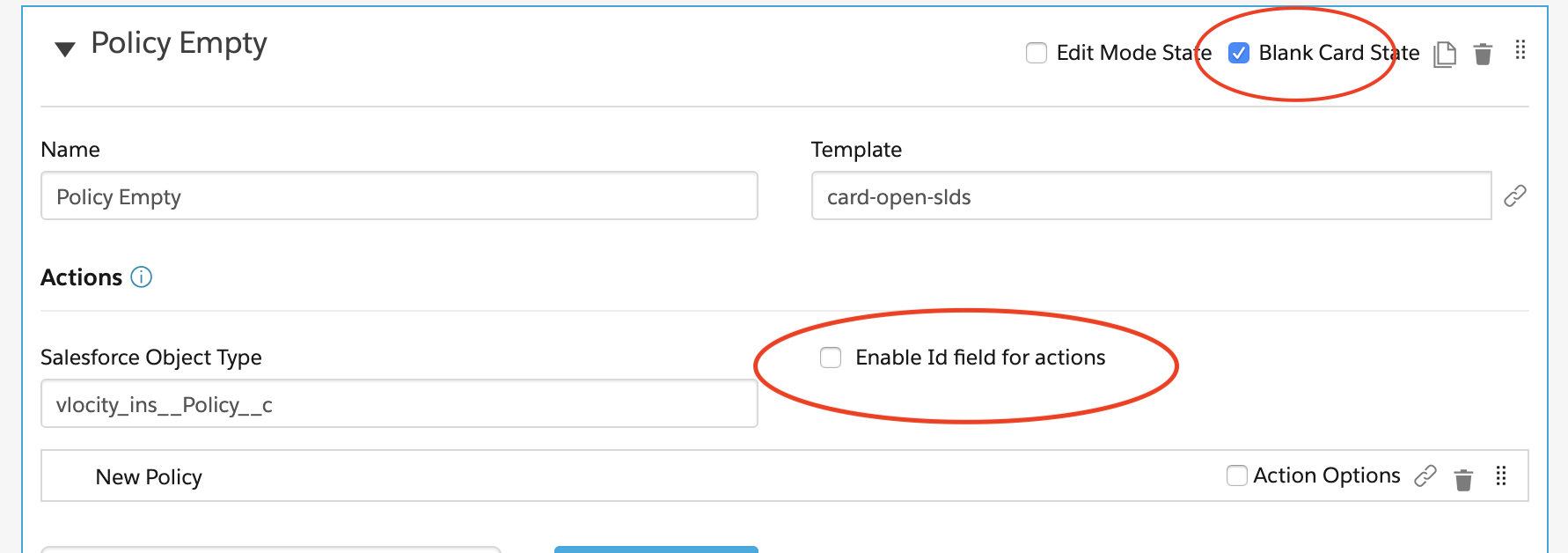
If Blank Card State is enabled:
-
Click the Enable Id field for actions checkbox to display the Id Field for Actions input field.
-
By default, the ContextId is
params.idwhen Enable Id field for actions is disabled. When enabled, in addition to entering a ContextId from a data source, use Id Field for Actions to set any page parameter, session variable, or$rootvariable to fetch actions.For example, use the
$root.vlocitycontext variable, such as $root.vlocity.userContactId to create an action for a logged-in user. For a list of available context variables, see Cards Context Variables (Managed Package).
-
-
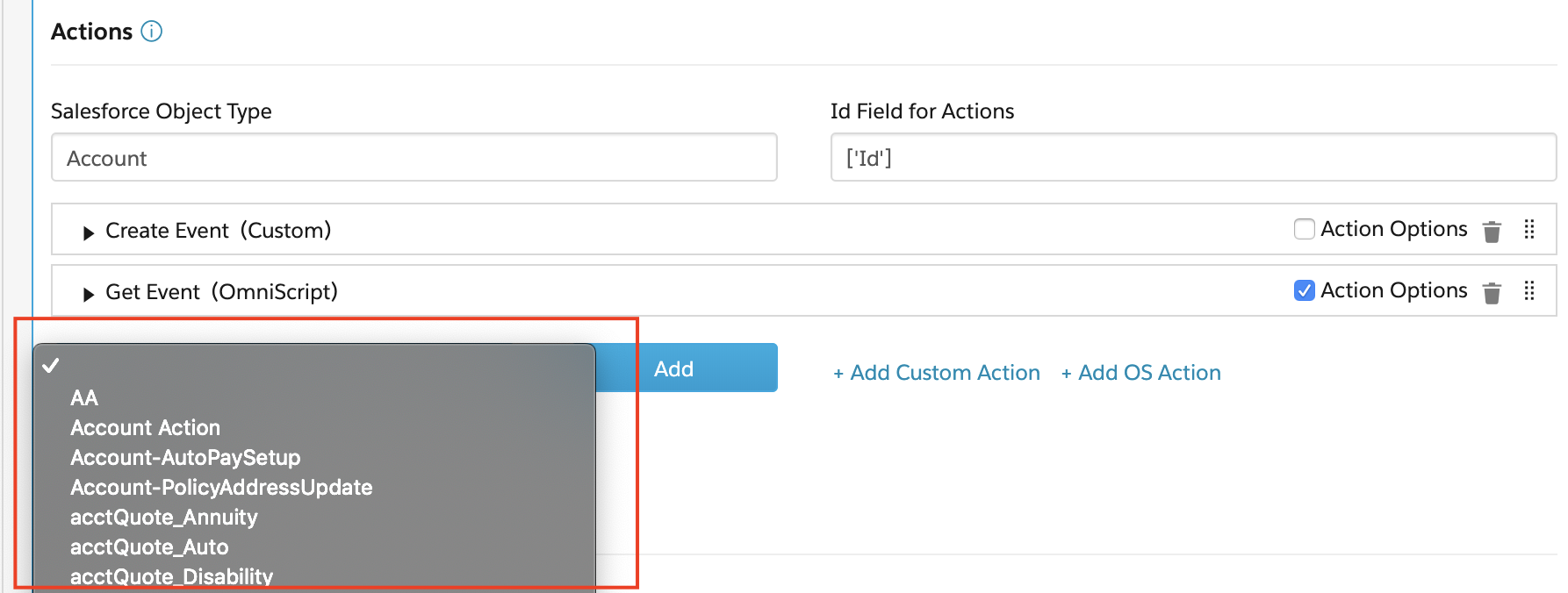
In the Actions section of a card state, next to the
Add button, select a reusable action from the picklist.
 Important
If you do not see the action you are looking for, confirm you have selected the appropriate sObject from the Salesforce Object Type dropdown.
- (Optional) Check the Actions Options checkbox to add Custom Parameters and Conditions.
