
You are here:
Apply Custom Styling to Omniscripts with Static Resources (Managed Package)
For the managed package runtime, to apply CSS changes to an Omniscript using SLDS or Newport styling, refer to a CSS file static resource in the Styling Options section of the LWC Omniscript Designer. For example, a CSS sheet can change the text color for every Number element in an Omniscript without using a custom Lightning web component to override the Number element.
 This information is for Omnistudio for Managed Packages. For Omnistudio on standard runtime, see Omnistudio Help.

Multi-Language Omniscripts provide beta support for right-to-left languages. See Create Multi-Language Omniscripts (Managed Package).
-
After you create a custom style sheet, add the CSS file as a static resource.
See Using Static Resources.
For information about styling systems, see Light DOM, CSS, and Styling Hooks.
For example, customstyle.css is uploaded as a static resource named customstyle. - In the LWC Omniscript Designer, click Setup, and click Styling Options.
-
In the Custom Lightning Stylesheet File Name or
Custom Newport StyleSheet File Name field, enter the name
of the Static Resource that stores your custom Lightning or Newport styling.
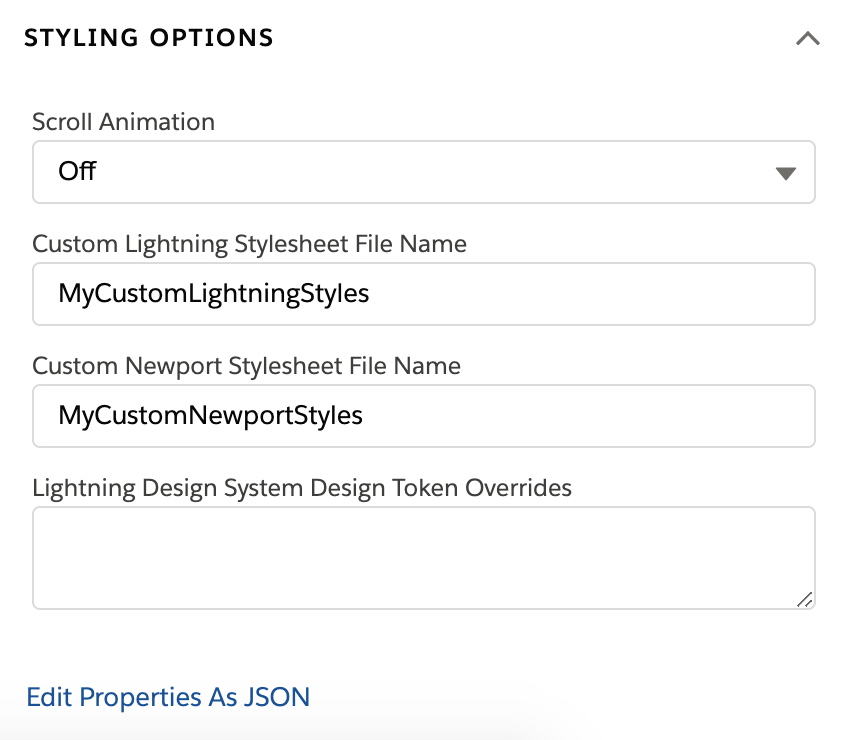 For example, the static source customstyle refers to the uploaded customstyle.css file.
 - If needed, to add custom styling for right-to-left languages, see Reference Stylesheet Names in an Omniscript's JSON (Managed Package).
-
To view your custom styling, activate and preview the Omniscript.
When you preview an Omniscript with a child Omniscript with a custom CSS, the content for the child Omniscript doesn't show the custom styling.
