
You are here:
Build an Omnistudio Data Mapper
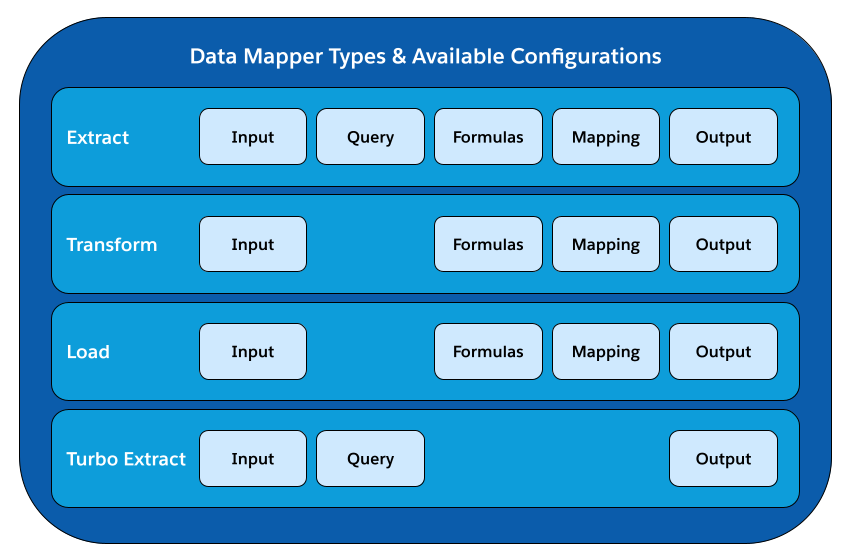
To get, save, and modify Salesforce data, build Data Mappers with the basic configurations: Input source, queries, formulas, mappings of input and output data, and output destination. The available configurations depend on the type of Data Mapper that you’re building.
- For input and output, select the format, or type, of the data, such as JSON, XML, or sObject. For custom data, you can use an Apex class to parse that data.
- Use queries to define what objects and fields you’re extracting data from. In the Data Mapper Designer, use the Extract interface to select the data.
- With formulas, you can modify the input data when needed. You can reuse formula results in other formulas or mappings within the Data Mapper. Each result is stored as a key-value pair: The formula result path defines the key and the formula defines the value.
- With mapping, you connect the data you’ve extracted and modified with formulas to a structure for your output data.
A Data Mapper Extract has all configurations available. The Data Mapper Transform and Load types don’t include queries because they’re not retrieving data from Salesforce objects. Instead, these types use data provided in a previous step, such as a Data Mapper Extract, an HTTP action in an Integration Procedure, or an Omniscript. Because a Data Mapper Turbo Extract is a simpler type, it doesn’t have formulas or mappings.
- Omnistudio Data Mapper Best Practices
To maximize the benefits of Data Mappers, follow the best practices whenever possible. - Configure Date and Time Settings in Data Mappers
Configure the default date format within Omnistudio Data Mappers. - Environment Variables in Omnistudio Data Mappers and Integration Procedures
You can use environment variables to define Default Values and Filter Values, and in Formulas. - Inputs and Outputs for Omnistudio Data Mappers
The configuration of inputs and outputs in Salesforce Omnistudio Data Mappers is highly flexible. The primary data formats are JSON and XML with other options available. - Use Formulas in Omnistudio Data Mappers
To add data to the output of a Data Mapper, define formulas. Several types of Data Mappers (Extract, Transform, and Load) support formulas. When you define a formula, you map its output to the output JSON (for extracts and transforms) or Salesforce object field (for loads). - Configure an Omnistudio Data Mapper Extract
Configure a Data Mapper Extract by specifying the object and filters. To enhance the performance of the Data Mapper Extract, you can define formulas, add fields to write data to, create mappings, and configure additional properties. - Configure a Data Mapper Turbo Extract
To configure a Data Mapper Turbo Extract, specify the object type, filters, fields to extract, and options. - Configure an Omnistudio Data Mapper Load
Configure a Data Mapper Load by specifying the object type and filters. To enhance the performance of the Data Mapper Load, you can define formulas, add fields to write data to, and configure additional properties. - Map Inputs and Outputs for Transformations
To map data from the input to the output, go to the Transform tab. If you're using the designer on a managed package, go to the Output tab. You can also handle null values, data types, caching, and list transforms. - Improving Data Mapper Performance with Caching
Omnistudio offers multiple caching options to improve performance and minimize unnecessary data processing in Data Mappers. The two primary user-configurable caching types are Org Cache and Session Cache, which are available in the Data Mapper designer. These caching mechanisms are part of the Salesforce Platform Cache and are implemented through Scale Cache in Omnistudio with standard runtime. Each serves a distinct purpose and comes with specific configuration considerations.
Did this article solve your issue?
Let us know so we can improve!
