
You are here:
Calculation Action (Managed Package)
For the managed package runtime, call a Vlocity Calculation Procedure directly from an Omniscript using the Calculation Action.
 This information is for Omnistudio for Managed Packages. For Omnistudio on standard runtime, see Omnistudio Help.
When the action executes, inputs from the form are sent to the Procedure—either directly or through an Omnistudio Data Mapper pretransform service—and the output is returned to the Omniscript—either directly or through a Data Mapper post-transform service.
Before you Begin
Create a Calculation Procedure. See Calculation Procedures and Matrices (Managed Package).
- Add a Calculation Action to the Omniscript canvas, and add a Name.
-
In Remote Properties, in the Remote Class field, enter
NS.PricingMatrixCalculationService, and replace NS with
the namespace of your Vlocity package.
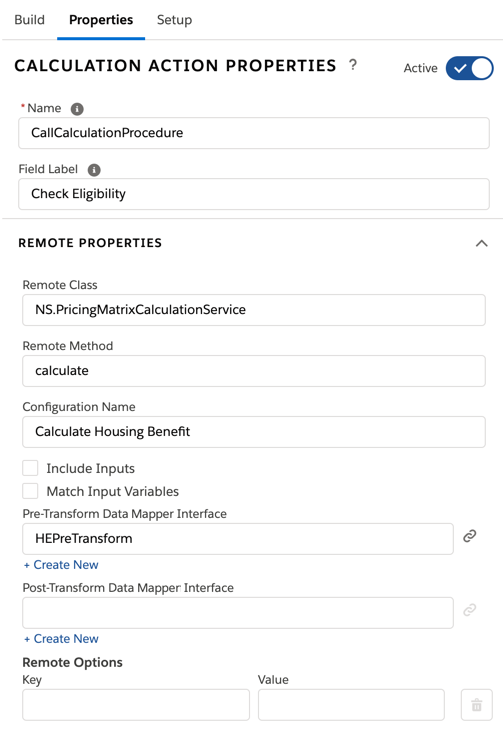
- In the Remote Method field, enter calculate.
- In the Configuration Name field, enter the name of a Calculation Procedure.
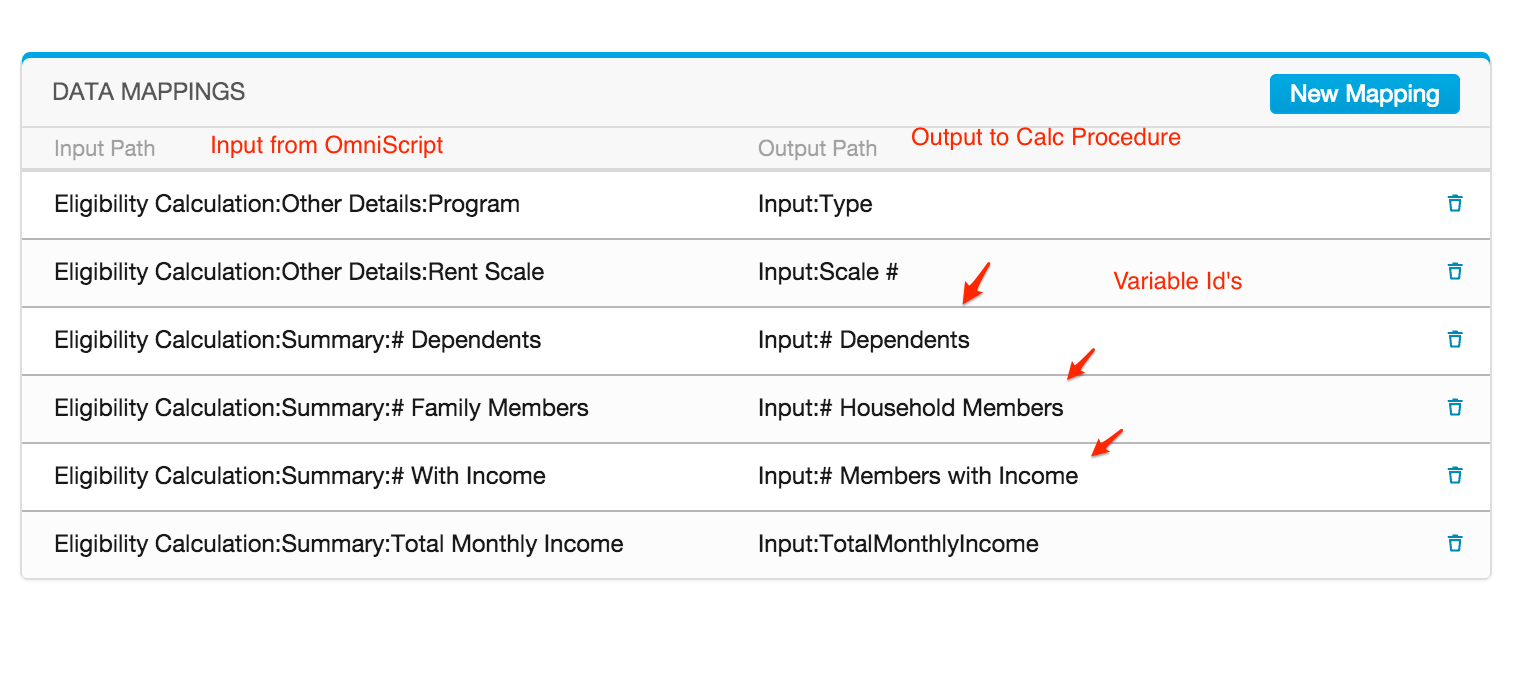
- (Optional) In the Pre-Transform Data Mapper Interface field, enter a Data Mapper that transforms the jSON node names being sent to the Calculation procedure. This step is not necessary if the existing JSON matches the Calculation Procedure's Variable Ids.
- (Optional) In the Post-Transform Data Mapper Interface field, enter a Data Mapper that transforms the response from the Calculation Procedure to match elements in the Omniscript. This step is not necessary if the response JSON matches elements in the Omniscript. For more information on prefiling, see Populate Elements (Managed Package).
- (Optional) Check Include Inputs if the Omniscript elements sent to the calculation procedure are at the Step level of the Omniscript.
- (Optional) Check Match Input Variables to debug and ensure the input data being sent to the Calculation Procedure matches the input variables in the procedure. If an input variable is missing an exception is thrown.
-
To test this Calculation:
- Run the script in Preview mode or launch it from a Contact record.
-
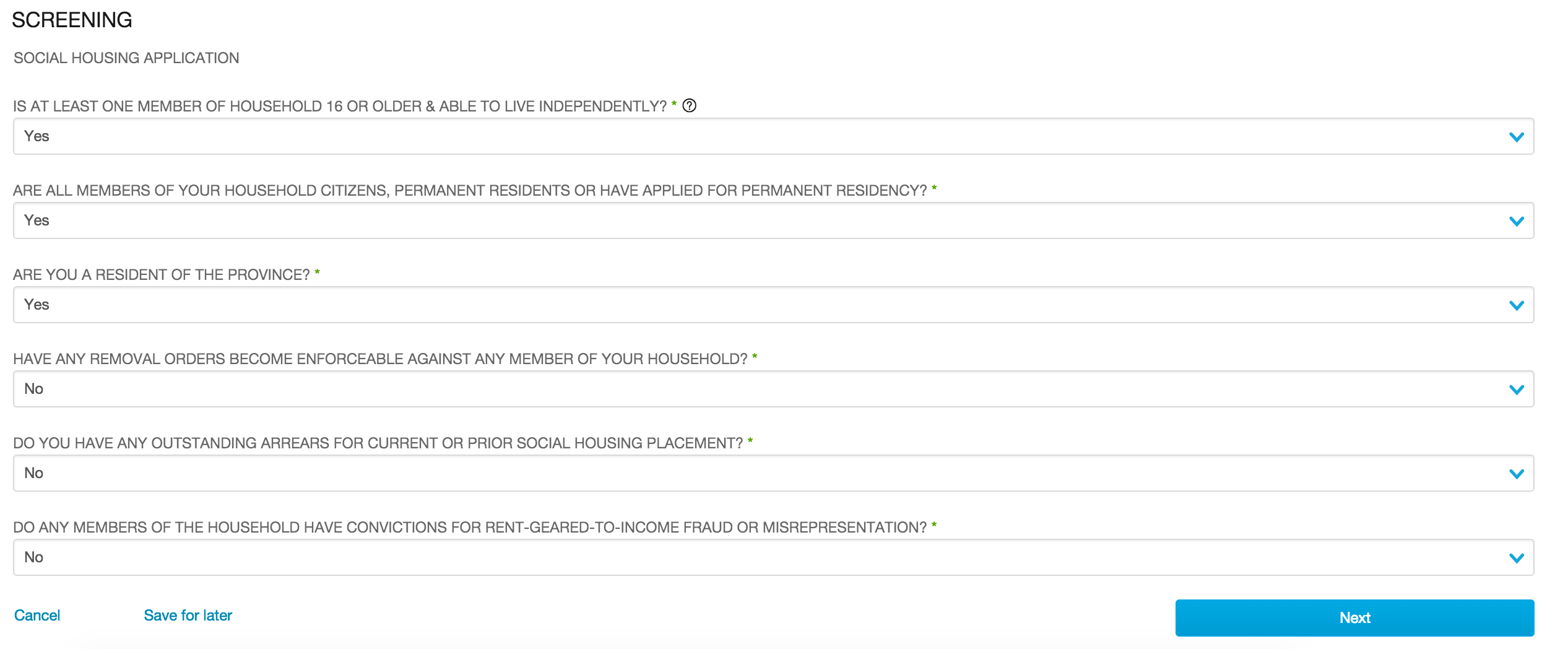
Answer the questions as follows:
-
Fill out the Eligibility step as follows:
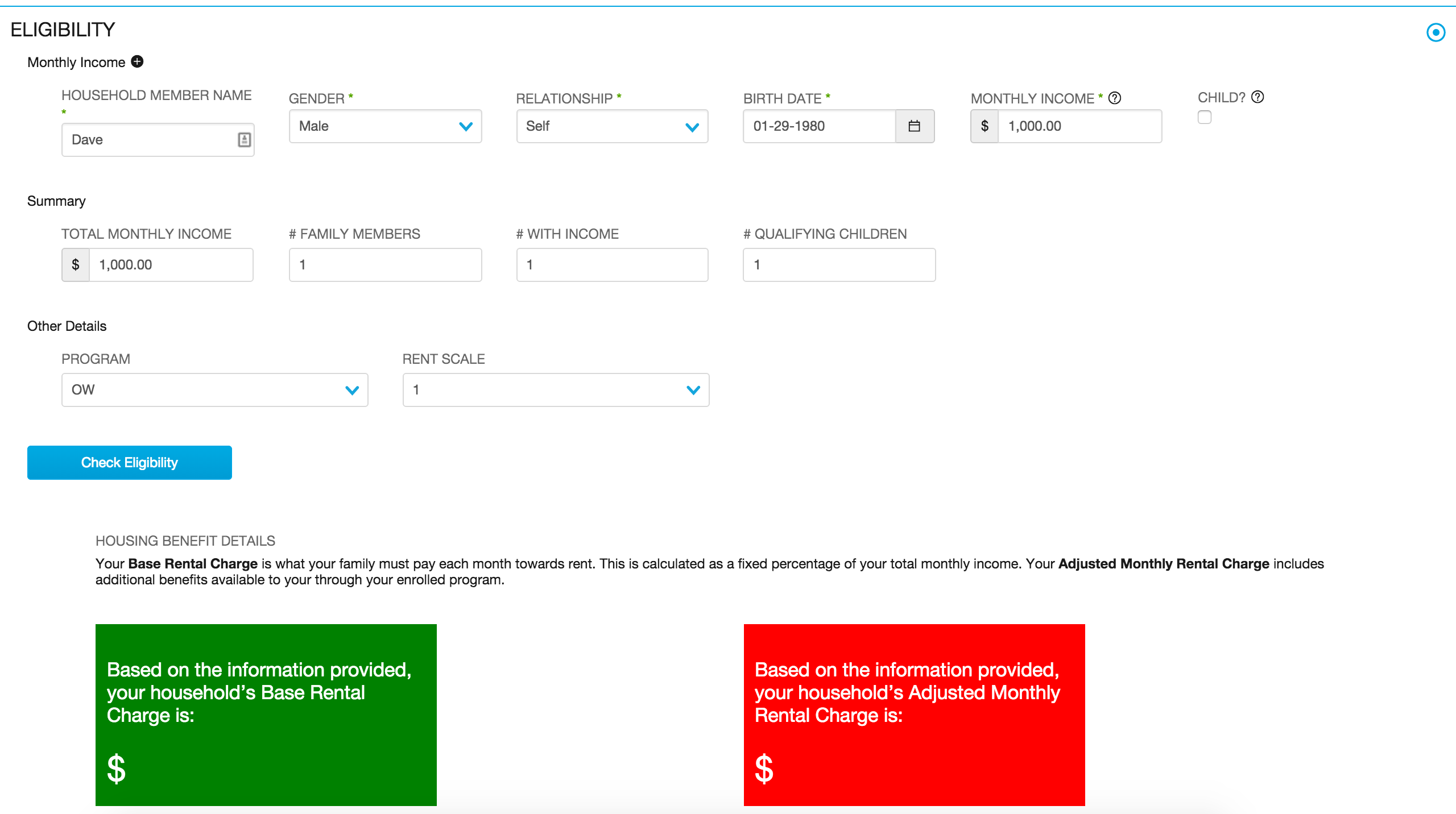

The example Omniscript below uses a Calculation Action (Call Calculation Procedure) to calculate the discounted Base and Adjusted monthly rental charges that the applicant is eligible to receive. The name of the Calculation Procedure is entered in the configurationName property.
Eligibility data from the form, such as income, program type, and number of family members is passed into the HEPreTransform Data Mapper transform interface, where it is transformed into the Input JSON that the Calculation procedure is expecting. Click the link icon next to HEPreTransform to view the Data Mapper interface:
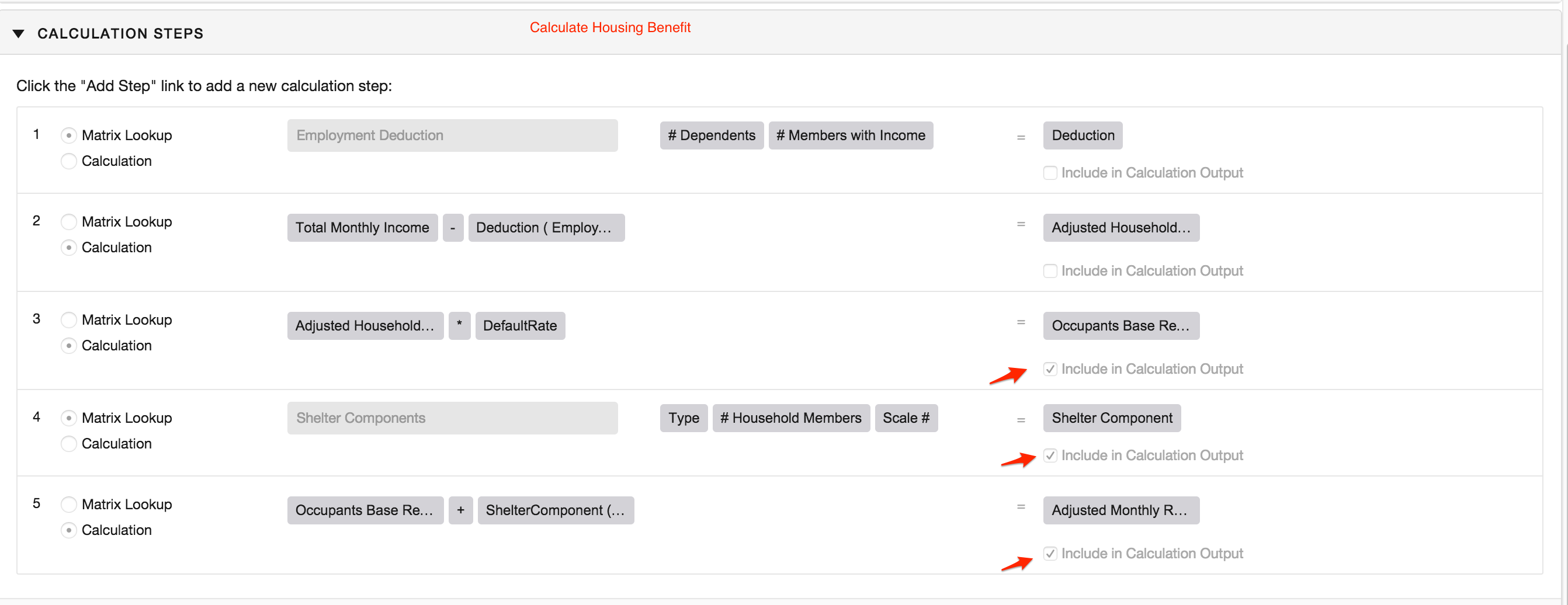
When the Calculation Action executes, the Procedure (Calculate Housing Benefit) runs and returns a JSON that fills the results into the script. Any variable in the Procedure that is included in the Calculation Output will be sent back to the Omniscript.
Here are the Calculation Steps in the Calculate Housing Benefit Procedure:
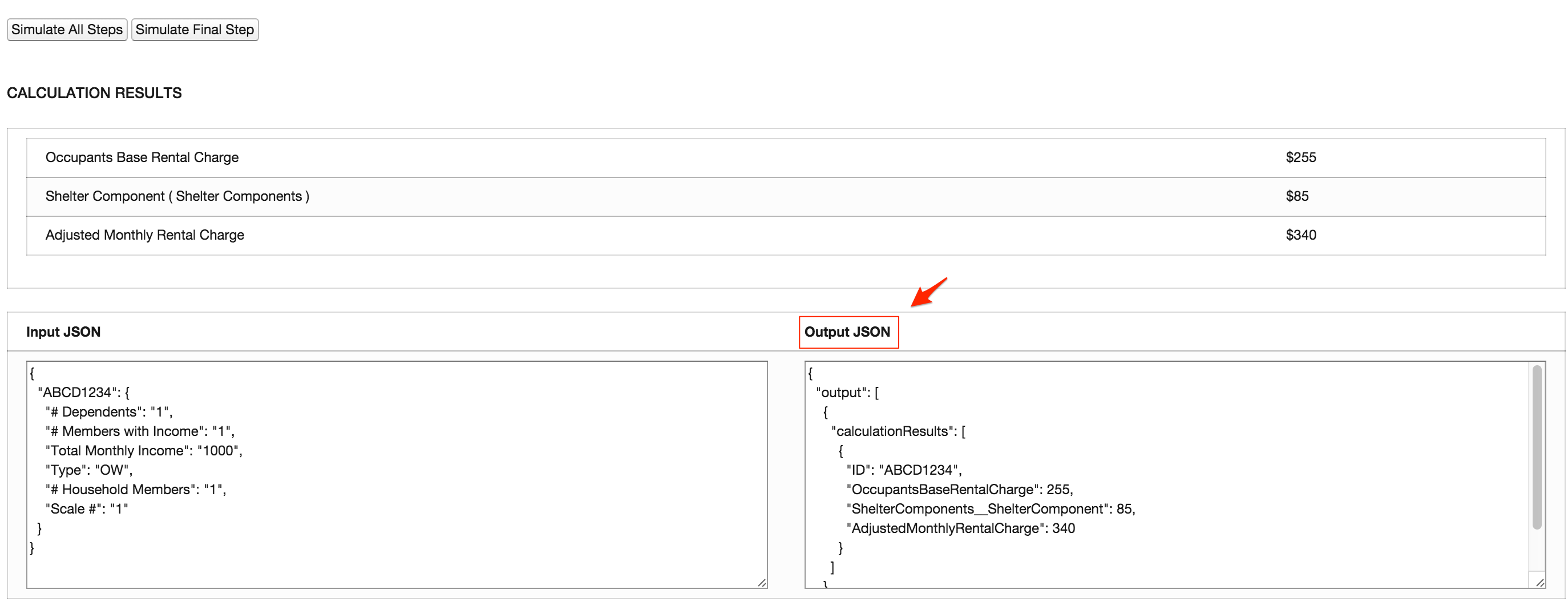
...and the returned JSON (this can be found by clicking Simulate on the Procedure. See the Matrices for correct inputs):
If the elements on the Omniscript that are being sent to the Calculation Procedure exactly match the Variable Ids in the procedure and are at the Step level of the Omniscript (not in a block), you don't need to create a Pre-Transform interface. Otherwise, implement a Pre-Transform interface to format the JSON for the calculation procedure.
If the elements that will be filled by the output of the script are located in a step or block called "output" with a nested block called "calculationResults" with Variable Id's that match the Omniscript elements, you don't need to create a Post-Transform interface. Otherwise, implement a Post-Transform interface to format the JSON coming from the Calculation Procedure to match the JSON structure of the Omniscript.
- Calculation Action Properties (Managed Package)
For the managed package runtime, this page contains information on Calculation Action Properties.
