
You are here:
Configure a Vlocity Action (Managed Package)
For the managed package runtime, configure a Vlocity Action to launch Vlocity Omniscripts, Vlocity Cards components, web pages, or external applications. Actions are typically specific to a given object type, such as Account, Contact, Policy, or Asset.
Before you begin, from Setup, in the user profile, provide Read and View All Records permissions to the
 This information is for Omnistudio for Managed Packages. For Omnistudio on standard runtime, see Omnistudio Help.
vlocity_ins__VlocityAction__c
object.
- Go to the Vlocity Actions tab.
- Click New or select an action and click Edit.
-
On the New Vlocity Action page or Details page in edit mode, enter or update the
values for these fields:
 Note
NoteIf a field is missing, confirm that the field is available in the Vlocity Action Layout page layout for the Vlocity Action object.
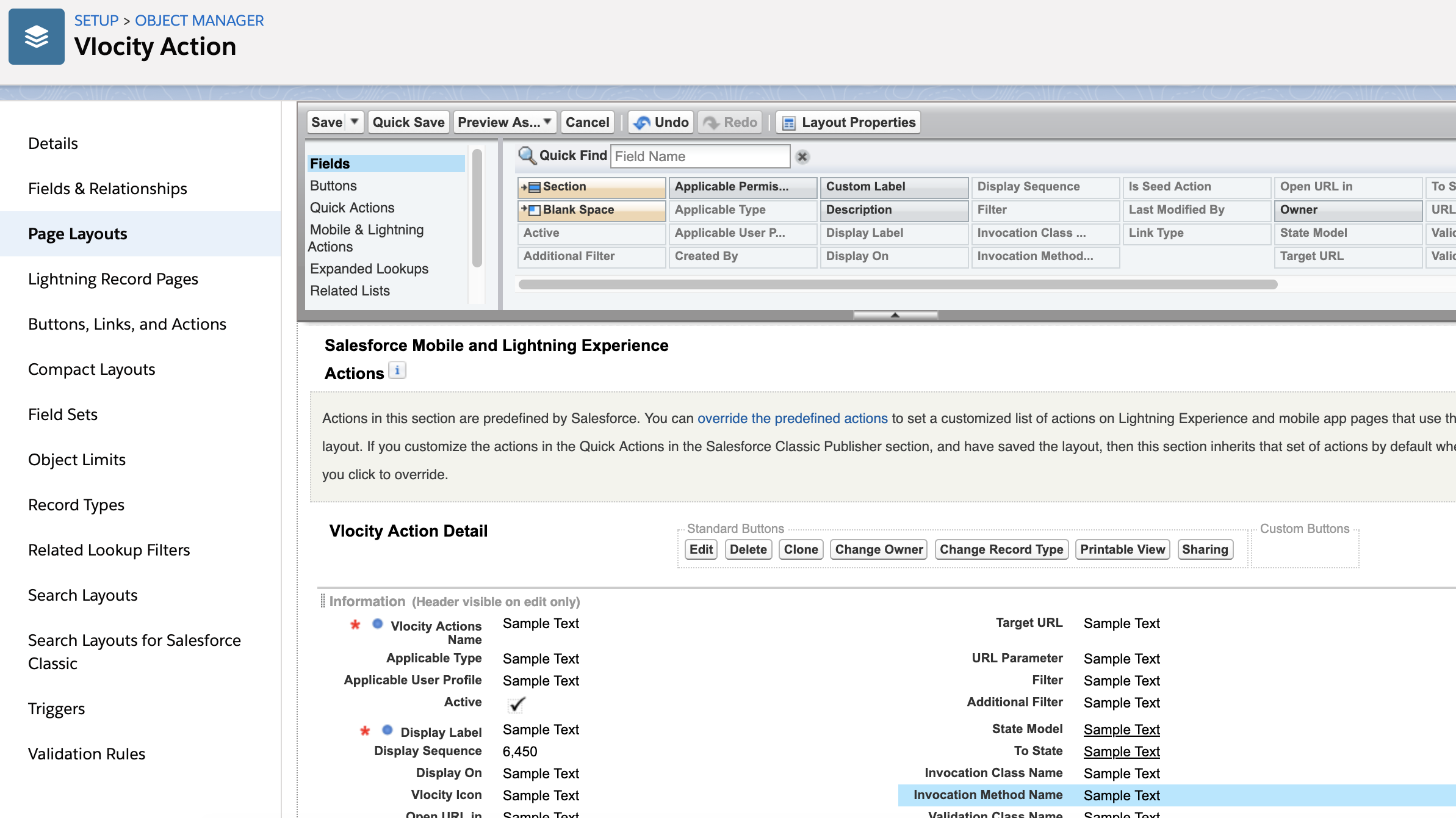
Field Name
Description
Vlocity Actions Name
Required. Enter a name for the action no longer than 80 characters.
Description
Beginning with Vlocity Insurance and Health Winter '20 and Vlocity CME Winter '20, Vlocity Actions support entering a description for the action.
Applicable Type
Required. Select the objects from which you want the action to launch. Default value is All. Vlocity recommends selecting specific objects because the action attempts to invoke every Applicable Type, which reduces performance.
To add values to the Applicable Type picklist, use the API name of the object, such as Household__c. The value can be an sObject name or any string. If the action has a Filter, the Applicable Type must be the sObject name, such as Policy__c, which is used in an SOQL query.
Applicable User Profile
To choose what action to display for a user profile, select an option from the list. Default value is All. An admin can add other user profiles to the picklist. For example, if the current login user's profile is Vlocity Health, only the actions where Applicable User Profile is set to All or Vlocity Health displays.
Active
To make the action visible, check this option.
Display Label
Required. Enter a visible label for the action.
Display Sequence
Required. Enter the sequence in which the action displays on a sub-tab or component. Lowest number in the sequence displays first.
Display On
Required. To filter where the action displays, select All, Web Client, or Mobile from the list. To enable users to search for this action in an Interaction Wrapper, select All.
Vlocity Icon
To display an icon for this action, view the available Vlocity Icons and their associated class names in the Vlocity Icons section of the action details page. Enter the class name of the icon to display for this action. Vlocity Icons aren’t viewable when creating a new action on the New Vlocity Action page.
Upload a custom icon as an attachment from the Related tab. The latest attached image loaded (with a size less than 50 KB) is used as the custom image. If both the Vlocity icon and the custom icon (attachment) are set, the custom icon is used. When the custom icon isn’t uploaded, the Vlocity icon is used.
Open URL In
To set how to open the Target URL, select Current Window or New Tab/Window. Default is Current Window.
Link Type
Required. To specify where the action is launched from, select one of these options:
-
CommunityURL: Launches a Salesforce Community page.
-
Omniscript: Launches an Omniscript.
-
Other: Launches a specific URL.
-
ConsoleCards: Launches a Salesforce Classic card.
-
LEXConsoleCards: Launches a Lightning Experience Console card in a sub-tab.
-
Document: Launches a Contracts Document.
-
Layout: Launches a Card Layout page.
Is Seed Action
Select this checkbox if the action is a Contracts Document action provided out-of-the-box. Do not check this for a custom action. . Defining Vlocity Actions for Contracts Seed actions are seed data that the Vlocity Actions require for certain functionality to work. An error message displays when you delete a seed action. A user cannot delete a seed action or clear the Is Seed Action checkbox, but can set as inactive.
An error message displays when you delete a seed action. A user can’t delete a seed action or clear the Is Seed Action checkbox, but can set it as inactive.
Target URL
Required. The URL to which the action navigates. Enter a URL, such as /apex/<pageName>, or a URL with parameters. For example:
/apex/TestPolicyOmniPage?id={0}#/OmniScriptType/Policy/OmniScriptSubType/Auto/OmniScriptLang/English/ContextId/{0}/PrefillDataRaptorBundle/true.For out-of-the-box Vlocity Actions, such as View Record, the Target URL /{0} doesn’t work outside of Salesforce Classic. To navigate to a page in Salesforce Lightning Experience, update the URL to /lightning/r/[ObjectName]/{0}/view, where
ObjectNameis the API name of the sObject such as Account.The
{0}in the target URL represents the indexed position of a parameter in the list of parameters in the URL Parameter field. See the URL Parameter field description.To navigate to a Lightning or Lightning Community Page, prefix the relative URL with ltngpage:. For example, ltngpage:/Home redirects to your community home page.
To open a Visualforce page from Salesforce's Lightning container, prefix the relative URL with
ltng.For example, ltng:/apex/CustomVFPage, redirects to the CustomVFPage.Example Target URLs:
-
/apex/NameSpace__OmniScriptUniversalPageConsole?id={0}&OmniScriptType=VPL&OmniScriptSubType=GetPolicyAccountAgentDetails&OmniScriptLang=English&scriptMode=vertical&layout=lightning&ContextId={0}&InteractionId={1}&Role={2}
-
/apex/NameSpace__OmniScriptUniversalPageWHeader?id={0}#/OmniScriptType/Policy/OmniScriptSubType/Auto/OmniScriptLang/English/ContextId/{0}/PrefillDataRaptorBundle/true
-
/apex/NameSpace__ConsoleCards?id={0}&layout=lex-layout
-
/apex/NameSpace__ConsoleCards?id={0}&layout=Sample-GetObjectFromInteraction
You can't add Javascript in the Target URL field. If you do, when the Vlocity action runs, a validation check detects the Javascript, and instead of executing it, loads a blank page.
URL Parameter
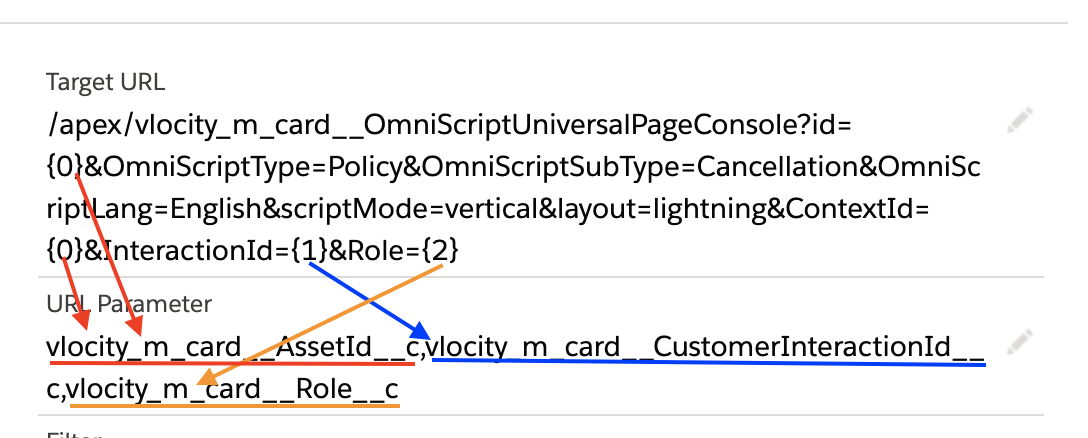
If the Target URL requires parameters, enter them here. The URL parameter represents the attribute name from the Applicable Type object, such as AccountId in Contact. In the sequence that you want to replace the parameters in the Target URL, specify parameters in a comma separated list with no spaces.
For example, when you enter AssetId,CustomerInteractionId,Role in this field, AssetId replaces {0}, CustomerInteractionId replaces {1}, and Role replaces {2} in a Target URL.
Applicable Permission Name
For Vlocity Winter '18 minor release 900.85.3 and later. To specify what actions display based on whether permission is granted to the user's profile or one or more of the user's permission sets, enter the name of a standard Custom Permission object. Use Applicable Permission Name along with Applicable User Profile, not instead of it. For more information about permission sets, see Control Who Sees What in Salesforce Help.
Filter
To specify what action displays for each instance of the object, create a filter using
ANDorORconditions with attributes from the Applicable Type. For example:Applicable Type=Policy__c, Filter=PolicyType__c='Auto' AND Status__c='Active'
This example specifies that the action shows only for active Policies where policy type is 'Auto'. The filter condition is applicable for valid Salesforce standard and custom objects. Filter by any field on the object. Maximum length is 255 characters.
Additional Filter
Enter a filter longer than 255 characters.
State Model
For contracts, specify the Contract State Model that defines the contract life cycle associated with this action.
To State
For contracts, specify the state associated with this action.
Invocation Class Name
Invocation Method Name
Enter Apex invocation class name and method name. The class must implement VlocityOpenInterface/VlocityOpenInterface2 and Implementations.
Validation Class Name
Validation Method Name
Enter the validation class name and method name. The class must implement VlocityOpenInterface/VlocityOpenInterface2. It’s used in the Contract Document Management UI Action toolbar to display a warning message.
-
- Click Save.
