
You are here:
Configure an Integration Procedure Data Source on a Flexcard (Managed Package)
For the managed package runtime, configure a data source to use a Vlocity Integration Procedure to execute multiple actions in a single server call. For example, as a Systems Admin, you want your customer service reps to view the weather forecast of policy holders when on a call. You can use an Integration Procedure with an Omnistudio Data Mapper Extract that returns an account's ZIP code, and a REST API call that uses the ZIP code to get the current forecast for the Account's region.
 This information is for Omnistudio for Managed Packages. For Omnistudio on standard runtime, see Omnistudio Help.
Before you begin, create an Integration Procedure. See Create an Integration Procedure (Managed Package).

An Integration Procedure doesn’t support the following data sources:
- Salesforce Object Search Language (SOSL)
- Streaming API
- Off-Platform
- To configure the data source when creating a Flexcard, navigate to the Select Data Source Type step, select Integration Procedures, and click Next.
- To configure the data source from the SetUp Panel in the Flexcard Designer, click Setup, and select Integration Procedures from the Data Source Type dropdown.
- Click into the Name field and select an Integration Procedure to use.
-
To pass a variable to the Integration Procedure, click + Add
New next to Input Map.
Pass the ContextId
For example, to use the recordId context variable as a merge field to dynamically get the ContextId of a Flexcard:
-
In a new tab, go to the Vlocity Integration Procedures tab, open the Integration Procedure selected from the Name, and click the Preview tab to view the Input Parameters.
-
In the Key field of the Input Map, enter the variable representing the ContextId, such as
AccountId. -
In the Value field of the Input Map, enter
{recordId}as the value.
-
- (Optional) Configure other options common among all data sources.
- Test data source settings, add test variables that the query can use to return live data.
-
To add dummy data, perform the following tasks:
-
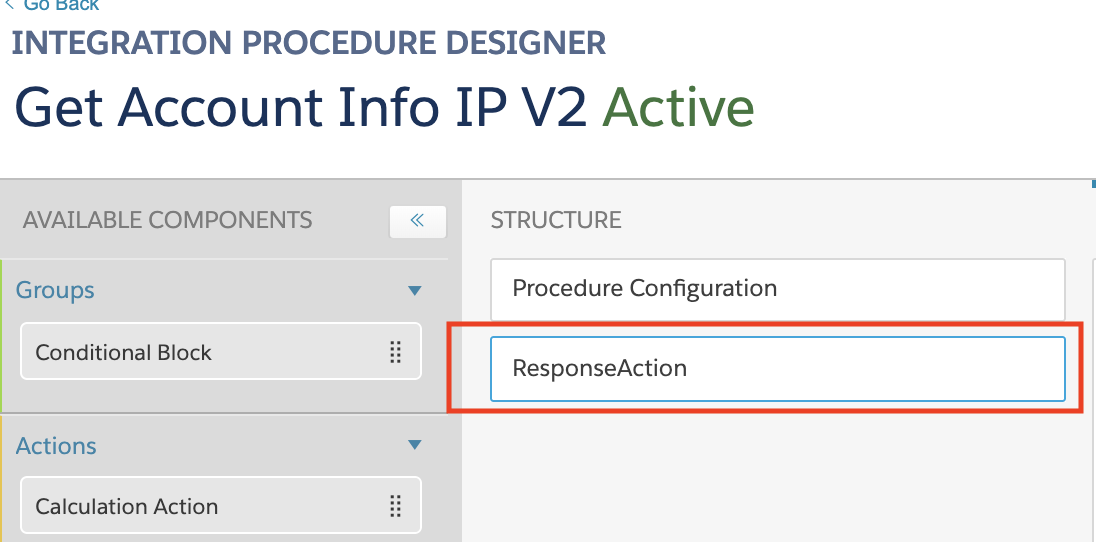
In a current or new Integration Procedure add a Response Action step.
-
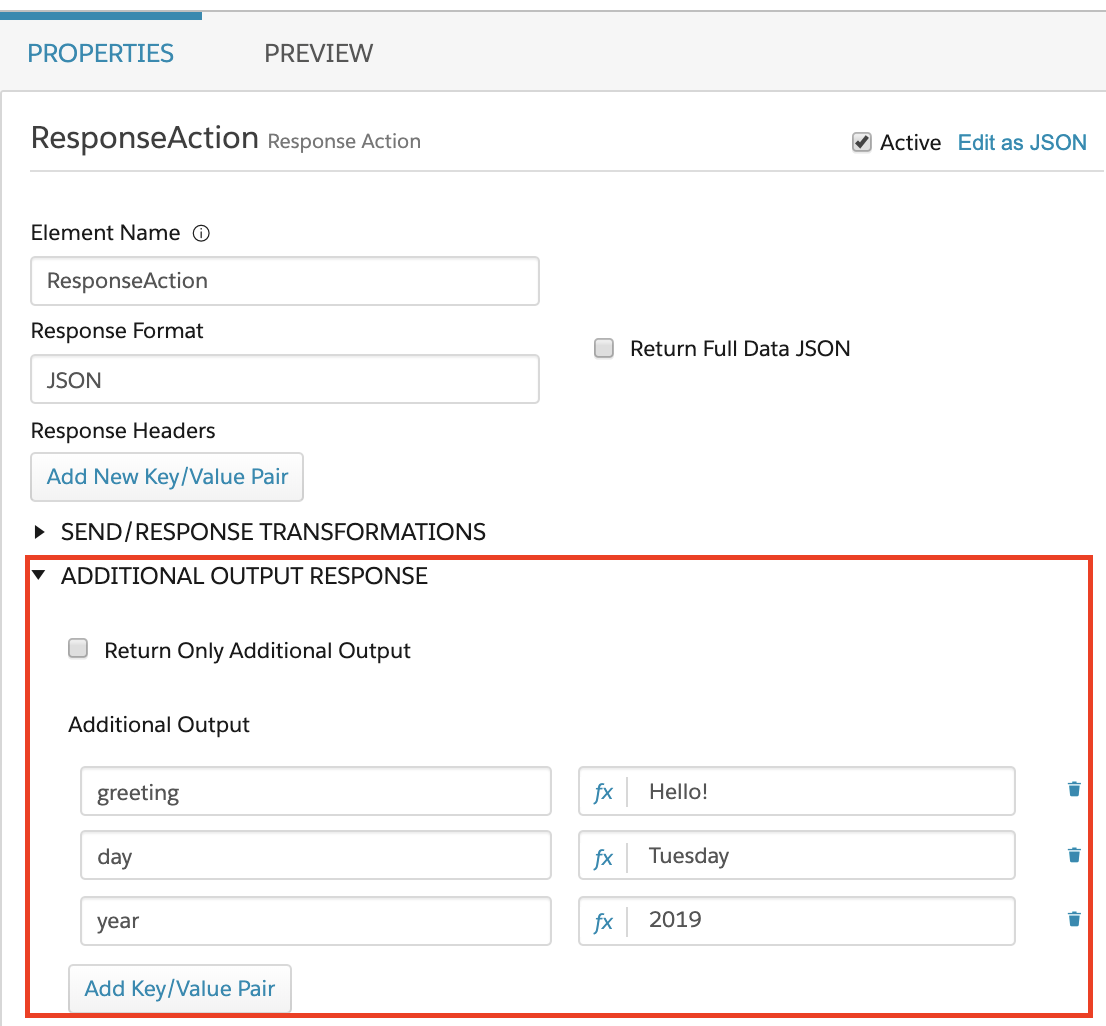
To add a small dataset:
-
In the Properties tab, click ADDITIONAL OUTPUT RESPONSE.
-
For each key/value pair, click the Add Key/Value Pair button and add your data.
-
-
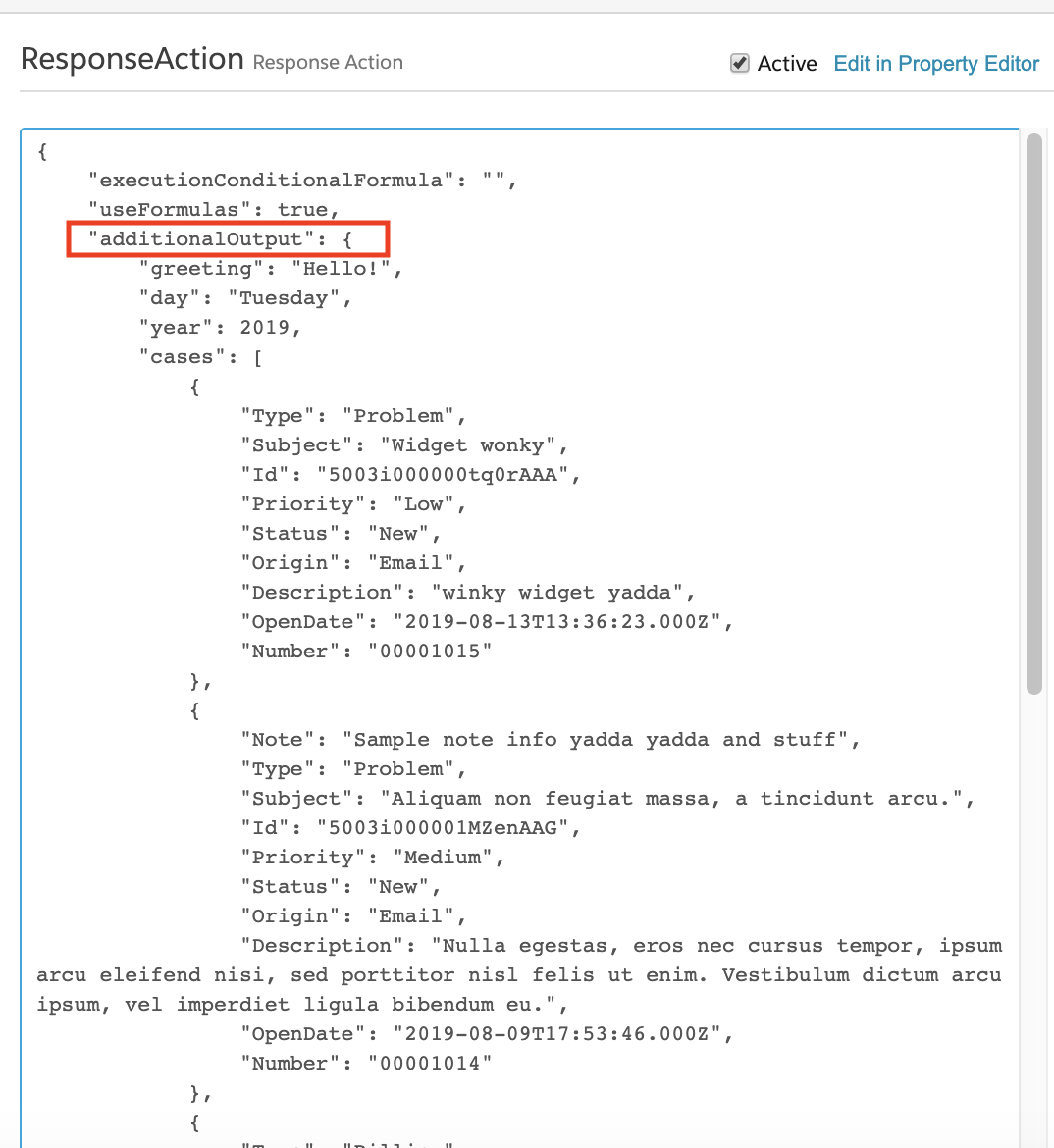
To add a large dataset:
-
Click the Edit as JSON link at the top right of the Properties tab.
-
In the additionalOutput node, enter your full JSON data as an object.
-
-
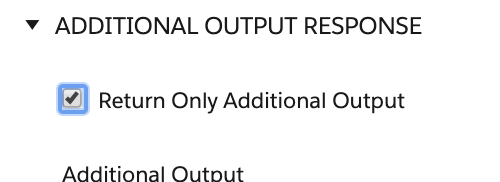
(Optional) If the Integration Procedure has other data sources, to return only the dummy data, select the checkbox next to the Return Only Additional Output label.
-
In your Flexcard's Setup panel, confirm that the Integration Procedure with the dummy data is chosen in the Name field.
-
To view your dummy data, click Save & Fetch.
-
What’s next: Add elements to the Flexcard. See Add Elements to a Flexcard (Managed Package).
