
You are here:
Configure Save Options (Managed Package)
For the managed package runtime, enable your users to save and resume Omniscripts by configuring the save for later functionality.
 This information is for Omnistudio for Managed Packages. For Omnistudio on standard runtime, see Omnistudio Help.
-
From the Omniscript's script configuration, expand the Save Options section.
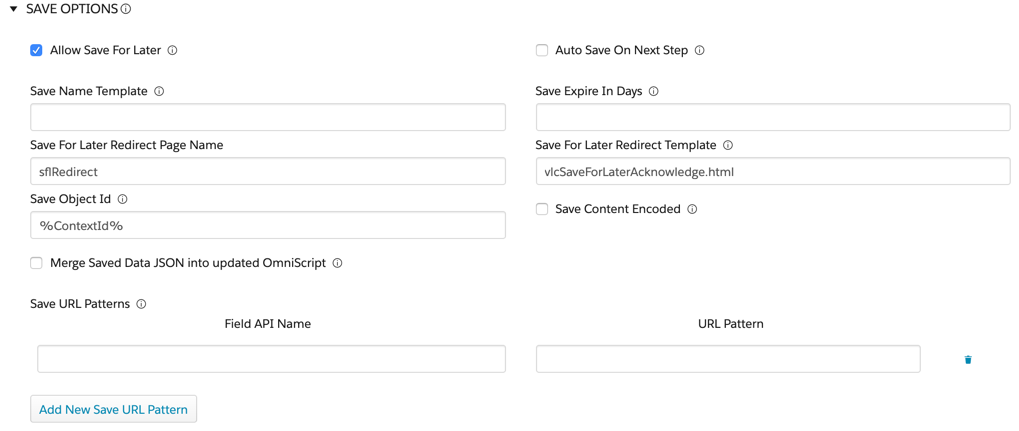
- Click Allow save for later to enable save for later.
- If needed, to save the Omniscript automatically when a user clicks Next in a step, select Auto save on step next.
-
In the Save Name Template field, enter a name for the
Omniscript.
This field supports merge fields. For example,
%LastName%,
               %FirstName% - Application
. If the field is blank, the default isSaved-Omniscript Name-RowId. -
In the Save Expire In Days field, enter the number of days
for which the Omniscript is to remain usable before it expires.
If a user attempts to resume the script after it expires, the Omniscript restarts.
-
For Angular Omniscripts only, set the Save For Later Redirect Page
Name to the name of a redirect page.
Upon success, the script navigates to this page.
-
For Angular Omniscripts only, set the Save For Later Redirect Template
Url, the HTML template of the redirect page.
The provided template is vlcSaveForLaterAcknowledge.html.
-
Set the Save Object ID field to attach the saved Omniscript
to a record.
This field supports merge fields. The default value is %ContextId%. For more information, see Access Omniscript Data JSON with Merge Fields (Managed Package).
-
If needed, enable users to merge data into an updated Omniscript by selecting
Merge Saved Data JSON into updated Omniscript.
If Merge Saved Data JSON into updated Omniscript is selected, the Omniscript merges the data from the saved instance into the updated Omniscript when a saved instance launches. However, if you used the Set Value action in a step of your Omniscript, that step takes precedence over the saved value, and Omnistudio doesn’t retain any previously saved value.
 Note
NoteIf an Omniscript is deactivated or activated, a new instance of the Omniscript is always created. Multiple instances of forms are created, and saved instances are no longer available. Selecting Merge Saved Data JSON into updated Omniscript prefills a form of the new instance of the Omniscript with saved data.
To use saved fields in the new version of the Omniscript, first select either Merge Saved Data JSON into updated Omniscript or set the ContextId field. Then ensure that the value of the Save Object Id field is the same in both Omniscripts. These steps map JSON data from the saved version of the Omniscript into the new version of the Omniscript that is created.
-
To use Base64 encoding for the saved Omniscript file, click Save
Content Encoded.
Select this option to obfuscate the data.
- In the Save URL Patterns section, map the Omniscript URL to a custom field of an object. See Map Saved Instance URLs to Custom Fields (Managed Package).
- To enable save for later on a per-step basis, expand the Save Options section and select Allow Save For Later.
