
You are here:
Create a Tracking Group and Add Components to Track (Managed Package)
For the managed package runtime, to specify a group of components to be tracked together, you create a Vlocity Tracking Group and add Omniscript and Flexcard components to it.
 This information is for Omnistudio for Managed Packages. For Omnistudio on standard runtime, see Omnistudio Help.
If you are following the workflow example, you add the example Omniscript and Flexcard to the Vlocity Tracking Group in this task.

- Click the App Launcher and go to the Vlocity Tracking Groups tab.
- Click New.
- In the Name field, type AnalyticsTest.
-
From the Tracking Group Type drop-down list, select
Internal.
Internal specifies that you aren't using a third-party Analytics system. Web specifies that you are using a third-party system such as Google Analytics.
NoteA specific Omniscript or Flexcard can belong to two Tracking Groups provided that one is Internal and the other is Web.
-
Make sure the Active box is checked.
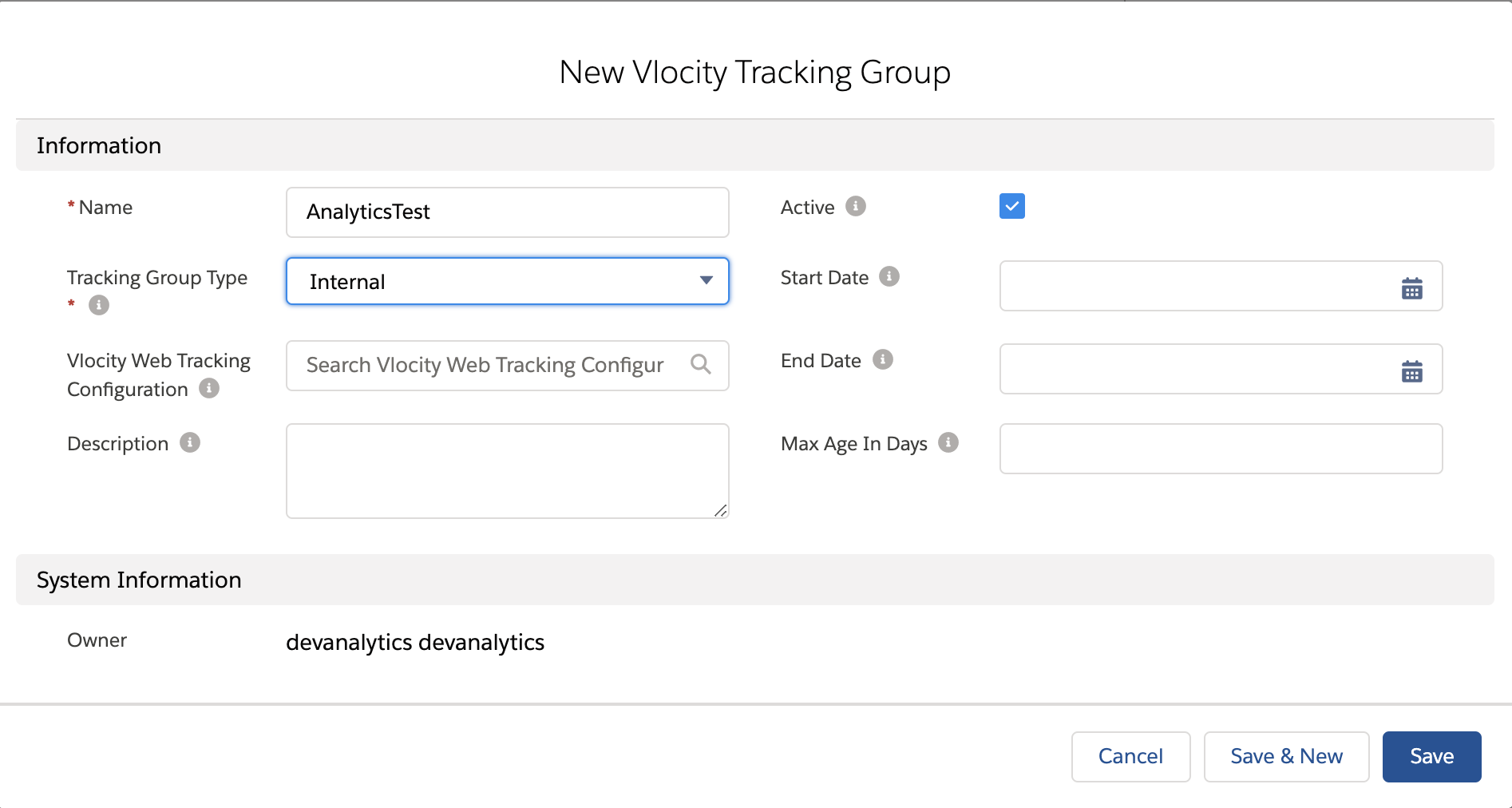
- Click Save. The page for the new tracking group opens.
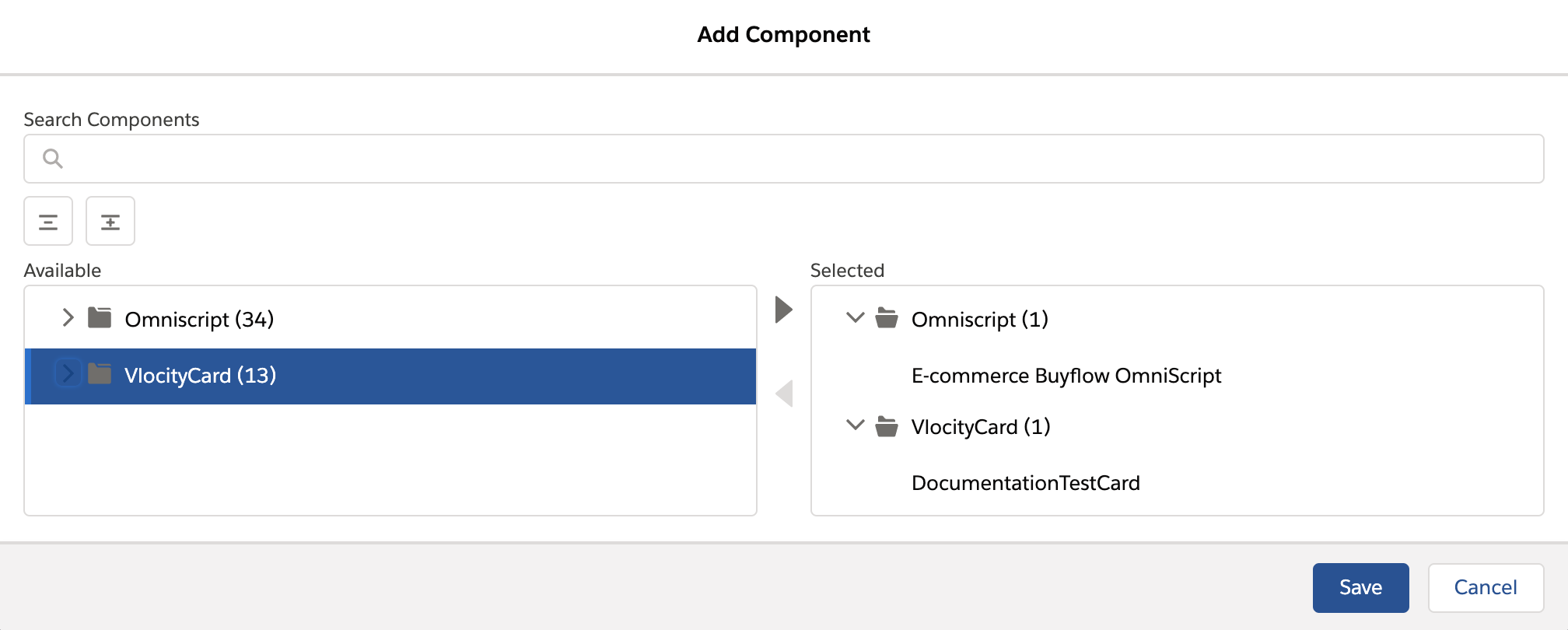
- Click Add Component.
- Select the E-commerce Buyflow Omniscript from the Available list and move it to the Selected list.
- Collapse the Omniscript list and expand the VlocityCard list.
-
Select the DocumentationTestCard from the
Available list and move it to the
Selected list.
-
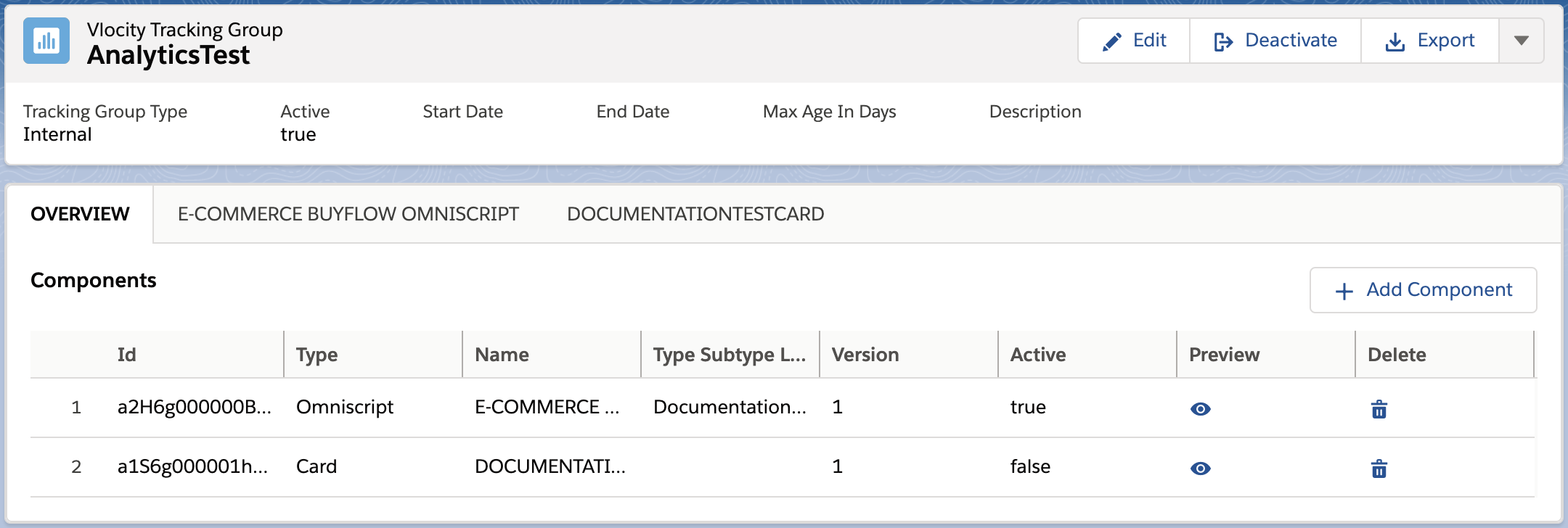
Click Save. The Vlocity Tracking Group should look like
this:
 Note
NoteIf you make changes to a Tracking Group, you must close and reopen the browser to refresh the session storage. (Refreshing the browser is not sufficient.)
What’s next: After you have created a Tracking Group, the next task is to Create a Lightning App Page with a Tracking Manager (Managed Package).
