
You are here:
Create an Account in Google Tag Manager (Managed Package)
For the managed package runtime, though related to Google Analytics, Google Tag Manager is a separate application that requires a separate account.
 This information is for Omnistudio for Managed Packages. For Omnistudio on standard runtime, see Omnistudio Help.
- Go to tagmanager.google.com and click Create Account.
- Type an Account Name of your choice.
-
For the Container name, enter www.google.com.
For this example, you won't have a production URL, so the URL doesn't matter.
- Click Web, then click Create.
- In the Google Tag Manager Terms of Service Agreement window, check the I also accept... box and click Yes.
-
In the Install Google Tag Manager pop-up window, copy the Google Tag Manager ID. It is in the format
GTM-XXXXXXX. You will need it when you Workflow for Creating a Tracking Configuration and Adding Event Types (Managed Package).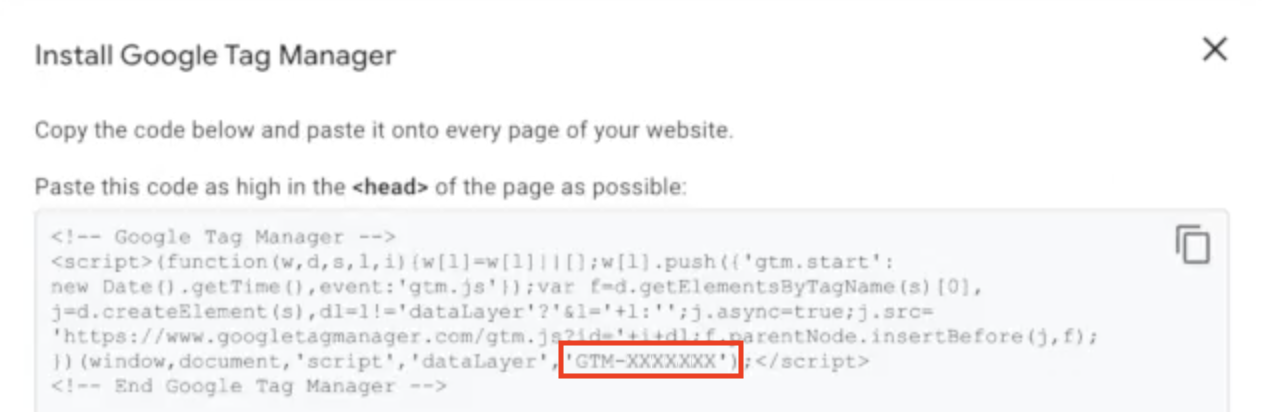
You don't need to copy the code because Vlocity OmniAnalytics embeds the code for you.
- Click OK to dismiss the Install Google Tag Manager window.
Did this article solve your issue?
Let us know so we can improve!
