
You are here:
Omnistudio Data Mapper Extract Output (Managed Package)
For the managed package runtime, to map data from the extraction step JSON to the output JSON, go to the Output tab. You can also handle null values, attributes, translations, field-level permissions, caching, and list transforms.
 This information is for Omnistudio for Managed Packages. For Omnistudio on standard runtime, see Omnistudio Help.
-
Click +. An empty mapping is added to the list.
-
In the Extract JSON Path field, choose the source field from the extraction step JSON.
-
In the Output JSON Path field, specify the desired output path.
The Current JSON Output pane displays the structure that your output mappings specify.
Best practice: When possible, name the Extract Output Path on the Extract tab for the Salesforce object that is its data source. This defines the first node of the Extract JSON Path field values.
You can improve Data Mapper performance for some use cases by using relationship notation in the Extract JSON Path field. See Relationship Notation versus Multiple Extract Steps (Managed Package).
You can also use formulas to add output data. For details, see Use Formulas in Omnistudio Data Mappers (Managed Package) and Function Reference (Managed Package).
Quick Match for Output Maps
To bulk-match, click the Quick Match button. In the Quick Match dialog, you can map fields as follows:
-
Drag and drop: Drag the source sObject field from the left column to the target output field in the middle column, or vice-versa. For an output that has no source sObject field, drag the output mapping to the Matched Mappings column.
-
Pair: Select an input field and an output field and click Pair.
-
Auto Match: Click Auto Match. Fields with matching names are matched automatically.
Mappings are displayed in the right-hand Matched Mappings column.
To redefine values after they are read from Salesforce, go to the Transform Map Values section and add key/value pairs that specify the input and output values. For example, to transform an input value of TRUE to an output value of Y (for yes), specify KEY = TRUE and VALUE = Y.

To make mapping a large number of fields easier, paste the data JSON from the calling Omniscript or Integration Procedure into the Expected JSON Output pane, which populates the list of paths in the Output JSON Path field.
Null Values
To specify a value to be output when the field is null, set the Default Value property. To override the default data type, specify Output Data Type. To prevent data loss, choose compatible data types.
For example, if a text value always contains numeric data, a numeric output type is fine. If it might contain alphabetic characters, you must choose a textual output data type.
By default, if a value is null, no node is created for the field in the output JSON. To ensure that a node is created, regardless of whether the field is null, go to the Options tab and check Overwrite Target For All Null Inputs.
If the Data Mapper Extract retrieves no records, what it returns depends on the release:
-
In Summer '18 and prior releases,
nullis returned. -
In Fall '18 and later releases, empty JSON,
{}, is returned.
Object Attributes
To map object attributes, specify the attribute using its code (not its name) preceded by @. (By default, attribute codes are assigned a GUID value when the attribute is created, and you can edit the code to specify a human-readable value.) To use @ to retrieve attributes, the EnableV2AttributeModel setting in Setup > Custom Settings > Vlocity Feature must be set to true. If it's not, see Knowledge Article: DataRaptor doesn't retrieve Vlocity attributes
For example, to find out if an account is tagged as a Gold Star account, use a Data Mapper Extract to read the Gold Star attribute:
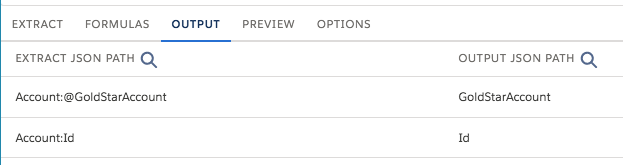
Result:
{
	"Id": "0016100001Ey84KAAR",
	"GoldStarAccount": "On"
}
By default, an On-Off type attribute returns no output if its value is Off. However, you set the Default Value property to Off to return either value.
If you need a different output value for an attribute, you can use the Transform Map Values option. For example, for an On-Off type attribute, you can add key/value pairs that map On to true and Off to false.

JSON Data in Fields
Some fields contain JSON data. To map this data, use standard notation in the Extract JSON Path, for example:
Object:JsonField__c:JsonNode:ChildJsonNodeTranslations
To configure the Data Mapper to retrieve translated Product data, go to the Options tab and check Use Translations.
When this option is enabled, the Data Mapper returns string translations for the user's locale. If no string translations are defined for the locale, the product data defined in the base language is returned. For example, if the base product data is entered in English and no French string translations are defined, users with a French locale see English product data. To specify string translations for product fields, go to the Vlocity Product Console. Create Products in the Product Console
Permissions, Caching, and Other Options
You can configure additional optional settings on the Options tab.
-
Check Field Level Security: Checks the user's access permissions for the fields before executing the Data Mapper. Enabling this setting disables the Org Cache but not the Session Cache.
-
Overwrite Target For All Null Inputs: Ensures that an output node is created regardless of whether a field is null.
-
Use Translations: Configures a Data Mapper to retrieve translated Product data.
-
Time To Live In Minutes: If data caching is enabled, determines how long data remains in the cache. The minimum value is 5.
-
Salesforce Platform Cache Type: Enables data caching. Set to Session Cache for data related to users and their login sessions, or to Org Cache for all other types of data. See Cache for Omnistudio Data Mappers (Managed Package).
List Maps
To map data into a list in the output, use the listname|# syntax.
The listname specifies the key of the output node and the # specifies the position in the list where the output resides. Note the pipe (|) symbol separator. The following example illustrates how to map a flat set of input nodes to an output list.
Input JSON |
Mappings |
Output JSON |
|---|---|---|
|
|
|
For more about lists in Data Mappers, see List Input for Omnistudio Data Mappers (Managed Package).
