
You are here:
Extend and Override an Omniscript Modal Lightning Web Component (Managed Package)
For the managed package runtime, customize modals in Omniscript by extending and overriding the Modal LWC.
 This information is for Omnistudio for Managed Packages. For Omnistudio on standard runtime, see Omnistudio Help.
Required Versions |
|---|
Available with Vlocity Insurance and Health Spring '20 and CME Fall '20. |
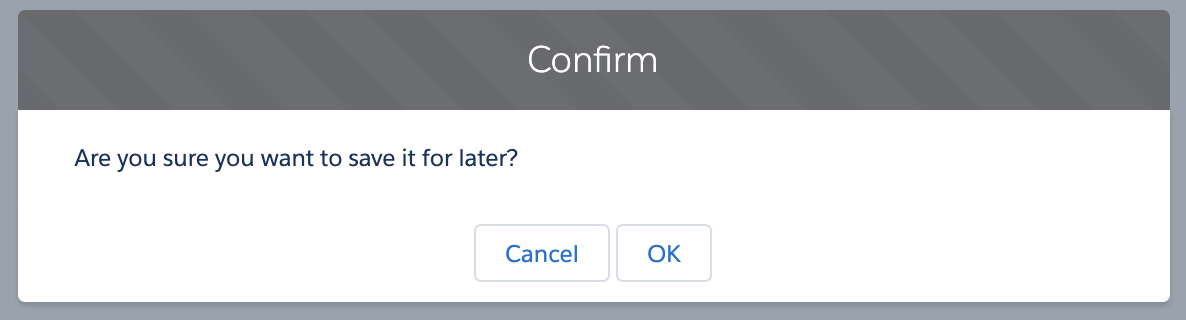
Default Modal |
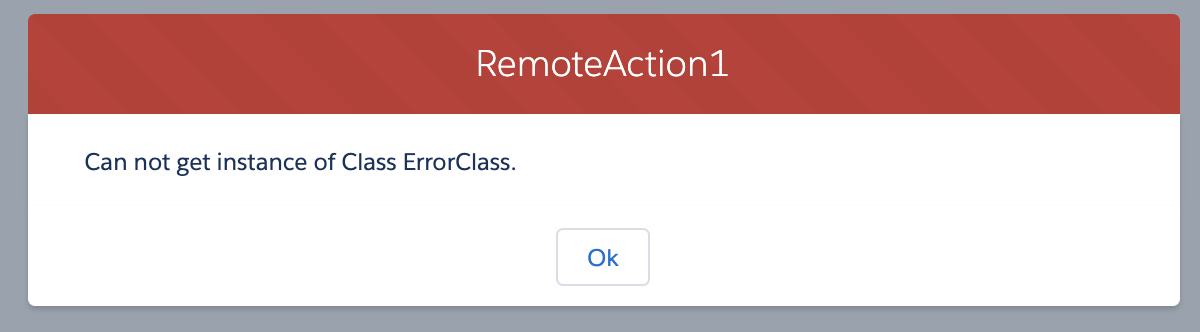
Default Error Modal |
|---|---|
 |
 |
-
Create a custom LWC that extends the
omniscriptModalLWC and add it to your Salesforce org. See Extend an Omniscript Element's Lightning Web Component (Managed Package). -
The custom modal LWC must have these three slots for Omniscript to insert content
into the modal:
<slot name="header></slot> <slot name="content></slot> <slot name="footer"></slot> - In Omniscript Setup , scroll to the Element Type to LWC Component Mapping property.
-
In the Element Type field, enter
Modal.
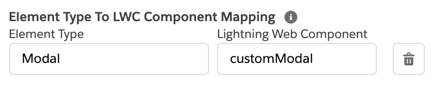
- In the Lightning Web Component field, enter the name of the custom LWC.
- Activate and preview the Omniscript to view your modal changes.
Did this article solve your issue?
Let us know so we can improve!
