
You are here:
Flexcard Chart Element Aspect Ratio (Managed Package)
For the managed package runtime, you can adjust the proportions of a Chart element with the Aspect Ratio, Maintain Aspect Ratio, and Chart Height features in the Flexcard Designer. Set the Aspect Ratio to adjust height relative to the width. Set fixed proportions. Or, override the aspect ratio and set a fixed height.
 This information is for Omnistudio for Managed Packages. For Omnistudio on standard runtime, see Omnistudio Help.
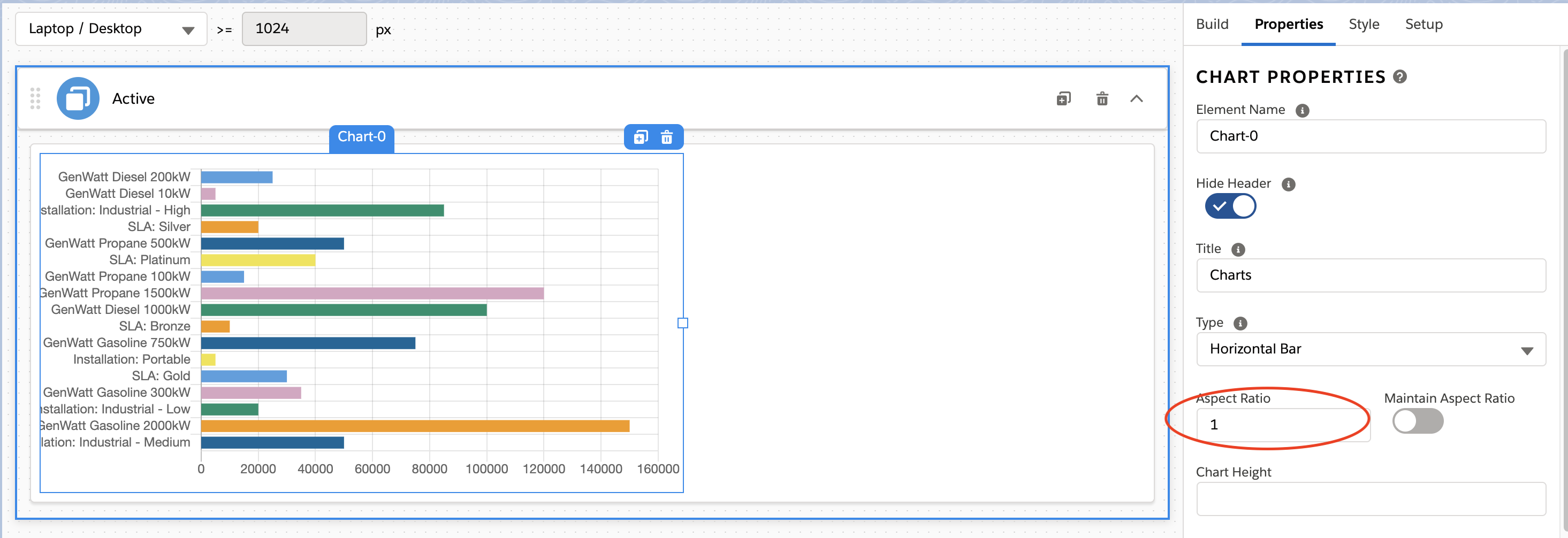
The Aspect Ratio is the chart's width to height ratio. By default, the aspect ratio is 1, such as 1:1. The chart width is always the maximum width available given the number of columns it spans on the 12-column grid of the canvas in the designer. The height is proportionate to the chart's width. Adjusting the ratio adjusts the height.
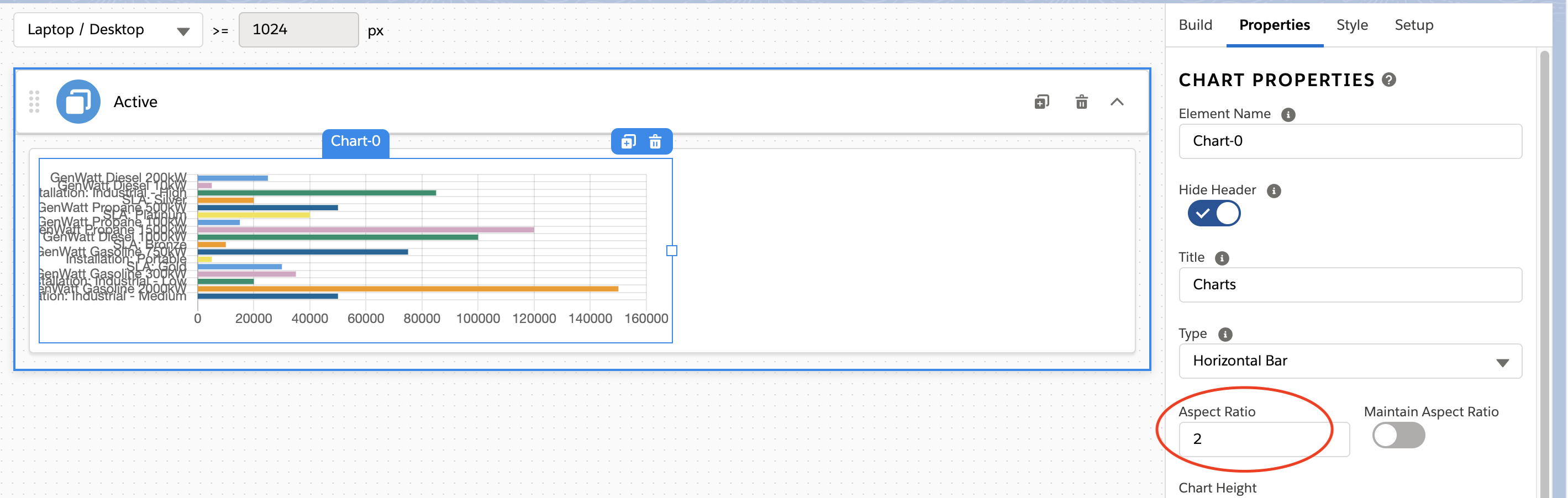
To make the chart shorter, given the width of the element, increase the number of the Aspect Ratio. For example, if the ratio is at the default 1, enter 2 to make the height about half the default height. In other words, if the original width and height of a 7 column Chart element are 600px and 300px, and the aspect ratio is 2 then the height is 150px, and the width remains the same.
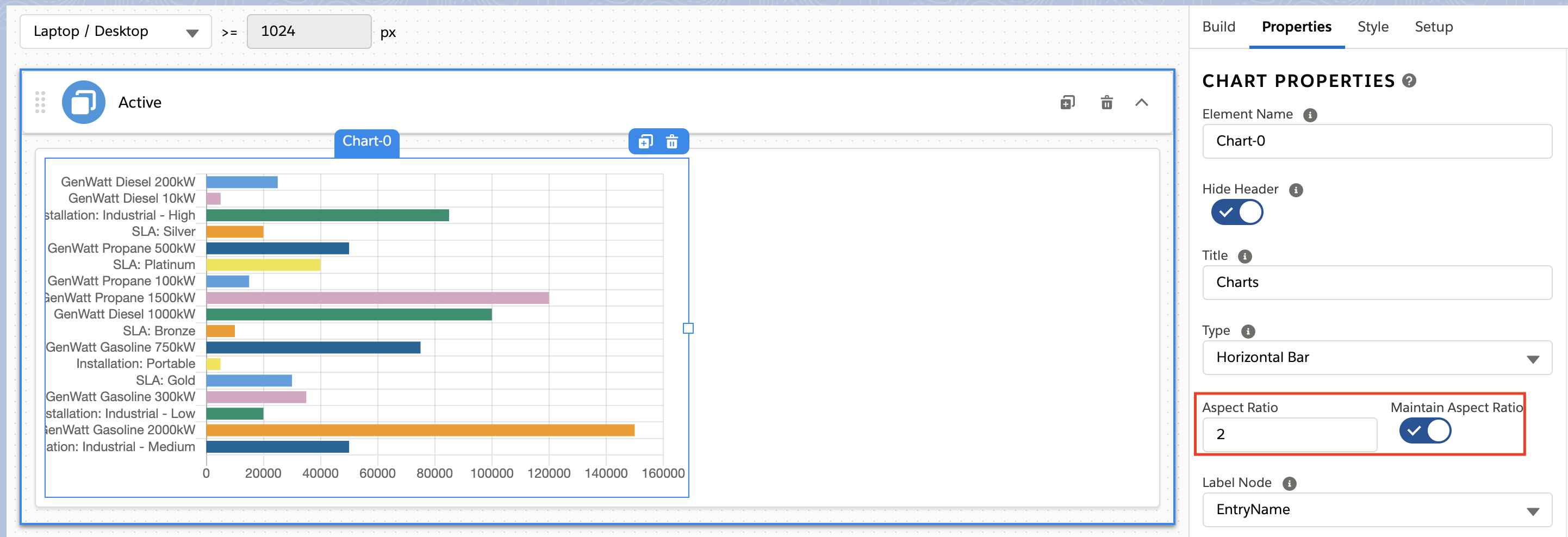
To set fixed proportions, you can enable the Maintain Aspect Ratio feature. When this feature is enabled, given the width, the height becomes exactly X times the width. For example, if the Aspect Ratio is 1, the width and height are exactly the same so that your chart is a square. If the Aspect Ratio is 2, the height is half of the width. In other words, if the width of a 7-column Chart element is 600px, and the aspect ratio is 2, then the height is 300px.
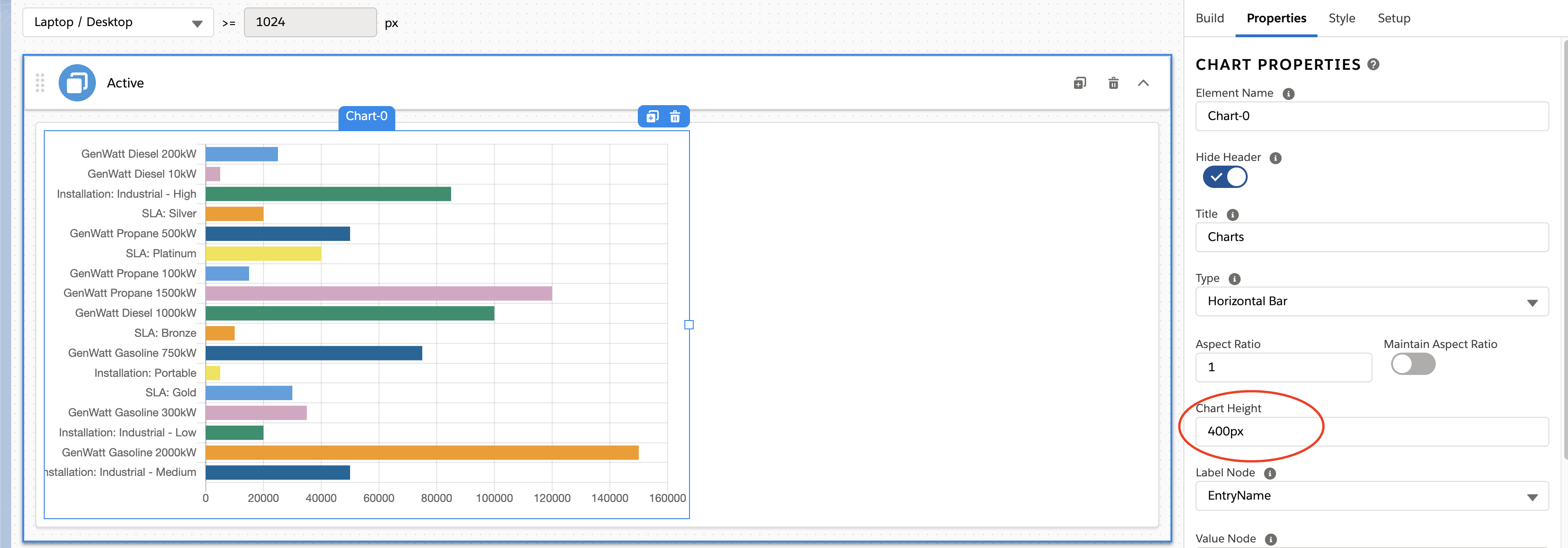
To override the Aspect Ratio, manually set the height for your chart with the Chart Height feature. This feature is visible when Maintain Aspect Ratio is disabled. The height is in pixels, such as 300px.
Here is a summary of how width and height are determined with each feature:
Feature |
Width |
Height |
Examples |
|---|---|---|---|
Aspect Ratio |
Full width of the element container (as determined by the number of columns the element occupies on the canvas in the designer) |
X-times the default height. X is determined by the ratio entered. |
|
Maintain Apect Ratio |
Full width of the element container (as determined by the number of columns the element occupies on the canvas in the designer) |
X-times the width. X is determined by the ratio entered. |
|
Chart Height |
Full width of the element container (as determined by the number of columns the element occupies on the canvas in the designer) |
The number, in pixels, entered in this field. |
300, or 300px. |
