
You are here:
Installing and Activating Vlocity Templates and Cards (Managed Package)
For the managed package runtime, after you install the latest Vlocity package, you must install and activate the base templates and cards.
 This information is for Omnistudio for Managed Packages. For Omnistudio on standard runtime, see Omnistudio Help.
The base templates, layouts, and cards are the base components used by the Vlocity Lightning Console. They serve as examples for custom components you might want to create.
-
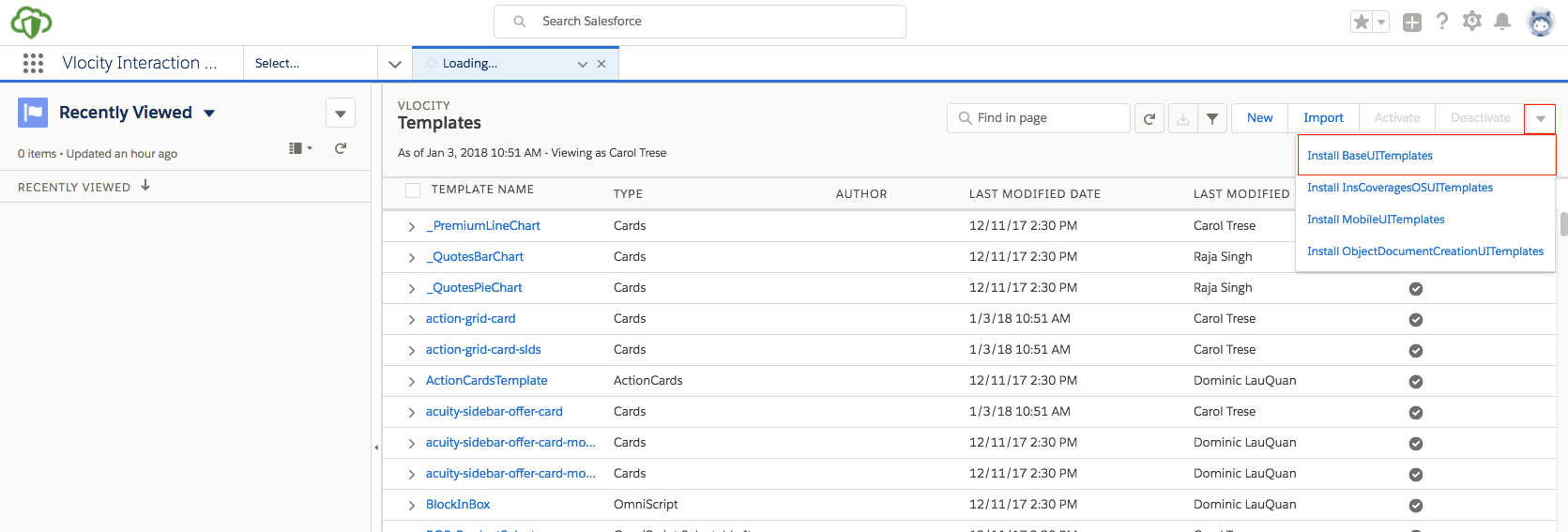
Go to the Vlocity Templates tab and select Install
BaseUITemplates from the picklist on the upper-right.
-
Ensure that all items are selected and click Next.
-
Click Next again and click Done.
-
Click Activate Now.
If a template with the same name is already activated, a warning is displayed that the existing template will be overwritten. You can clone or create a new version of the existing template or deselect the new template that has a warning. See Cards Framework Versioning.
-
Click Next and Done.
-
-
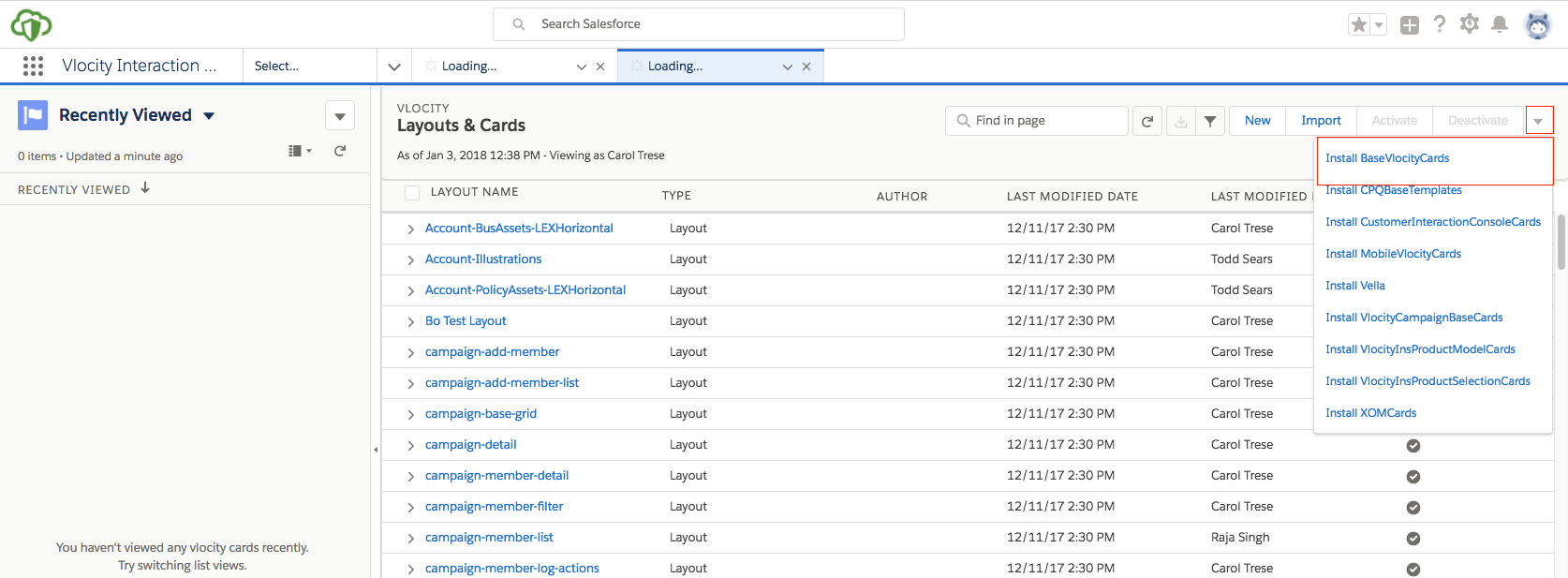
Go to the Vlocity Cards tab and select Install
BaseVlocityCards from the picklist on the upper-right.
-
Ensure that all items are selected and click Next.
-
Click Next again and click Done.
-
Click Activate Now.
If a component with the same name is already activated, a warning is displayed that the existing object will be overwritten. You can clone or create a new version of the existing object or deselect the new object that has a warning. See Cards Framework Versioning.
 Note
NoteIf you use Vlocity Insurance or Vlocity Health, select the following:
-
ins-product-rules-container (Author: Vlocity, Version: 2)
-
ins-product-rules-eligibility (Author: Vlocity, Version: 2)
-
ins-product-rules-requirements (Author: Vlocity, Version: 2)
-
-
Click Next and Done.
-
