
You are here:
Integrate Salesforce Knowledge with Omniscript
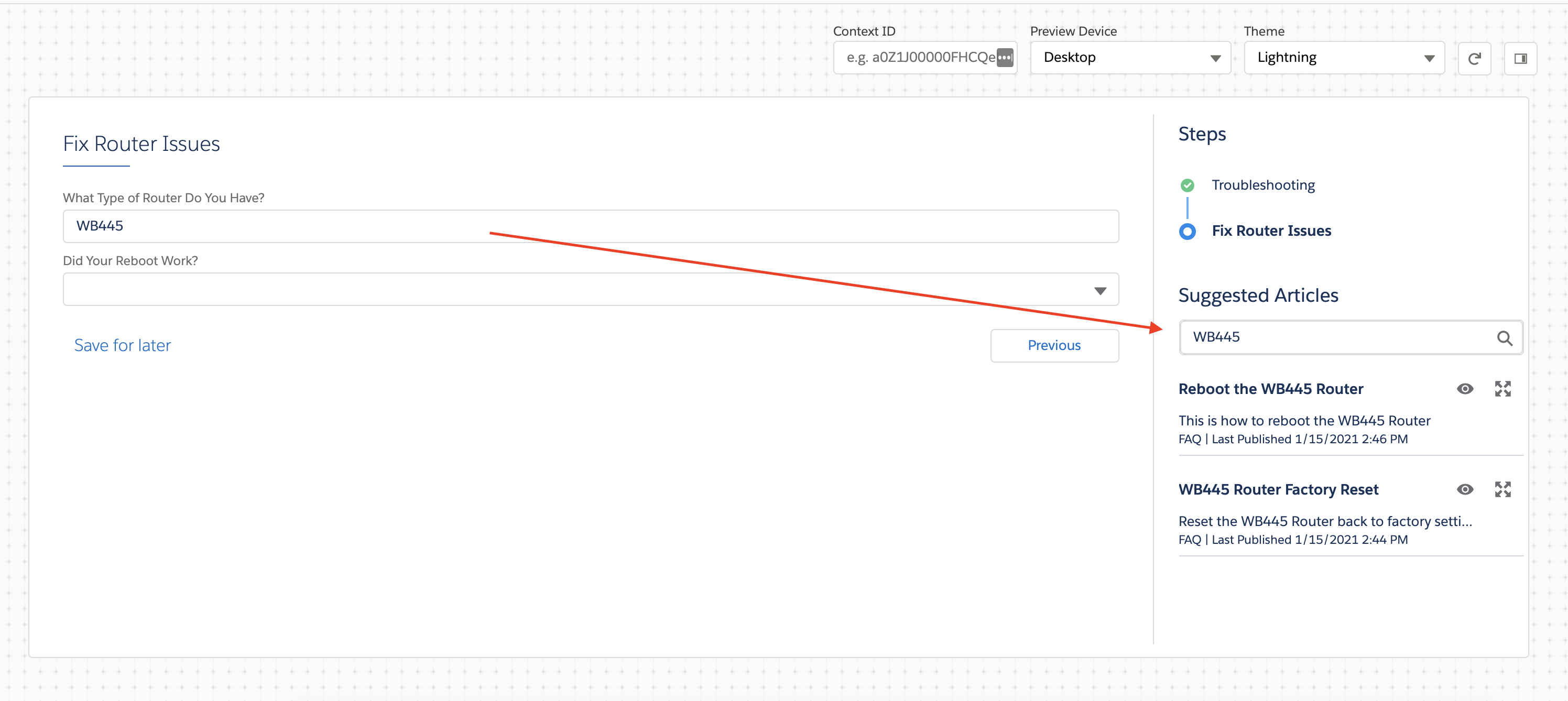
Enable users to search and view Salesforce Knowledge Articles when using an Omniscript. Configure Omniscript Knowledge Options to search for articles based on static values and dynamic inputs from Omniscript fields, or a query from a simple search bar.
For each set of search criteria for knowledge articles, the maximum number of results displayed is 2000 records. Salesforce set this limit for SOSL queries.

Your organization must have Salesforce Knowledge enabled to use this feature.
From the Omniscript Designer Preview, you can open the article in a new browser tab.
Simple Search Bar
- Set Up Omniscript to Work with Salesforce Knowledge
To let users search and view Salesforce Knowledge articles in an Omniscript, integrate Salesforce Knowledge into the Omniscript. Omniscript also supports querying Lightning Knowledge. - Configure Knowledge for Individual Steps in the Omniscript
After the initial configuration to set up your Omniscript to work with Salesforce Knowledge, integrate Knowledge in your Omniscript Steps. Configure options on each step to enable Knowledge and filter results. - Open Knowledge Base Articles Outside an Omniscript
Launch Knowledge base articles outside of an Omniscript using the Omniscript Knowledge Base component in a Community or Lightning page.
Set Up Omniscript to Work with Salesforce Knowledge
To let users search and view Salesforce Knowledge articles in an Omniscript, integrate Salesforce Knowledge into the Omniscript. Omniscript also supports querying Lightning Knowledge.
Before you begin:
- Enable Salesforce Knowledge.
- (Optional) Enable Lightning Knowledge.

To set up Omniscript for Salesforce Knowledge:
- From the Setup panel, expand the Knowledge Options section and select Enable Knowledge.
-
If needed, to integrate Lightning Knowledge with Omniscript, select Use
Lightning Knowledge.
Lightning Knowledge must be enabled in your org.
- If needed, to open Knowledge articles outside of an Omniscript using the Vlocity Omniscript Knowledge Base component in a Community or Lightning page, select Display Outside Omniscript.
-
If needed, to filter Knowledge articles by record type, select Filter
Knowledge Search by Record Type.
Knowledge searches use only the types listed in the Record Type Filter property for the step.
-
To search only specific fields in articles, use the Knowledge Article Type Query
Fields Map section.
- In Article/Record Type API Name, enter the Article Type API name for Classic Knowledge or enter the Record Type API name when Use Lightning Knowledge is enabled.
-
In Field API Name, enter the API name of the field to
include in searches, such as Title.
For multiple fields, enter a comma-separated list with no spaces, such as Title, namespace__richText__c,Summary.
The Omniscript preview displays these fields.
- To query additional fields and record types, click + Add New Knowledge Type Field Map and repeat step 5.
- If Use Lightning Knowledge is enabled, enter the Lightning Knowledge object's API name into the Lightning Knowledge Object API Name field, such as namespace__Knowledge__kav.
- (Optional) In Label, enter the text displayed above the Knowledge component, such as Suggested Articles.
Configure Knowledge for Individual Steps in the Omniscript
After the initial configuration to set up your Omniscript to work with Salesforce Knowledge, integrate Knowledge in your Omniscript Steps. Configure options on each step to enable Knowledge and filter results.
Before you begin, set up your Omniscript to work with Salesforce Knowledge.
- From the Omniscripts Designer, click the Step that you want to display the Knowledge component.
- In the Properties panel, expand the Knowledge Options section, and click Enable Knowledge.
- Update Language from the default value English to your preferred language.
- Update Public Status from the default value Online to Archive or Draft.
-
In the Keyword field, enter the text to search for.
This text can be literal text, such as Service Disconnect.
Or you can use merge fields for variable data. For example, enter %RouterType% to enable your users to enter keywords to search for in a Text element whose Name is RouterType. For information on merge fields, see Access Omniscript Data JSON with Merge Fields.
-
To filter articles by their Data Category, enter a SOQL query in the
Data Category Criteria field.
For example, enter Troubleshooting__c AT (Router__c) to show articles from the subcategory
Routerunder the parent categoryTroubleshooting.For information on building queries for data categories, see With Data Category filtering Expression. Note You don't need to enter WITH DATA CATEGORY in your query.
 -
If needed, when Filter Knowledge Search by Record Type or Lightning Knowledge is
enabled in the Setup panel, enter the Record Type's API name in Record
Type Filter to search those record types.
For multiple Record Types, enter a comma-separated list with no spaces, such as FAQ,INFO.
Open Knowledge Base Articles Outside an Omniscript
Launch Knowledge base articles outside of an Omniscript using the Omniscript Knowledge Base component in a Community or Lightning page.
The Omniscript Knowledge Base component renders Knowledge base articles side by side with an Omniscript or as a standalone component. When opening Knowledge Base articles from an Omniscript, Omniscript passes specific information into the component to search the Knowledge base and render articles.
- In your Omniscript's Setup panel, expand Knowledge options, and enable knowledge articles.
- Enable Salesforce Lighning Knowledge, and configure the remaining fields using the instructions in Set Up Omniscript to Work with Salesforce Knowledge.
- If needed, enable users to open knowledge base acrticles outside the Omniscript.
- Activate the Omniscript.
- Open the Lightning App Builder and create a page with a layout containing at least two regions. See Lightning App Builder.
- From the Lightning page, drag the deployed LWC Omniscript component into the page. See Add Your Omniscript to a Lightning Page and Add Your Omniscript to an Experience Cloud Page.
- From the Components section, drag the Vlocity Omniscript Knowledge Base component to where you want it displayed.
- In the omniscriptKey field, enter the name of the LWC Omniscript component using the syntax type_SubType_Language.
- If needed, in the layout field, enter newport to render the Knowledge base article with the Newport Design System styling.
- Save the Lightning page and test the Omniscript on the Lightning page to preview the behavior.
