
You are here:
Launch an Omniscript from a Flexcard
Set up a Flexcard to call an Omniscript that updates the Flexcard’s data source. For example, users enter their account ID on a Flexcard. Then, when they click the Omniscript action, Omnistudio passes the entered value and launches a form that updates their account information.
-
After you select the Omniscript action type, select the Omniscript to launch.
 Tip To include a scrollbar in an Omniscript, create a model flyout in the flexcard that calls the Omniscript. No scrollbar is included when you call the Omniscript in a new page.
 - If needed, you can select the VisualForce page where you want to show the Omniscript. For example, if you have a custom template for your Omniscript, select the custom page that you created.
-
Enter the sObject's context ID associated with your Omniscript.
For example, if your Omniscript updates account information, your context ID is an account record ID variable from the data source, such as
{AccountId}. -
If you selected a Lightning web component Omniscript:
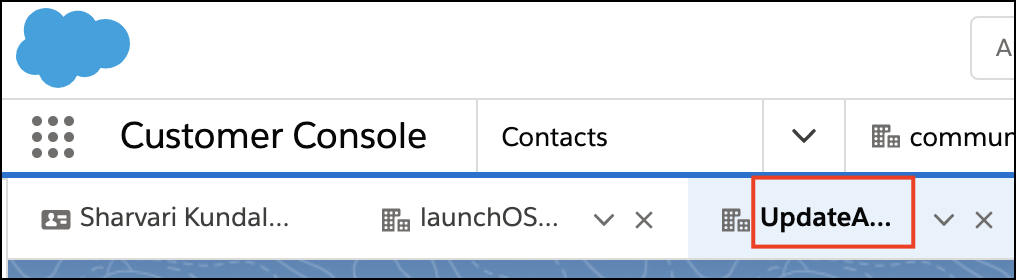
- Enter the label for the console tab after the user launches the Omniscript.
- Search for and select the icon to show next to the console tab label.
-
If needed, add these input parameters:
-
In Key, enter a variable name with the prefix
omniscript__. -
In Value, enter the value to pass as a string, a merge field, or a context
variable, such as
New Valueor{Name}.
-
In Key, enter a variable name with the prefix
- Enter the remaining information as needed.
- Add the Flexcard to a Lightning page or a page in an Experience Builder Aura site.
- Launch an Omniscript from an Omniscript Action on a Flexcard in Experience Cloud
Omnistudio supports Omniscripts launched from Flexcards in Experience Builder. With the Omniscript for Experience Builder component, you can load a dynamic Omniscript launched from a Flexcard Action element into an Experience Cloud page.
Did this article solve your issue?
Let us know so we can improve!
