
Loading
Help Agent Performance DegradationRead More
Table of Contents
Select Filters

          No results
          No results
          Here are some search tips

          Check the spelling of your keywords.
          Use more general search terms.
          Select fewer filters to broaden your search.

          Search all of Salesforce Help
          List Action for Integration Procedures

          List Action for Integration Procedures

          The List Action merges multiple lists by matching values of specified list item JSON nodes. A basic merge matches node names exactly. An advanced merge matches nodes that have different names or reside at different levels in the incoming lists.

          Tip
          Tip

          The inputs to a List Action must each be in list format even if the list contains only one item. Omnistudio Data Mapper Extracts that return a list with one item often convert it to a single object. To convert a single object back into a list, you can use the first example in Omnistudio Data Mapper Transform Examples.

          For more list processing options, see Transforming Lists with Data Mappers and the AVG, FILTER, IF, LIST, LISTMERGE, LISTMERGEPRIMARY, LISTSIZE, MAX, MIN, SORTBY, and SUM functions in the Supported Data Mapper and Integration Procedure Functions.

          To match nodes that have different names or reside at different levels in the incoming lists, click Advanced Merge and specify settings for the nodes to be matched, as follows:

          • List Key: Enter the name of the JSON list node where the node to be matched resides.

          • Matching Path: Enter the path within the list to the node to be matched.

          • Matching Group: Specify the same number for all nodes you want to match.

          For example, this figure shows how to match first and last names from two incoming lists in which the nodes have different names.
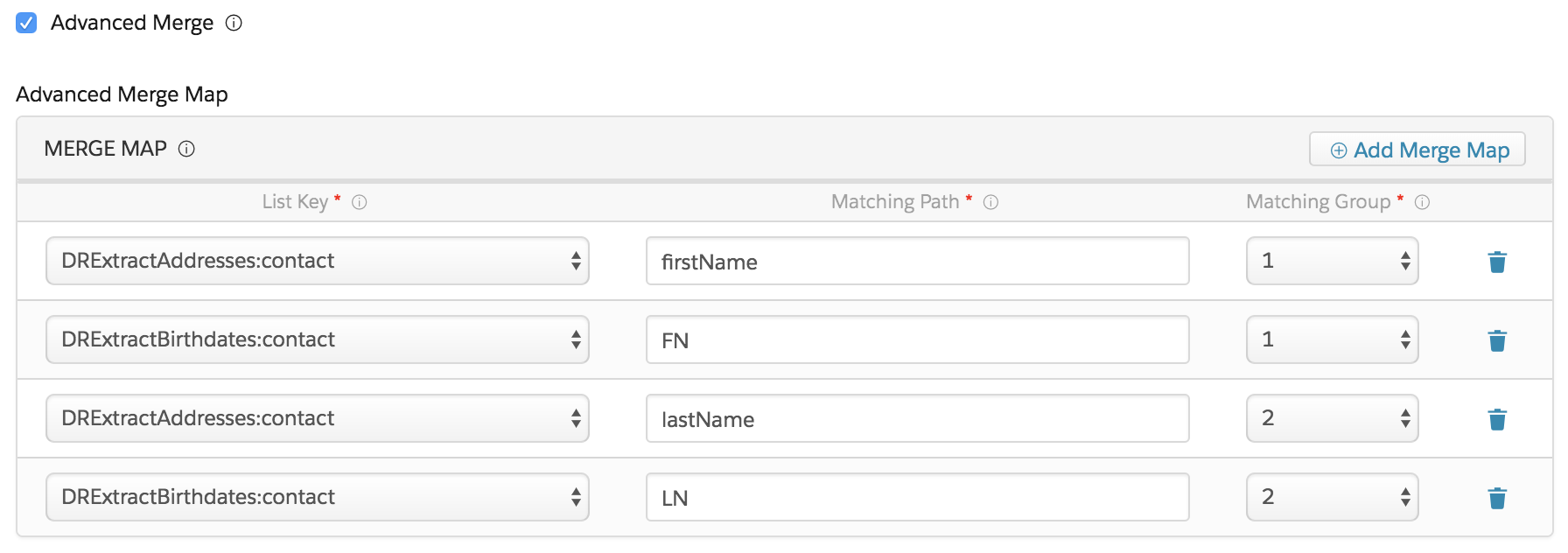
          In the DrExtractAddresses:contact list, the path is firstName in Matching Group 1. In the DrExtractBirthdates:contact list, the path is FN in Matching Group 1. In the DrExtractAddresses:contact list, the path is lastName in Matching Group 2. In the DrExtractBirthdates:contact list, the path is LN in Matching Group 2.

          Property

          Description

          • Merge Order
          • Merge Lists Order (If you're using the designer on a managed package)

          Specifies the order in which lists are merged. If a list contains a value for a key that was populated by an earlier list, the later entry overwrites the earlier one.

          Merge Fields

          The name of the JSON nodes that must match for entries to be merged. To specify nodes below the top level of the JSON structure, use colon-delimited paths. By default, the nodes in both lists are assumed to have identical names and reside at the same level. If you don’t specify merge fields, the lists are merged into a single list but nodes with matching keys aren’t merged. To match a value that resides in a JSON list, append |index to its path. For example, to match value1 in the list2 list, specify list1:node1:node2:list2|1 as the merge field.

          {
                          "list1": {
                          "node1": {
                          "node2": {
                          "list2": [
                          "value1",
                          "value2"
                          ]
                          }
                          }
                          }
                          }

          Advanced Merge

          Matches nodes that have different names or reside at different levels in the incoming lists. See List Action for Integration Procedures.

          • Include NULL as a valid matching value for merging
          • NULL is a Valid Matching Value when Merging (If you're using the designer on a managed package)

          When merge fields are all null, specifies whether to treat them as matching.

          • Don’t merge nodes from the same list
          • Prevent Intra List Merge (If you're using the designer on a managed package)

          Specifies whether to merge entries within a list if there are duplicate entries in the list. In this example, List1 has fields with the same data ["Node2": "value2"]. To merge List1 and List2 with the Merge Fields set to Node2, select Prevent Intra List Merge so that List1 entries aren’t merged.

          {
                          "List1": [
                          {
                          "Node1": "value1",
                          "Node2": "value2",
                          "Node3": "value3",
                          "Node8": "Value8"
                          },
                          {
                          "Node1": "value11",
                          "Node2": "value2",
                          "Node3": "value13"
                          }
                          ]
                          }
          {
                          "List2": [
                          {
                          "Node2": "value2",
                          "Node4": "value4",
                          "Node5": "value5"
                          },
                          {
                          "Node2": "value3",
                          "Node4": "value4",
                          "Node5": "value5"
                          }
                          ]
                          }

          Merged list output when Prevent Intra List Merge isn’t selected:

          [
                          {
                          "Node5": "value5",
                          "Node4": "value4",
                          "Node8": "Value8",
                          "Node3": "value13",
                          "Node2": "value2",
                          "Node1": "value11"
                          },
                          {
                          "Node5": "value5",
                          "Node4": "value4",
                          "Node8": "Value8",
                          "Node3": "value13",
                          "Node2": "value2",
                          "Node1": "value11"
                          }
                          ]

          Merged list output when Prevent Intra List Merge is selected:

          [
                          {
                          "Node5": "value5",
                          "Node4": "value4",
                          "Node8": "Value8",
                          "Node3": "value3",
                          "Node2": "value2",
                          "Node1": "value1"
                          },
                          {
                          "Node5": "value5",
                          "Node4": "value4",
                          "Node3": "value13",
                          "Node2": "value2",
                          "Node1": "value11"
                          }
                          ]
          • Specify keys to be retained in the output
          • Has Primary (If you're using the designer on a managed package)

          Specifies an allowlist of keys to be retained in the output.

          Primary List Key

          (Optional) Allows the list of entries to be retained after the merge is performed. If you specify a primary list, only entries from that list are retained in the output.

          Filter List Formula

          Specifies a formula that is run on each node of the list to determine if it remains in the list. If FormulaResult returns TRUE after evaluating a node, the node is retained; otherwise the node is removed. For example, you can specify nodename != "" to remove null values from a list.

          Dynamic Output Fields

          By default, all nodes are returned. To return a specified subset of the result nodes, add a node to the input JSON and set its value to a comma-separated list of the desired node names. Don’t use spaces in this list. Set this property to the name of the node containing this list of node names.

          Sort By

          Specifies one or more keys on which the output list is sorted.

          Update Field Value

          Assigns a value or specify a formula that can evaluate and conditionally replace values in the output list. To specify a formula, precede the expression with "=". For example, to replace blank first or last names with "None Specified," add the entries shown in this figure.

          Update Field Value, FirstName

          For more information, see Supported Data Mapper and Integration Procedure Functions.

           
          Loading
          Salesforce Help | Article