
You are here:
Deploy Migrated Omnistudio Components to Another Environment
̄After you test all your migrated content in a sandbox, use Visual Studio Code (VS Code) to push the content to the next environment in your migration plan. Deployment can be challenging if dependencies are not fully understood. We recommend thoroughly analyzing your entire implementation and carefully defining components in the package.xml file to make sure that no dependencies are overlooked.
- Use VS Code to create a Salesforce DX project.
-
Log in to your source org by running the
sf org login webCLI command in the integrated VS Code terminal.If necessary, use the--instance-urlflag to specify your org’s instance URL. -
Define package.xml.
- Include all Salesforce components that you updated in previous migration steps.
-
After the Salesforce components, include Omnistudio components in the sequence
OmniDataTransform,OmniIntegrationProcedure,OmniScript,OmniUiCard.
-
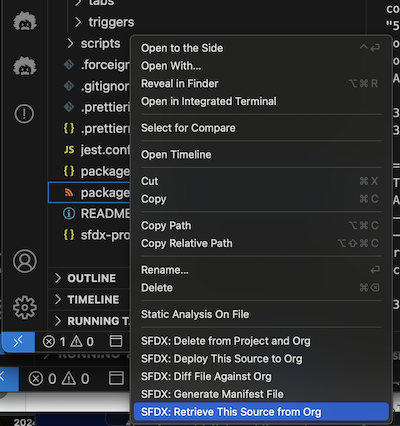
In VS Code, right-click the package you defined in step 3 and select SFDX:
Retrieve This Source from Org.
- Log in to your target org.
-
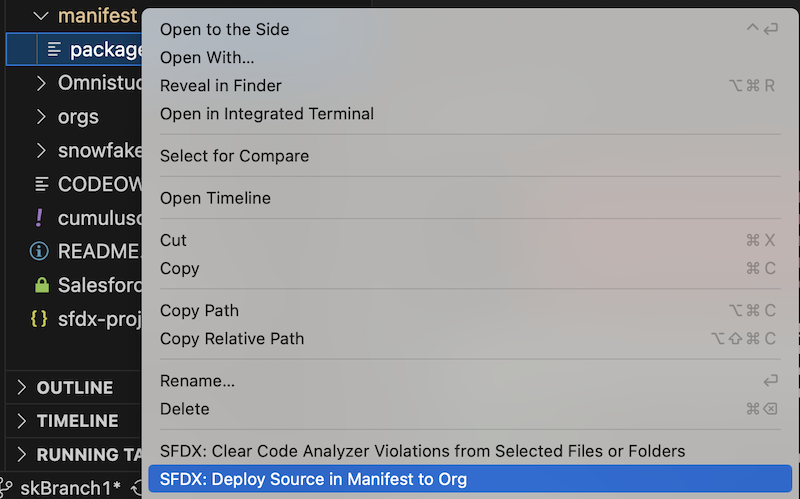
Right-click the package you defined in step 3 and select SFDX: Deploy Source
in Manifest to Org.
Follow the troubleshooting steps to resolve these errors:
- Error:
Couldn’t find dependent componentDescription: Errors about a missing component can occur. For example:
Error AccountServicing_UpdateContactMethods_English_1
Couldn’t find dependent components: {"INTEGRATION_PROCEDURE":[],"DATARAPTOR":["AccountUpdate_post"],"OMNISCRIPT":[]}
Workaround: Check the source environment for the dependent component named in the error, and resolve the dependency.
- Error:
Required fields are missing (Dependent custom classes are
            missing)
Description: Errors about missing dependent custom classes occur when a custom class dependent on the Omnistudio Data Mapper component is missing. For example:
Starting SFDX: Deploy This Source to Org ===

                      Deploy Errors PROJECT PATH ERRORS ===

                      force-app/main/default/omniDataTransforms/LwcCustomTransform_1.rpt-meta.xml Required fields are missing: [OmniDataTransformationId]
Workaround: Make sure that all Data Mapper dependencies are deployed. In the target org, check the custom Apex class or sObject used in the Data Mapper. Next, in the source org, open the Data Mapper mentioned in the error and deploy the class or object to your target org. Then deploy the Data Mapper.
Next step: After you deploy and resolve all errors, test each of your business workflows in the target environment.

