
You are here:
Omniscript Best Practices
Enhance the performance and usability of Omniscripts by following the recommended Omniscript best practices.
Business Process and Logic
Business process and logic best practices include:
- Use unique names for Omniscript elements and Omnistudio Data Mapper response nodes.
- Identify reusable elements by building an outline of the entire Omniscript.
- Document the purpose of an element in the element's Internal Notes property.
- Avoid element name changes after deploying to production. When unavoidable, apply the name changes wherever the element is referenced.
- Don't assign a ContextId within the Omniscript. An Omniscript's ContextId is a reserved key that assigns a Record ID from the URL.
- When processes are repeatable across multiple Omniscripts, create a reusable Omniscript, and add it to the appropriate parent Omniscripts. See Embed an Omniscript in Another Omniscript.
- Try to enforce required data and validations at the current step instead of at the end of a form. This helps users correct their inputs immediately instead of looking at validations or errors at the end and retracing their steps to fix each one.
- Where possible, break down complex tasks in an application by using multiple Omniscripts. Use the Omniscripts with Flexcards, if needed. Creating a large Omniscript with several steps can hinder performance and user experience.
User Interface
Omniscripts use Lightning Web Components to define the styling for both individual elements and the Omniscript itself.
Best practices include:
- Apply global styling. For more information, see Custom Styles for Omniscripts.
Accessibility
Accessibility best practices include:
- Currently, edit blocks configured in table mode in Omniscripts aren't compatible with screen readers. If you use a screen reader, we recommend that you use Flexcards instead of Omniscripts. In Flexcards, you can use data tables or Lightning datatables that are compatible with screen readers. See Show Data in a Table on a Flexcard and Lightning Web Component – Datatable.
Security
Data security best practices include:
-
To ensure data security and maintain compliance with Salesforce encryption access controls, always check that a user has the View Encrypted Data permission before displaying or processing decrypted values of encrypted fields.
User Experience Design Principles
UX design principles include:
- Reduce the number of fields the user must input information into by prefilling the fields using contextual data. For more information, see Set Values in an Omniscript.
- To avoid cognitive load, carefully consider how you break up processes. Too many short steps that contain only a minimal number of elements can overwhelm the user as easily as large steps with several elements.
- Guide the user by creating contextual help text and logically ordering input fields.
- Ensure that the recursive nested blocks within an Omniscript do not exceed 10.
Performance Factors
A set of best practices exists for both Client-side performance and Server-side performance.
Client-side best practices include:
- Reduce Conditional Views, Merge Fields, Formulas where possible.
- Speed up the application of responses by trimming the Response JSON. For more information, see Manipulate JSON with the Send/Response Transformations Properties.
- Remove spaces from element names to improve the Omniscript's load time.
- Reduce the number of elements in the script. Try to limit a single Omniscript to a maximum of 750 elements.
- Run logic on the server where possible, for example, conditional logic in Integration Procedures and formulas in Data Mappers.
- PDFs larger than 250 KB generate slowly. PDFs larger than 1 MB can take several minutes to generate and sometimes time out.
Server-side best practices include:
- Cut down the payload size of a request by trimming the JSON request. For more information, see Manipulate JSON with the Send/Response Transformations Properties.
- Don't create Omniscripts with Lightning web components larger than 4 MB. In preview, Omniscripts that are larger than 4 MB show an error to indicate that the Omniscript is either inactive or isn't deployed. Download the Omniscript LWC to check its size.
- Reduce server roundtrips by using Integration Procedures whenever there are multiple actions between steps. Run Integration Procedures asynchronously by enabling the fire and forget property.
- Remove unnecessary data by trimming the Data Mapper extract output.
- When building features with Omnistudio, keep the Apex governor limits in mind. These
limits ensure that a single process doesn't control shared resources. During development,
use debug logs to track and manage governor limits, ensuring your development is efficient
and doesn't exceed Salesforce limits during execution. See Apex Governor Limits.
To monitor how governor limits are used by Omnistudio components during execution, collect Apex debug logs for a transaction, for example, activating an Omniscript, launching a Flexcard, or executing a step in an Omniscript. To collect Apex debug logs, create a trace flag and set it for the user executing Omnistudio processes. See Set Up Debug Logging.
When you run an Omniscript, Integration Procedure, or Data Mapper, the debug logs capture all transactions and provide insights into the governor limits usage.
Implementation Use Cases
- Save selected records from Flexcard Datatable to an Omniscript.
- Create a Flexcard and add a Datatable element.
- Configure Event Listener in the Flexcard setup:
- Go to the Flexcard’s setup tab.
- Add an Event Listener with these settings:
- Event Type: Custom Event
- Event Name: selectrow
- Action Label: Choose a label that you prefer.
- Action Type: Update Omniscript
- Parent Node: OsDataNode
This configuration ensures that you are updating a specific node in an array in the Omniscript. This helps you track and update the selected records. You can replace records with any array node name as required.
- Add Input parameters with these settings:
- Key: Choose the appropriate JSON tag for the selected record.
- Value: {action.result}
This configuration ensures that the entire data row is included, along with the selectrow variable, which indicates if the record is selected or not (true or false).
- If required, add conditions. For example, use action.result.selectrow to determine
if the record should be added or removed.
This condition is optional. If you need different actions for selected and unselected records, you can create two event listeners with different conditions for each case. You can customize the logic further by adding more conditions based on the requirements of your workflow.

Configuration
Designing Omniscripts with specific configurations may sometimes lead to unintended behaviors on the sites they're embedding in. This can occur due to the way Omniscripts are designed or due to a combination of factors outside of the scope of Omnistudio. Some known issues and related best practices are desribed here.
Configuration best practices include:
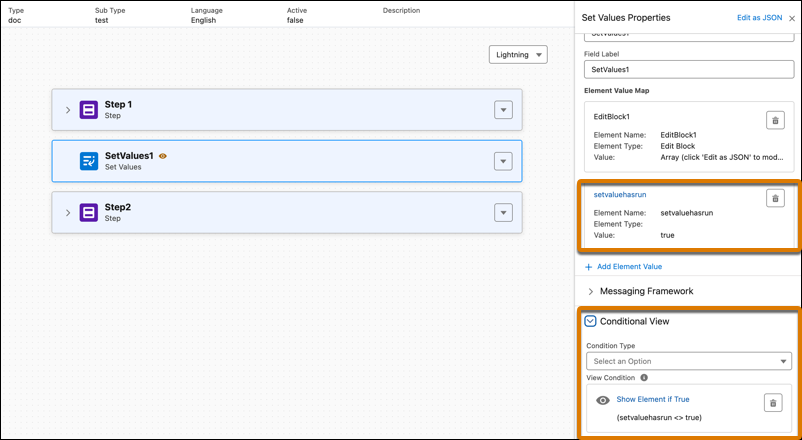
- When using an Action, Set Values, or Data Mapper element to populate data in an Edit
Block within an Omniscript, data duplication may occur if the Merge saved data
JSON to the updated version checkbox is selected in the Save Options
section, and if a user resumes a saved session. To avoid this, add a flag to track the
execution of the Action, Data Mapper, or Set Values element and include a condition in the
Conditional View section to proceed only if the flag is false. For instance, you can use a
flag with a Set Values element to prevent data duplication as shown.
- Tables aren't supported inside text blocks.
