
You are here:
Omniscripts
Omniscripts help you create dynamic customer interactions with low code and deploy them to multiple channels and devices. You can create an Omniscript and then deploy it on a Salesforce application, a mobile device, an Experience Cloud site, or a web page.
Create Omniscripts to guide users through sales and service processes with fast, personalized responses. Omniscripts also integrate seamlessly with enterprise applications and data.
Why use Omniscripts?
Create interactive experiences with Omniscripts to move quickly from development to production. With a fast drag-and-drop editor, add data inputs, outputs, and actions to an Omniscript without having to create custom coding or styling. If you need a branded or custom design, you can also easily customize Omniscripts. For a good customer experience, your Omniscript shows their task progress and guides them, like help text or helpful error messages.
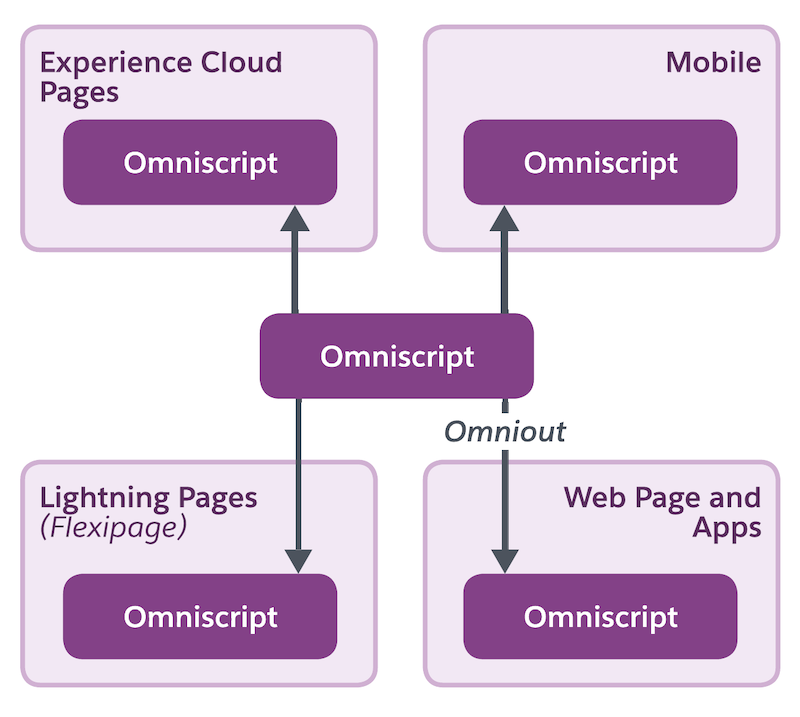
Omniscripts are easy to develop, too. You can build reusable Omniscripts for common tasks in different workflows. You can also create one Omniscript to use across different channels, as shown in this diagram.
What are Omniscripts?
Think of an Omniscript as a guided workflow or process, such as a customer updating their contact or healthcare information. They first enter their patient or personal identifying information, and the Omniscript gets and displays their current information. A customer then updates their address or current medications. The customer’s data is transformed to a specific format, such as the customer's date of birth converted to a specific date format. Their changes and new data are saved, including deletions. If a customer deletes a payment method or a medication they no longer take, their changes are saved. The Omniscript then sends them an email with the updates and confirmation.
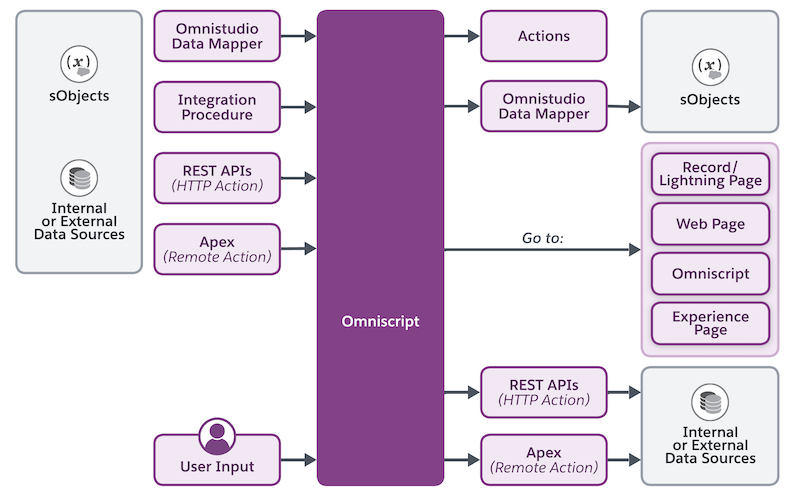
An Omniscript has elements to complete those basic tasks: Get data, display data, update data, write data, and take an action.
An Omniscript can get or update data from a Salesforce object or from internal and external data sources. It can use an Omnistudio Data Mapper to retrieve data from sObjects or an Integration Procedure. To get data from other sources, an Omniscript can work with REST APIs or Apex.
- Working with Omniscripts
Use the Omniscript Builder to create and manage guided, interactive processes. Retrieve, update, and add data to a variety of sources with elements for Data Mappers, Integration Procedures, REST APIs, and Apex. Or allow users to add or modify data with input fields. Drag Omnscript elements to the canvas and edit properties without changing tabs. Omniscript activation is instant. - Create an Omniscript
Create an Omniscript to build a form in the Omniscript Designer. - Create Multi-Language Omniscripts
Enable a single Omniscript to run in multiple languages using custom labels. - Build an Omniscript with Elements
For guided workflows, Omniscripts use basic tasks: Get, save, modify, and display data from Salesforce objects and other data sources. They can also allow users to add, change, or remove data and can take actions, such as getting a DocuSign signature, sending an email, or opening a web page. - Configure Omniscript Settings
Configure optional settings for your Omniscript in the Setup panel of the Omniscript Designer, such as making your Omniscript reusable or enabling logging. - Integrate DocuSign with Omniscripts
Enable users to either sign DocuSign forms in an Omniscript or email a user a copy of the document to sign at their convenience. DocuSign integration requires an active DocuSign account. - Customize Omniscript Behaviors, Style, and Elements
To meet your business needs and improve user experience, you can customize Omniscripts for their style and appearance and for their actions. Apply custom styling via static resources, global stylesheets, or SLDS design tokens. Modify Omniscripts to conditionally hide or show elements and errors and to trigger platform events. For more complex customization, you can extend Omniscript elements to add custom behavior and styling. Finally, you can create custom Lightning web components (LWCs) to add custom HTML, JavaScript, and CSS. - Preview and Test an Omniscript
View the Omniscript's appearance and functionality by previewing the Omniscript in the Omniscript Designer. - Activate and Launch Omniscripts
Make Omniscripts available to Experience Sites, Lightning Pages, custom LWCs, and Lightning tabs by activating and launching the Omniscript. If an error occurs during deployment, the Omniscript is deactivated. - Omniscript Element Reference
The available elements are Omniscripts are organized as groups, Data Mapper actions, standard actions, display elements, functions, input, and Omniscripts (to embed reusable Omniscripts). Each element uses an extendable Lightning web component (LWC).
