
You are here:
Omnistudio Data Mappers
Use Omnistudio Data Mappers to declaratively retrieve, write, and modify data between Salesforce and other Omnistudio components. While you can process data with custom code (such as Apex classes), Omnistudio Data Mappers are faster to build, easier to update, and simpler to manage. They’re also reusable, helping you to move solutions quickly from development to production.
Types of Data Mappers
For each task of retrieving, writing, and transforming data, Omnistudio has a different type of Data Mapper.
Data Mapper Extract, Turbo Extract, and Load can handle Custom Input and Output for Omnistudio Data Mappers in Omnistudio. Data Mappers can access external objects, custom metadata, and Salesforce objects. No special syntax or configuration is required.
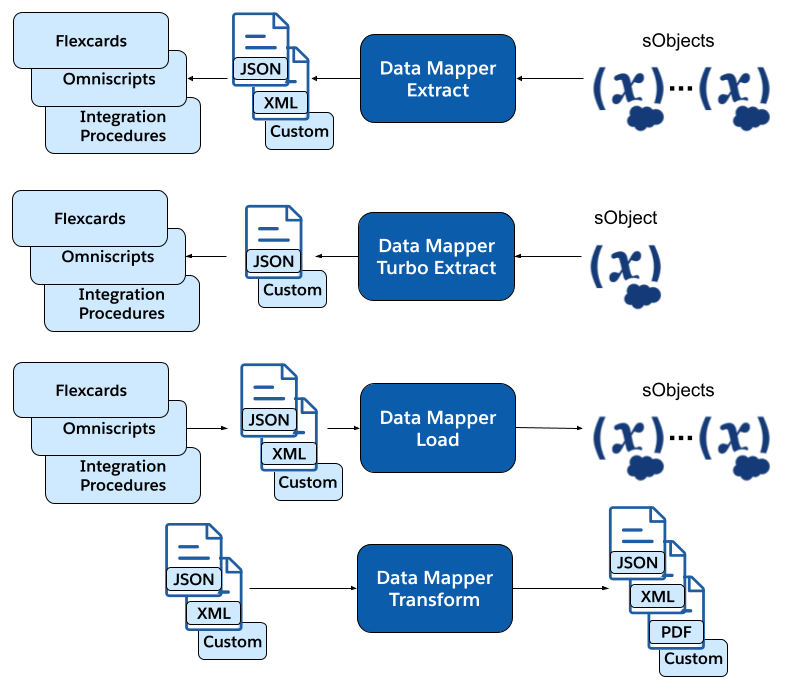
- Data Mapper Extract — reads data from one or more Salesforce objects and JSON output, custom data, or XML with field mappings.
- Data Mapper Turbo Extract — reads data from a single Salesforce object along with fields from related objects. The Turbo Extract is faster at run time and is useful for simpler extractions that don’t require queries or more complex output mapping.
- Data Mapper Load — creates and updates Salesforce data from JSON, XML, or custom input.
- Data Mapper Transform — transforms input data into a new structure as output. Output examples include renamed fields, restructured XML or JSON, changes with formulas and functions, and converted formats (such as from JSON to PDF). Because it works with data in memory, it doesn’t use a Salesforce Object Query Language (SOQL) query or other means to read from Salesforce objects.
Data Mappers in a Workflow
Data Mappers typically supply Salesforce data to Omniscripts, Integration Procedures, Flexcards, and Apex classes, and write the related updates to Salesforce.
For example, an Omniscript guides customers through a workflow to update their account.
- The Omniscript calls a Data Mapper Extract to read data from Salesforce, such as the Account object.
- A customer modifies and adds new data in the Omniscript.
- A Data Mapper Transform checks the input data and changes it to the right formats as needed.
- The Omniscript calls Data Mapper Load to write the new and modified data to Salesforce.
Data Mapper Extract
Data Mapper Extracts read Salesforce data and return results in JSON, XML, or custom formats. You can filter the data and select the fields to return. You can use formulas, default values, and translations on your data. Data Mapper Extract provides required data to Omniscripts, Integration Procedures, and Flexcards.
Configure the Data Mapper Extract, define the initial extraction, add formulas, add fields, create mapping, and set properties. See Configure an Omnistudio Data Mapper Extract.
Determine whether you need multiple extract steps or relationship notation. See When to Use Multiple Extract Steps and Relationship Notation versus Multiple Extract Steps.
Data Mapper Turbo Extract
Data Mapper Turbo Extract gets data from a single Salesforce object type and includes fields from related objects. You can filter the data, and select the fields to return by mapping the related objects. You can’t use formulas, custom JSON, default values, and transformations on a Data Mapper Turbo Extract.
When compared with a Data Mapper Extract, a Data Mapper Turbo Extract offers simpler configuration and better performance at run time.
Data Mapper Load
Data Mapper Load accepts input data in JSON, XML, or custom formats and writes the data to Salesforce objects. You can use formulas and attributes on your data. For example, a user runs a case-handling Omniscript, finishes entering data, and saves. The script calls a Data Mapper Load to record the data entered.
A Data Mapper Load can get input data in three ways:
- Omniscript or Integration Procedure — during execution, an Omniscript or Integration Procedure builds JSON with the data required for the business use case. When the script invokes the Data Mapper Load, the JSON is sent as input.
- Data Mapper API REST call — if a call invokes a Data Mapper by using a POST action, the payload of the call can include the JSON.
- Apex code — specify the JSON as a parameter in the Apex code to the Data Mapper Load.
To modify the input data, you can define formulas, transform values, and change the output data type. See Use Formulas in Omnistudio Data Mappers. To specify how the resulting data is written to Salesforce objects, you map fields from the output JSON to fields in Salesforce objects. See Configure an Omnistudio Data Mapper Load. When invoked, the Data Mapper Load applies its mappings and formulas to the input data to create the output data. Then it loads the output data into Salesforce objects according to the mappings.
Data Mapper Transform
Data Mapper Transform performs transformation of intermediate data without reading from or writing to Salesforce objects. You can add formulas to the data.
Data Mapper Transform performs these tasks:
-
Convert an input data to an output data, and vice versa. The input and output data can be in JSON or XML format.
-
Restructure input data and rename fields.
-
Substitute values in fields (all Data Mappers can substitute values)
-
Convert data to PDF, Docusign, or document template format.
Data Mapper Transform is essential for Omniscripts that must populate a Docusign template. See Creating a Data Mapper Interface to Map an OmniScript to DocuSign . It's also essential to fill fields in a PDF document. See Creating a Data Mapper Interface to Map an OmniScript to a PDF.
- Working with Omnistudio Data Mappers
Use the Data Mapper Designer to build and configure server-side processes that declaratively retrieve, write, and modify data. You can create Data Mappers from the Omnistudio or Data Mappers app. Or you can create them from Data Mapper elements in Integration Procedures and Omniscripts. - Build an Omnistudio Data Mapper
To get, save, and modify Salesforce data, build Data Mappers with the basic configurations: Input source, queries, formulas, mappings of input and output data, and output destination. The available configurations depend on the type of Data Mapper that you’re building. - Invoke Omnistudio Data Mappers
Easy to build and reusable, you can call Data Mappers from other Omnistudio tools, such as Integration Procedures, Omniscripts, and Flexcards. But Apex classes, batch jobs, or REST APIs, can also call Data Mappers. With a Data Mapper, centrally manage data transactions to use in multiple applications. - Security for Omnistudio Data Mappers and Integration Procedures
You can control access to Data Mappers and Integration Procedures using settings that reference Sharing Settings and Sharing Sets or Profiles and Permission Sets. - Preview and Test Data Mappers
You can preview and test the input and output of a Data Mapper in the Data Mapper Designer. - Examples of Omnistudio Data Mappers
For each type of Data Mapper, examples show how they’re set up for specific, common uses. Each example provides sample JSON for input. Each shows the setup for input, output, mapping, query, and formula, as they apply to the Data Mapper type and the use case.
