
You are here:
Settings for Long-Running Integration Procedures
You can use chainable and queueable chainable settings to avoid hitting Salesforce governor limits when invoking long-running Integration Procedures. You can also chain on one or more specific long-running steps.
By default, all the actions in an Integration Procedure run in a single transaction. If the transaction exceeds a Salesforce governor limit, Salesforce ends the transaction and the Integration Procedure fails. You can’t set a limit that exceeds the maximum imposed by Salesforce. For details about governor limits, see the relevant Salesforce topic.
To mitigate this problem, use these settings:
-
Enable chaining from the Omniscript or parent Integration Procedure action that calls the long-running Integration Procedure.
-
Optionally, set limits that trigger chaining in the long-running Integration Procedure itself using the settings described here. These limits define the threshold points at which Integration Procedures start chaining.
When an Integration Procedure with chaining enabled exceeds a governor limit, step results are saved and the step continues in a separate transaction. Because the step runs in its own transaction, it doesn’t contend for resources with other steps in the Integration Procedure, so it's less likely to hit governor limits.
Breaking the Integration Procedure execution into chunks and saving interim results can reduce performance. To maximize performance, steps are chained only when they hit governor limits. If no limits are exceeded, all steps in the Integration Procedure run in a single transaction.
You can circumvent Salesforce governor limits by allowing a chainable step to start a queueable job, which runs as an Async Apex Job. These jobs have higher CPU, SOQL, and Heap size limits than regular transactions. Starting a queueable job helps to ensure that governor limits aren't exceeded, but it can reduce performance.
For Developer Edition and Trial orgs, the maximum stack depth for chained jobs is 5, which means that you can chain jobs four times. This limit of 5 includes the initial parent queueable job. See Queueable Apex in Salesforce Help.

To execute multiple transactions, you must call a chainable or queueable chainable Integration Procedure from a context that can act as a client. For example, you can invoke a chainable Integration Procedure from a REST API. You can't call a chainable or queueable chainable Integration Procedure from an Apex class.
Chainable and Queueable Chainable Settings
To configure limits below the Salesforce defaults, edit the Chainable Configuration and Queueable Chainable Limits settings in the Integration Procedure's Procedure Configuration section. To disable checking for a limit, leave it blank. If you disable checking for a limit and a step exceeds the Salesforce limit, the Integration Procedure fails.
Chainable settings are as follows:
-
Chainable Queries Limit: Maximum number of SOQL queries that can be issued. The default maximum is 100.
-
Chainable DML Statements Limit: Maximum number of Data Manipulation Language (DML) statements that can be issued. The default maximum is 150.
-
Chainable CPU Limit: Maximum CPU time on the Salesforce servers. The default maximum is 10,000 milliseconds.
-
Chainable Heap Size Limit: Memory is used to store data during transaction processing. The default maximum is 6 MB.
-
Chainable DML Rows Limit: Maximum number of records that can be processed as a result of DML statements, Approval.process, or database.emptyRecycleBin. The default maximum is 10,000.
-
Chainable Query Rows Limit: Maximum number of rows that a SOQL query is permitted to retrieve. The default maximum is 50,000.
-
Chainable SOSL Queries Limit: Maximum number of SOSL queries that can be issued. The default maximum is 20.
-
Chainable Actual Time: The number of seconds an Integration Procedure can run before chaining occurs to avoid reaching the Salesforce Concurrent Request Limit. No default.
Chainable Queries Limit, Chainable Query Rows Limit, and Chainable SOSL Queries Limit work within a managed package but not outside of it. For example, if a Remote Action runs queries outside the package, these queries don't count toward the limits.
Queueable Chainable settings are:
-
Queueable Chainable Heap Size Limit: Memory is used to store data during transaction processing. The default maximum is 12 MB.
-
Queueable Chainable CPU Limit: Maximum CPU time on the Salesforce servers. The default maximum is 60,000 milliseconds.
-
Queueable Chainable Queries Limit: Maximum number of SOQL queries that can be issued. The default maximum is 200.
Queueable Chainable settings override their Chainable equivalents if both are set.
How to Call a Chainable or Queueable Chainable Integration Procedure
To enable chaining for an Integration Procedure that is called from an Omniscript, open the Integration Procedure action that calls the Integration Procedure and check the Chainable checkbox. To enable chainable steps to start queueable jobs, also check the Queueable checkbox.
If you’re calling an Integration Procedure from a REST API, you can set the
chainable or queueableChainable
option to true.
A parent Integration Procedure can disable the Chainable settings of a child Integration Procedure that it calls.
The Chain on Step Setting
To enable chaining for a particular long-running step in an Integration Procedure, check its Chain On Step setting. When the Integration Procedure is called with chaining enabled, and a limit is reached, the step runs in its own transaction.
Chain On Step isn’t required for chaining to occur. If no step has Chain On Step applied, chaining occurs when the Integration Procedure's resource use approaches governor limits or a chainable or queueable chainable setting.
If your Integration Procedure has an Omnistudio Data Mapper Post action followed by an HTTP action, enable Chain On Step for the Data Mapper Post action to avoid this Salesforce error: You have uncommitted work pending. Commit or rollback before calling out.
Chainable and Queueable Chainable Settings in Preview
To enable the Chainable or Queueable Chainable settings when testing an Integration
Procedure using the Preview tab, expand the Options pane and set one or more of these
options to true:
-
chainable: To enable the Chainable settings for testing. -
queueableChainable: To enable the Queueable Chainable settings for testing. -
useQueueableApexRemoting: To limit the amount of time the Apex CPU runs by starting a queueable job with no chaining.
The names of all options, for example queueableChainable,
are case-sensitive in all contexts.
The Action Message Property in the Calling Omniscript
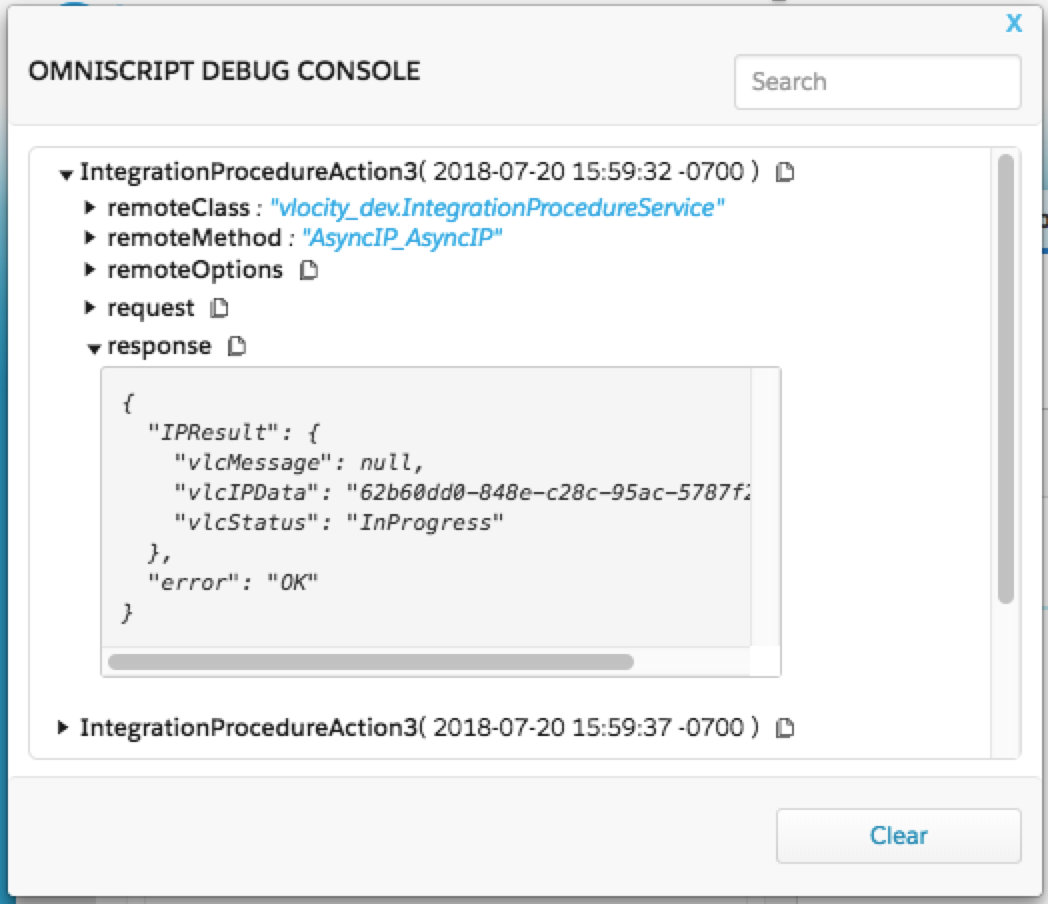
To view the progress of a chained Integration Procedure when debugging the OminScript that calls it, set the Action Message property of the chained steps in the Integration Procedure. The text you enter in the Action Message field can be viewed in the Debug pane of the Omniscript Designer.
JavaScript Code to Call Chainable Integration Procedures
Omniscripts and parent Integration Procedures that call chainable Integration Procedures handle the transactions automatically. However, if you call a chainable Integration Procedure from a Lightning Web Component, you must include code that handles the intermediate responses.
To see what the intermediate responses look like, see Invoke a Chainable Integration Procedure with REST Calls.
Here’s a way to structure JavaScript code to handle these responses:
function runChainable(options) {
    options.isDebug = vm.isDebug;
    remoteActions.testIntegrationProcedure(ipId, inputData, options).then(function(response) {
        responseHandler(response);
    });
}

function responseHandler(response) {
    if (typeof(response) === 'string') {
        response = JSON.parse(response);
    }
    if (response &&
        response.vlcIPData &&
        response.vlcStatus === 'InProgress') {
        runChainable(response);
    } else {
        // handle IP response
    }
}- Invoke a Chainable Integration Procedure with REST Calls
A chainable Integration Procedure is split into multiple transactions to avoid hitting Salesforce governor limits. Using a REST API is the easiest way to see the partial responses each transaction returns before the Integration Procedure completes.
