
You are here:
Working with Omnistudio Data Mappers
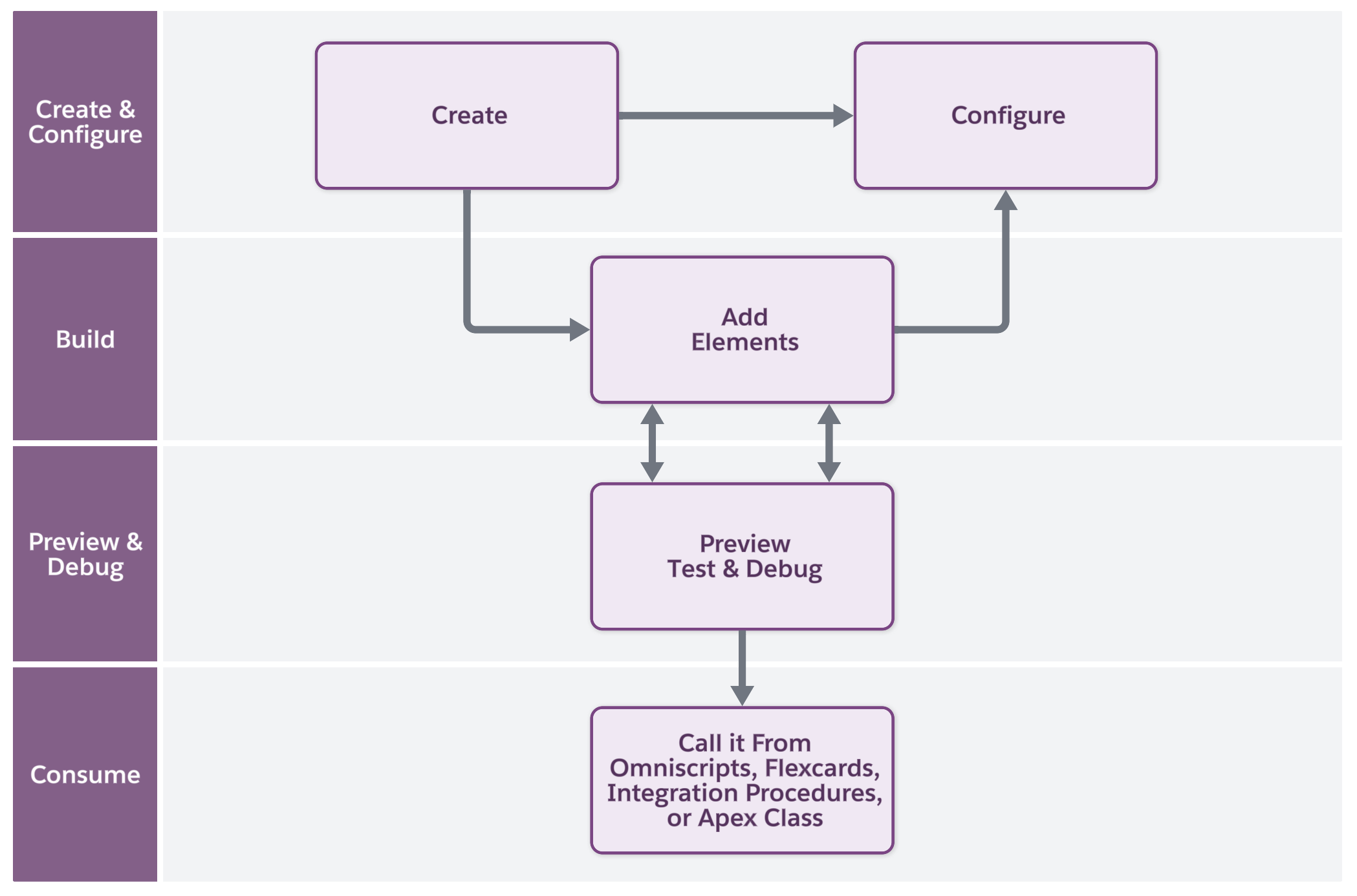
Use the Data Mapper Designer to build and configure server-side processes that declaratively retrieve, write, and modify data. You can create Data Mappers from the Omnistudio or Data Mappers app. Or you can create them from Data Mapper elements in Integration Procedures and Omniscripts.
From the App Launcher, open the Omnistudio Data Mapper app. Click New to create a Data Mapper, or click an existing Data Mapper from the list to edit it.
You must provide a unique name, an interface type, and input and output types. Then save your changes, before you can continue working on it. Build the Data Mapper by adding objects, filters, mappings, formulas, and editing input or output data in XML or JSON.
To limit who can run this Data Mapper, assign permissions. Enter roles, profiles, permission sets, or custom permissions that include runtime access. Examples: Role:Architect, Role:Developer, PermSet:OmniStudio Admin Group. See Syntax of the Required Permission Property.
After you create and configure your Data Mapper, you can preview and test it in the Preview pane. Add input parameters and then click Execute to run the procedure. When the Data Mapper finishes, you can see the response output, debug log, execution sequence, any errors, and other detailed information to help you debug and refine your Data Mapper.
When the Data Mapper works as expected, activate it to call it from Omniscripts, Flexcards, Integration Procedures, or Apex classes. As you continue to develop and refine a Data Mapper, you can save new versions to preserve earlier versions of your work. Only one version can be active at a time. When you activate a version, Omnistudio deactivates all other versions of the Data Mapper .
- Export or Import an Omnistudio Data Mapper
Export or import Data Mappers to use them in another org, such as when you create them in a sandbox. When exporting or importing data packs for Data Mappers, if you encounter Apex limit errors such as heap or CPU limits, reduce the size of the data pack by unselecting dependencies during the export process. Additionally, break the data pack into multiple smaller data packs. As a best practice, we recommend including no more than 10 elements in each data pack.
