
You are here:
Override all Elements of an Omniscript Element Type with a Custom Lightning Web Component
To override all elements of a type in an Omniscript, map the element to the custom Lightning web component. You can't directly drag these components to the Omniscript canvas and map them to their custom Lightning web component. These components include Step Chart, Save for Later Acknowledge, and Modal.
-
Create a custom LWC that extends the LWC and add the custom LWC to your Salesforce org.
Here are the extendable components:
- Step Chart:
omniscriptStepChart - Save for Later:
omniscriptSaveForLaterAcknowledge - Modal:
omniscriptModal
- Step Chart:
-
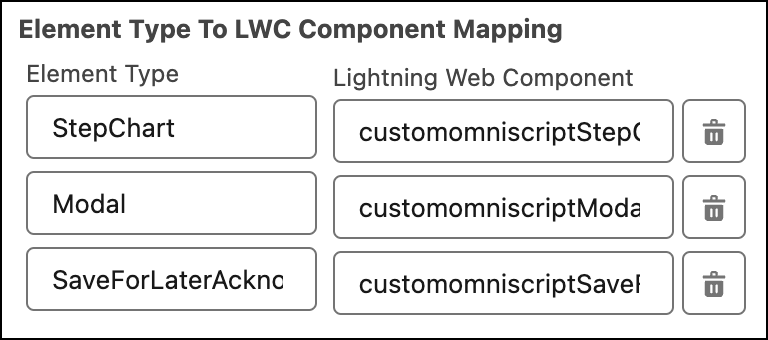
From the Omniscript Setup, scroll to the Element Type to the LWC Component Mapping property
and add mappings.
- Enter the element type that you want to customize.
- In the Lightning Web Component field, select your custom Lightning web component for the element type.
- Click Add Mapping to map another element type.
-
From the Setup panel, click Edit Properties As JSON, and add this
property:
“useCustomLMS”: true.This property enables customized components to communicate with the Omniscript standard runtime components.
- To close the property editor, click Close JSON Editor.
- Activate the Omniscript.
- Click Preview.
Did this article solve your issue?
Let us know so we can improve!
