
You are here:
View and Debug Action Requests and Response Data (Managed Package)
For the managed package runtime, after viewing your Omniscript data JSON in the Omniscript Designer, view and debug action requests and response data.
 This information is for Omnistudio for Managed Packages. For Omnistudio on standard runtime, see Omnistudio Help.
- In Preview, click Action Debugger to open the debug console.
- (Optional) Search for an action name in the Search field.
-
(Optional) To copy a specific node, click the clipboard icon next to the node. For
example, copy Remote Options in an Omnistudio Data Mapper Extract Action.
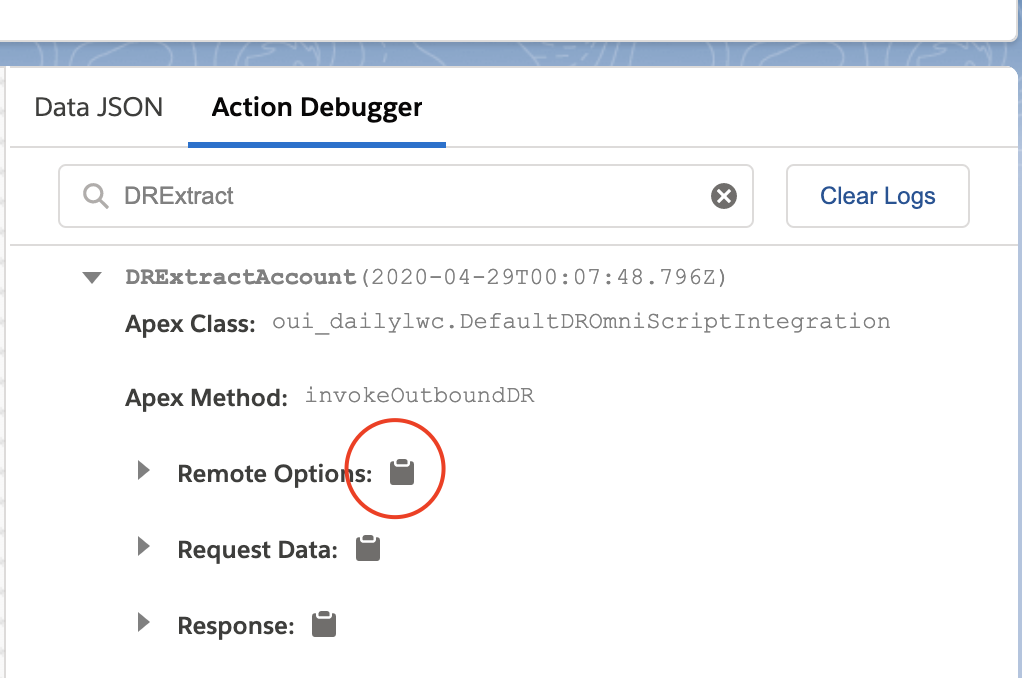
- (Optional) To clear the debug console, click Clear Logs.
-
(Optional) Click the reload icon to repopulate the debug console with new action
request and response data.

Did this article solve your issue?
Let us know so we can improve!
