
You are here:
Embed Your Preference Form into An External Site
Use the embed code, which contains the head style sheet link and the HTML script, to retrieve and embed the preference form into your site.
Required Editions
| Available in: Lightning Experience and Salesforce Classic in Developer, Enterprise, Performance, and Unlimited Editions |
You can only retrieve the embed code for published preference forms.
- From the Preference Manager dashboard, find the name of the form that you want to make accessible. On the right side of the row, click the down arrow to reveal your options.
- Click Get embed code, and copy the head style sheet and HTML
scripts.
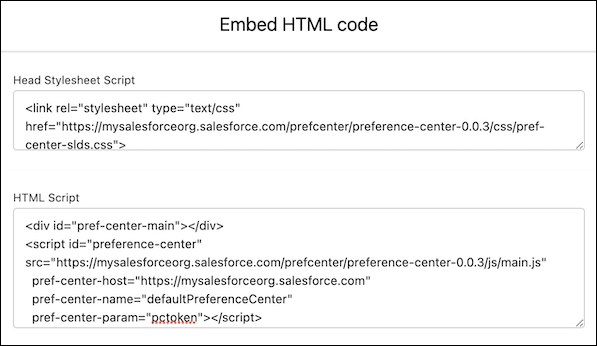
The embed code contains the head style sheet link and the HTML script used to retrieve and embed the preference form into your site. The head style sheet script contains the CSS code to render the form components using the Salesforce Lightning Design System. You can override these settings with your own CSS customizations.
For example, radio button lists are vertical by default, but you can customize the CSS to make the list vertical in your preference form.
<style type="text/css">
.slds-form-element__control .slds-radio{
   display : inline-block !important;
}
</style>
The HTML script contains a div tag, a script that loads the preference form code, the form configuration options, and any access token names. For example, the HTML script for an unauthenticated user can look like:
<div id="pref-center-main"></div>
<script id="preference-center" src="https://<mydomainname>.my.salesforce.com/prefcenter/preference-center-0.0.2/js/main.js"
  pref-center-host="https://<mydomainname>.my.salesforce.com"
  pref-center-name="SubscriptionCenter"
  pref-center-param="pctoken"></script>
The elements of the HTML script give details about the preference form.
- pref-center-host—where the form is hosted. This parameter is used for unauthenticated users.
- pref-center-param—the URL parameter that contains the access token. You can change this parameter name.
- pref-center-name—the API name of the preference form.
- network-base-path—use instead of pref-center-host when you want users to log in to your site to access the form. This approach doesn’t use the access token. Instead, it passes the user ID as the record ID.
