
You are here:
Loyalty Program Process Rule Actions
Trigger a range of actions for transaction journals that are processed by a rule. Depending on the business scenario of the rule, you can either trigger actions independent of any conditions or add actions as child steps of conditions.
Required Editions
| Available in: Lightning Experience |
| Available in: Enterprise, Performance, Unlimited, and Developer Editions with Loyalty Management |
Use actions to:
- Create records in the Loyalty Management app.
- Update records in the Loyalty Management app.
- Retrieve details of existing records in the Loyalty Management app.
- Run processes that the admin has set up.
When adding an action, specify input values that are used to process transaction journals. You can determine the inputs of the actions by the:
- Values that you specify
- Values decided by parameters that you define
- Values provided by the transaction journals that are processed or by their related records
Assign Parameter Values
You can assign values for one or more parameters that you defined for the process. The values that you assign are considered as the parameter value by the subsequent conditions and actions that use the parameter as an input.
You can use the Assign Parameter Values action multiple times in a rule and assign different values to a parameter. If the action is used twice to assign different values to a parameter, the value specified in the first instance is used by subsequent conditions and actions that are placed before the second instance. All the conditions and actions that are placed after the second instance use the value specified in the second instance of the Assign Parameter Values action.


Credit Points
Use this action to credit points to the loyalty program member who is associated with the transaction journal that's processed. In the action, provide these input values:
- Select the type of currency for which you want to credit points.
- Decide the number of points that you want to credit by:
- Entering a number
- Selecting a parameter
- Creating a formula
You can specify these optional values:
- The ID or information about a record for which the points are credited.
For example, a redeemed voucher for which the member is credited points.
- The expiration date of the points that are credited.
An expiration date can only be specified for fixed-type currencies. If you specify an expiration date, it overwrites the expiration date that's automatically calculated based on the currency's expiration period.
- A note that's added to the Loyalty Ledger record that credits the points to the member.
- Use a parameter to store the number of points that are credited to the member. You can use this value in subsequent conditions or actions.
Debit Points
Use this action to debit points from the points balance of the loyalty program member who is associated with the transaction journal that's processed. In the action, provide these input values:
- Select the type of currency for which you want to debit points.
- Decide the number of points that you want to debit by:
- Entering a number
- Selecting a parameter
- Creating a formula
You can specify these optional values:
- The ID or information about a record for which points are being credited.
For example, the order line for which points are being debited.
- A note that's added to the Loyalty Ledger record that debits the points from the member's points balance.
- Use a parameter to store the number of points that’s debited from the member's points balance. You can use this value in subsequent conditions or actions.
Issue Voucher
Use the Issue Voucher action to issue a voucher to the loyalty program member who is associated with the transaction journal. Select an existing Voucher Definition record that's used to issue the voucher. Enter a voucher code, or use a parameter or formula to generate unique voucher codes for each voucher being issued.
The effective data, expiration date, and the value of the voucher is automatically populated from the selected voucher definition. You can overwrite these values by either entering a value or using a parameter or formula. If you don't specify an effective date, the vouchers issued by the action automatically inherits the org's current date or the voucher definition's effective date as the effective date. Between the org's current date and the voucher definition's effective date, the voucher inherits the date that is later.
You can also add notes for the issued voucher. The notes are added to the Reason field of the issued voucher's record.
From the output parameters of the action, you can get the ID and the code of the issued voucher.
Redeem Voucher
Use the action to redeem the vouchers that members have used for their purchase. In the action, you can specify the code or the number of the voucher that has to be redeemed. If each issued voucher has a unique code, you can specify the voucher code. If multiple vouchers have the same code, use the voucher number to identify the voucher to redeem. For fixed value vouchers, you can specify the amount that the member has redeemed. If your org has multiple currencies activated, you can specify the currency that the member has redeemed the amount in.
If you redeem a partially redeemable fixed value voucher, get the details of the amount remaining and the currency of the remaining amount from the action’s output parameters.
Change Member Tier
Use this action to change the tier of members. Decide which tier members must be assigned by either selecting a tier or using a resource. You can also add the reason why a member’s tier is changed. In the output parameters, you can specify if the member’s updated tier is applicable for a specific period.
Create or Update Records
Use this action to create or update records in your org. Select whether you want to create or update records and then select the object for which you want to create or update records. After you select the object, you can specify the field values that are used to create or update the records. The action also allows you to store the ID of record that created or updated as an output parameter.
Increase Usage for Cumulative Promotion
Use this action to increase a member's usage toward reaching the target usage of the Cumulative type promotion that's associated with the rule. The specified value is added to the member's completed usage, and automatically updates the member's completion percentage toward reaching the promotion's target usage.
Update Usage for Cumulative Promotion
Use this action to update a member's usage toward reaching the target usage of the Cumulative type promotion that's associated with the rule. The specified value overwrites the current value of the member's completed usage. The action also automatically updates the member's completion percentage based on the specified value.

Get Member's Tier
Use this action to retrieve the name of the current tier of the member who is associated with the transaction journal being processed. Select the active tier group for which the action is to retrieve the member's current tier. To store the output of the action, select a parameter of the type Variable and of the data type Text.
After you fetch the member's current tier, use this information in subsequent conditions or actions to process the transaction journal.
Get Member's Points Balance
Use this action to retrieve the latest points balance and escrow points balance of the member. Select the currency for which you want to fetch the member's points balances. To store the outputs of the action, select two parameters. The action provides the member's points balance and escrow points balance as the outputs.
After you get the points balances of the members, use the information in subsequent conditions and actions.
Get Member Promotions
Use this action to get members’ promotions. You can choose to get promotions that members are already enrolled in to, promotions that members can enroll in to, and ineligible promotions. You can also choose to get all promotion of the member including member’s eligible and ineligible promotions.
The action only lists promotions that are associated with segments whose activation’s last publish status is Success and whose last publish date is closest to the segment’s last processed date. The action ignores promotions associated with segments whose last publish status isn’t Success.
Update Current Value for the Member Attribute
Use this action to update a member's progress for an engagement attribute. In the action, select the engagement attribute for which you want to update the member's progress and provide these inputs:
- Select the engagement attribute for which the member's value must be updated.
- Select whether you want to increase, decrease, or overwrite the current value.
- Enter the value by which you want to either increase, decrease, or overwrite the current value.
The action provides a list of outputs after updating the member's progress for the selected attribute, including the member's updated current value. All outputs represent the member's values from the current period of the engagement attribute. You can store the output values in parameters and then use the values in subsequent steps.

Get a Member's Attribute Values
Use this action to get the details of the Loyalty Program Member Attribute Value record that represents the current period of the engagement attribute that you select. In the action, select the engagement attribute for which you want to fetch the member's current period details. The action provides a list of outputs that contain the member's current period values for the engagement attribute. You can use these values for other processes.
Assign Badges to Members
In a loyalty program process rule, use the Assign Badge to Member action to assign badges to members. The action assigns the badge to a member for whom the rule’s related loyalty program process is run. If the process is run to credit points to a member, the badge is assigned to the member to whom points are credited. In the action, you provide values for these inputs:
- Select the badge that's assigned to the member.
- Select Active as the status of the member’s badge.Tip To expire member badges that have passed the validity end date, admins can create and run a Data Processing Engine definition.
- Enter an end date when the badge is no longer assigned to the member.
If you don’t enter a date, the validity end date is automatically calculated based on the badge’s validity defined in the Loyalty Program Badge record.
- Specify the reason for assigning the badge to the member.
Check Member Badge Assignment
Use the action to check whether a badge is assigned to a member for whom the rule’s related loyalty program process is run. In a rule, use the action to verify whether the member is assigned a badge already to ensure that the badge isn’t assigned to the member multiple times. If the badge is associated with a reward, you can check whether the member is assigned the badge and then reward the member. In the action, you provide these inputs:
- Select the badge that you want to assign to check if the member is already assigned the badge.
- Select whether to check if the member’s badge is active or expired.
The action provides these outputs:
- Indicates whether the badge is assigned to the member. You can store this output in a Boolean data type parameter.
- Provides the validity end date of the member badge. You can store this output in a Date data type parameter.
Get Outputs from a Decision Table
Use this action to run a standard type decision table that has been set up by the admin for a Loyalty Management process. Select the decision table that is to be run, and then enter values for the input fields of the decision table. You can either enter a value, use a parameter, or create a formula to provide a value for the decision table's input fields. The decision table evaluates the input that you provided based on its business rules, and then provides the outcome.
If the selected decision table contains a dataset link, you can select the dataset link. If you select a dataset link, provide values for the input fields of the dataset link instead of the input fields of the decision table.
Decision tables provide these outputs.
| Output | Description | Store In |
|---|---|---|
| Outcome Type | Indicates whether single or multiple outcomes have been provided. | Text data type parameter |
| Single Outcome | Outcome that the decision table provides. | Sobject data type parameter You must select the source object of the decision table as the parameter's object. When you add the parameter in the Single Outcome field, ensure that you only select object and not one of its fields. |
- A parameter that stores the product that’s associated with the transaction journal.
- A parameter that stores the transaction amount field of the transaction journal.
The decision table provides a single output: the number of points to redeem. This output is used as the value for the Points to Debit field of the subsequent Debit Points action.
Run Program Process
Use this action to run another loyalty program process. Select the process, and then enter values for the input and output parameters of the process. You can either enter a value, use a parameter, or create a formula to provide a value for the input parameters. For parameters that are both input and output parameters, either provide the value using a resource or a parameter. The values that you specify for the parameters are used to run the rules in the selected process.
Here's the list of scenarios for which you can use the Run Program Process action:
| Use Case | Example |
|---|---|
| Run a Transaction Journal type process from a rule in Tier Processing type process | A Tier Processing type process is used to change the tier of members and the rule in the process runs a Transaction Journal type process that credits points to members whose tier has changed. |
| Run a Transaction Journal type process from a rule in another Transaction Journal type process | A Transaction Journal type process is used to credit non-qualifying points to members and the rule in the process runs a Transaction Journal type process that credits qualifying points to members |
| Run a Tier Processing type process from a rule in a Transaction Journal type process | A Transaction Journal type process is used to credit points to members and the rule in the process runs a Tier Processing type process to upgrade the tier of members who are eligible for a tier change. |
Run a Flow
Use this action to run a Loyalty Management Flow type flow that has been created by your admin. Select the flow, and then enter the values for the input fields that the admin has defined.
Get Member Partner Linkage Status
Use this action to retrieve the active linkage details for the member associated with the transaction that’s processed. This action gets data in-memory during real-time or batch processing to ensure efficient rule execution for transaction and tier processing.
When the system processes a partner transaction, use this action to verify whether the member has an active link to their partner account. After you retrieve the member's linkage status, use this information in subsequent conditions and actions to apply transactional benefits, such as points or vouchers.
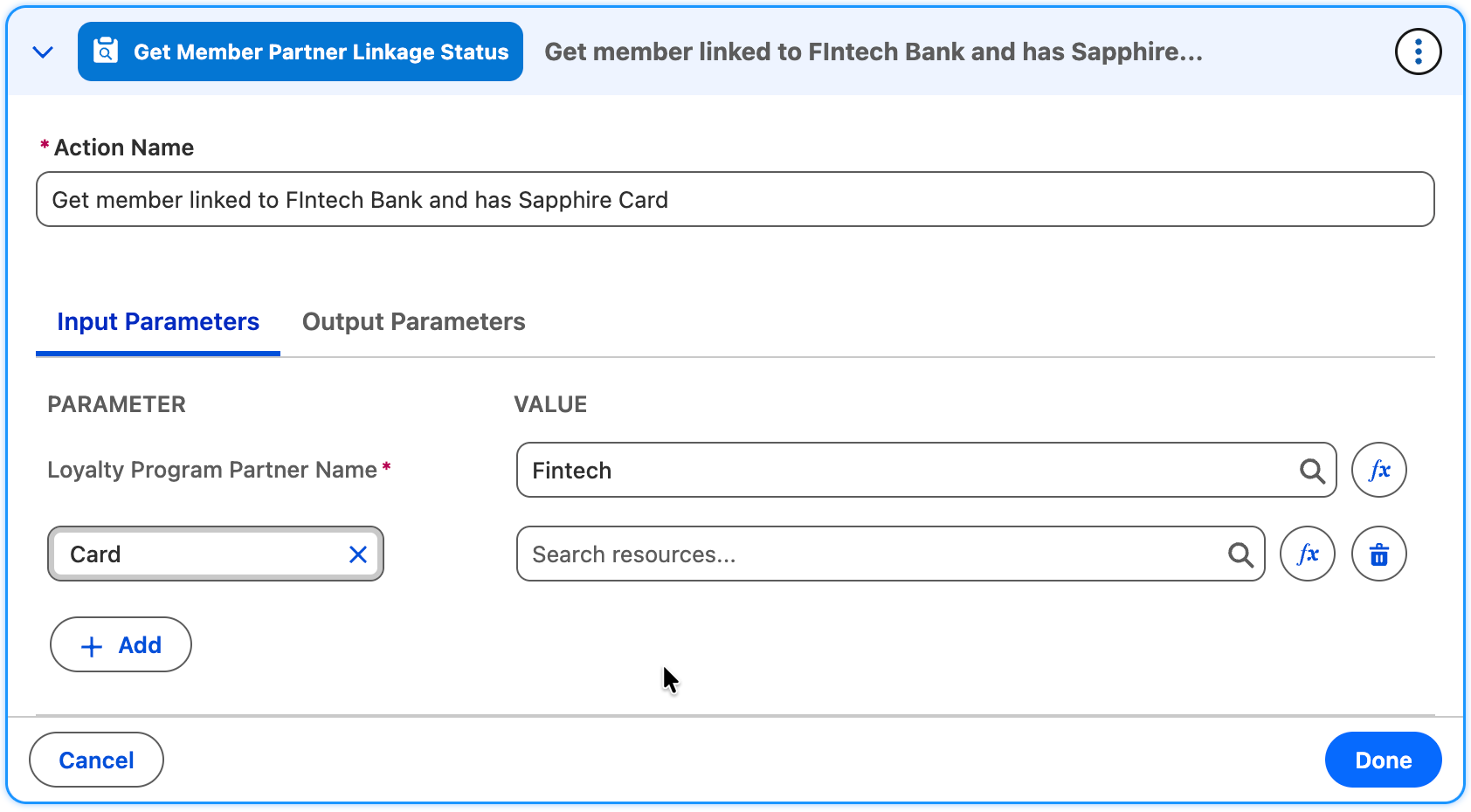
The Get Member Partner Linkage Status action supports custom parameters. You can create and store custom parameters in the Loyalty Program Member Linked Partner object. Provide custom fields as input values to meet specific business requirements. Since a partner can maintain multiple linkages with a single loyalty membership, you can configure unique rewards based on specific linked products.
- Loyalty Management Flow Type
To create flows that the Run a Flow action triggers, use the Loyalty Management Flow type in the Flow Builder. You can use a restricted number of elements in flows of the type Loyalty Management Flow. - Dynamic Parameters for Loyalty Actions
When you define an action in the Promotion Setup rules for a loyalty program process, you can create process parameters to pass the input values either dynamically or by selecting inputs from a fixed set.
