
You are here:
Report on Quip User Engagement with Salesforce Reports
Use reports and dashboards to understand trends in user engagement on embedded documents and templates.
Required Editions
| Available in: Lightning Experience |
| User Permissions Needed | |
|---|---|
| To create and update custom report types: |
|
| To build a dashboard: |
|
Quip engagement metrics apply to templates and documents added to Quip Lightning components. Quip engagement metrics are turned on by default in all orgs with Quip enabled, except for Salesforce sandboxes. It takes 24 hours for metrics data to refresh.
-
Enable the Quip Metrics and Quip User Engagement Metrics permission sets.
- In Setup, enter Permission Sets in the Quick Find box.
- Select the permission set you want to assign Quip user engagement metrics to, or assign it to a new one. Users assigned the Quip User Engagement Metrics permission set can see all linked document titles, regardless of their individual access to them. They can also see which users are interacting with documents associated with Salesforce records.
- Under System, click System Permissions and then Edit.
- Enable Quip User Engagement Metrics and Quip Metrics.
- Save the action.
-
To add metrics for templates and document user engagement to a Lightning report, create a
custom report type.
- In Setup, enter Report Types in the Quick Find box.
- Click New Custom Report Type.
-
Select a Quip Primary Object for your custom report type.
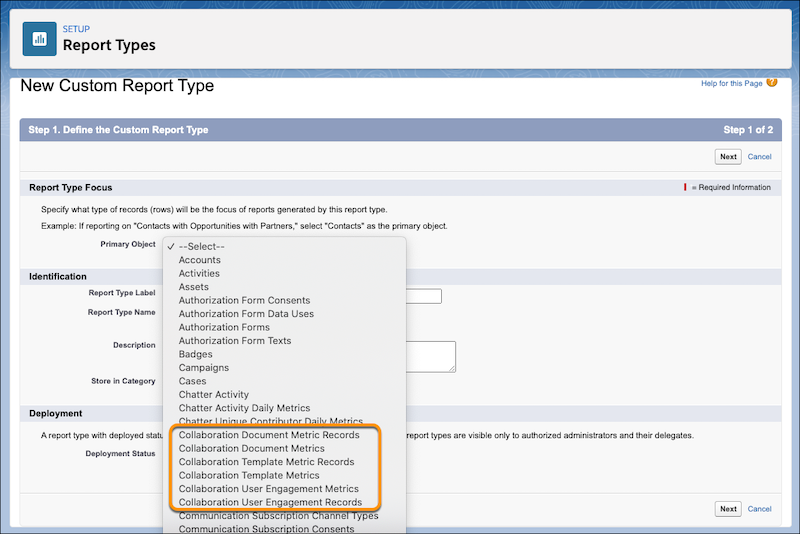
 Tip Quip objects begin with Collaboration. See Quip Engagement Objects.
 -
Enter the Report Type Label and the Report Type
Name.
The label can be up to 50 characters long. If you enter a name that is longer than 50 characters, the name gets truncated. SOAP API uses the name.
- Enter a description for your custom report type of up to 255 characters. If you enter a name that is longer than 255 characters, the name gets truncated.
- Select the category where you want to store the custom report type.
- Select a Deployment Status. Click Next and then save your changes. Quip metric objects don’t have any child objects.
- To use Collaboration User Engagement Metrics and get metrics on specific user fields like Salesforce user IDs, add fields via lookup.
-
Click Edit Layout.
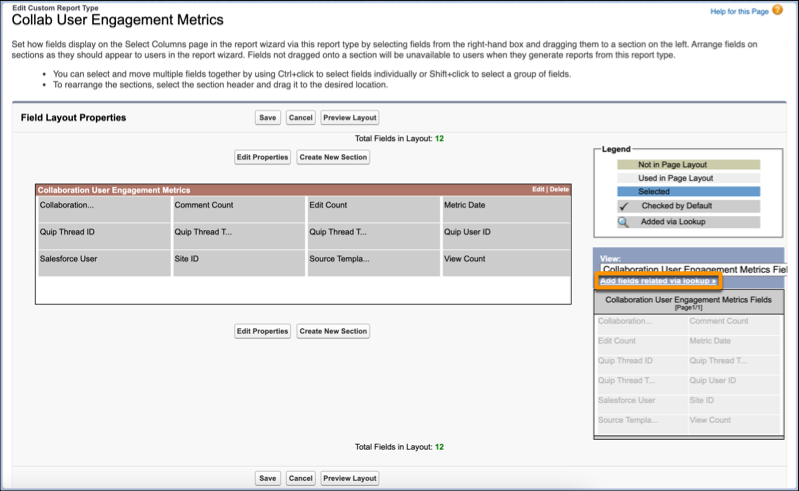
- Under View: Collaboration User Engagement Metrics Fields, click Add fields related via lookup.
- Select Salesforce User, and choose the fields you want to add. Click OK.
- Save the action.
-
Create a report using your new custom report type.
- In Salesforce, go to the Reports tab and click New Report.
- Select your new custom report type and click Continue.
- Set the Last Updated Date to All Time and click Run.
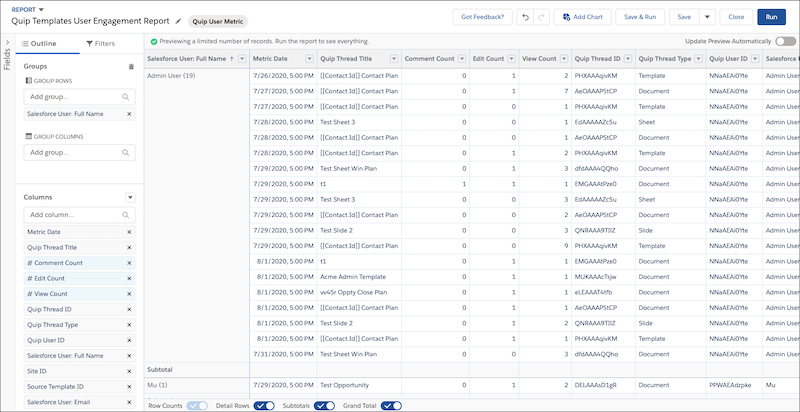
- Add your report to an existing or new Lightning dashboard.
Did this article solve your issue?
Let us know so we can improve!
