
Loading
Get Started with Salesforce
Table of Contents
Select Filters

          No results
          No results
          Here are some search tips

          Check the spelling of your keywords.
          Use more general search terms.
          Select fewer filters to broaden your search.

          Search all of Salesforce Help
          Register a Built-In Authenticator as an Identity Verification Method for Salesforce Orgs

          Register a Built-In Authenticator as an Identity Verification Method for Salesforce Orgs

          Register a built-in authenticator such as Touch ID, Face ID, or Windows Hello so you can use it to verify your identity when logging in with multi-factor authentication (MFA) or if you receive a device activation challenge. Built-in authenticators use biometric readers on your device such as fingerprint or facial scanners. Some built-in authenticators also let you verify your identity with a PIN or password. The registration process sets up your built-in authenticator as a personal verification method by creating a connection between your Salesforce account and the authenticator. If you don’t see this option, talk to your Salesforce admin about enabling it.
          Required Editions

          Available in: both Salesforce Classic and Lightning Experience
          Available in: all editions

          Keep these things in mind before you use built-in authenticators.

          • Before registering a built-in authenticator such as Touch ID, Face ID, or Windows Hello, make sure the service is enabled and set up on your device.
          • A built-in authenticator is tied to a single device. If you access Salesforce from multiple devices, make sure you have a secondary verification method registered, such as Salesforce Authenticator. Otherwise, you need a temporary verification code from your admin to log in on your other devices.
          • To register a built-in authenticator on any new device, you must be currently logged in to Salesforce on that device. The initial login requires a secondary verification method or a temporary code from your admin.
          • Your device, operating system, and browser must support the FIDO2 WebAuthn standard. For more information, see the FIDO website and the WebAuthn guide.
          • Built-in authenticators aren’t available for Experience Cloud sites, when logging in to the Salesforce mobile app, or for users accessing Salesforce through an API.

          If you didn’t register a verification method before MFA was turned on for your org, you’re prompted to do so when you log in. Follow the onscreen instructions to select and register a built-in authenticator, using Steps 4 through 6 for extra guidance. If you’re already logged in, you can register a built-in authenticator from your personal settings in Salesforce by following these steps.

          1. From your personal settings, in the Quick Find box, enter Advanced User Details, and then select Advanced User Details. No results? In the Quick Find box, enter Personal Information, and then select Personal Information.
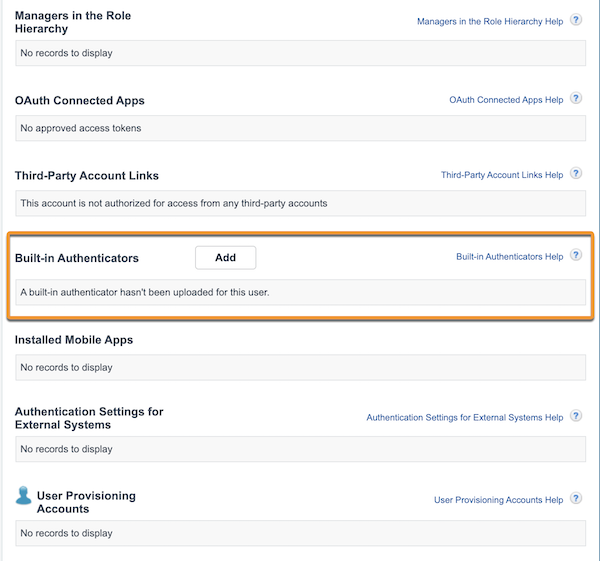
          2. Scroll down to find Built-in Authenticators, and then click Add.

            If you don’t see this option, your Salesforce admin hasn’t enabled it for your org.

            Built-in authenticators on the Advanced User Details page
          3. For security purposes, you’re sometimes prompted to either log in again or verify your identity.
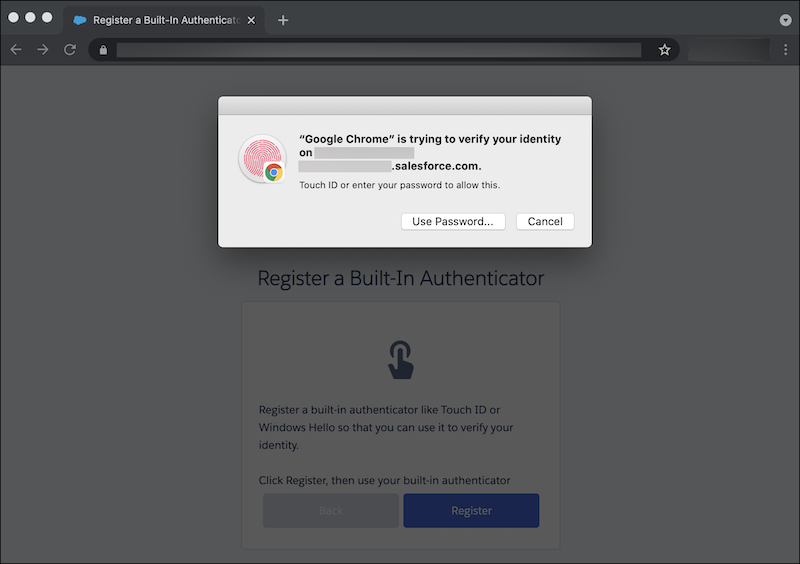
          4. At the prompt from Salesforce, click Register.
          5. At the prompt from your browser, provide the identifier that you previously set up with your built-in authenticator, such as your fingerprint, facial scan, PIN, or password.

            For example, if you’re registering Touch ID, use your fingerprint scanner.

            Browser prompt to use built-in authenticator
          6. Assign a name to your built-in authenticator and save.
          Note
          Note To help keep your account secure, we send you an email notification whenever a new identity verification method is added to your Salesforce account.

          Your built-in authenticator is now registered as one of your verification methods. When logging in with MFA and Salesforce asks you to verify your identity, click Verify, then use your built-in authenticator.

           
          Loading
          Salesforce Help | Article